Recent Searches
Category

Microsoft Power BI

Category

Microsoft Copilot Courses

Category

AI for Business

Category

Microsoft Windows 11 Courses

Category

Microsoft 365

Category

Microsoft Excel

Category

Excel Specialist

Category

Microsoft Project

Category

R Programming

Category

Python

Category

Power Apps

Category

SQL

Category

SharePoint

Category

Microsoft Teams

Category

Power Automate

Category

Microsoft Visio

Category

Microsoft PowerPoint

Category

Microsoft Word

Category

Microsoft Outlook

Category

Adobe InDesign Courses

Category

Adobe Photoshop Courses

Category

Adobe Illustrator Courses

Category

Adobe Premiere Pro Training

Category

Adobe After Effects Training

Category

Adobe Acrobat Courses

Category

Adobe Captivate Training

Category

Adobe Animate Training

Category

Canva Courses

Category

HTML Courses

Category

WordPress

Category

Professional Development

Category

Microsoft Access

Category

Articulate

Category

Webinars

Course

Power BI Beginner

Course

Copilot for M365

Course

Windows 11 End User Course

Course

Excel Beginner

Course

Financial Modelling

Course

Project Beginner

Course

R Programming Beginner

Course

Python Beginner

Course

Power Apps Beginner

Course

SQL Beginner

Course

SharePoint Beginner

Course

Teams Essentials

Course

Visio Essentials

Course

PowerPoint Level 1

Course

Word Intermediate

Course

Word Beginner

Course

Word Advanced

Course

Microsoft Outlook Beginner to Intermediate

Course

InDesign Lite

Course

Photoshop Lite

Course

Illustrator Training Intro

Course

Premiere Training Intro

Course

After Effects Training Intro

Course

Acrobat Essentials

Course

Captivate Training

Course

Animate Training Intro

Course

HTML Training Intro

Course

Achieving Leadership & Success

Course

Microsoft Access Essentials

Course

Articulate Storyline 360 Essentials

Course

Build Your EQ Power: Practical Skills for Everyday Work

Course

Power BI Intermediate

Course

Copilot for Word

Course

ChatGPT Beginner

Course

Excel Intermediate

Course

Analysis and Dashboards

Course

Project Intermediate

Course

R Programming Intermediate

Course

Python Intermediate

Course

Power Apps Intermediate

Course

SQL Intermediate

Course

SharePoint Intermediate

Course

PowerPoint Level 2

Course

InDesign Training Intro

Course

Photoshop Training Intro

Course

Acrobat Forms

Course

Anger Management & Negotiation Skills

Course

Articulate Storyline 3 & 360 Advanced

Course

Practical Project Management Webinar

Course

Power BI Advanced

Course

Copilot for Excel

Course

AI Prompting Fundamentals

Course

Excel Advanced

Course

Excel VBA

Course

Project Advanced

Course

R Programming Advanced

Course

Python Advanced

Course

Power Apps Intermediate | Power Automate + Power BI Integration

Course

SharePoint Advanced (Site Owner)

Course

InDesign Training Advanced

Course

Canva Beginners

Course

Assertiveness & Confidence

Course

Microsoft Access Advanced

Course

Minutes Taking Webinar

Course

Power BI DAX

Course

Copilot for PowerPoint

Course

Excel Expert

Course

Machine Learning in R

Course

Power Apps Advanced

Course

SharePoint Advanced (Document Governance)

Course

Canva Intermediate

Course

Building Resilience

Course

Maximising Your Copilot Investment: Turning AI into Real Productivity Gains

Course

Copilot for Outlook and Teams

Course

Canva Advanced

Course

Coaching and Mentoring

Course

AI in the Workplace Webinar

Course

Illustrator Training Advanced

Course

Premiere Basics Training

Course

Advanced After Effects Training

Course

Canva AI

Course

WordPress Essentials

Course

Communications

Course

Writing Great Prompts for AI

Course

Microsoft Copilot Studio Building AI Agents

Course

AI for Business Leaders and Managers

Course

Photoshop Training Advanced

Course

Advanced Premiere Training

Course

Communications & Quality Client Service Training

Course

Inclusive App Development with Power Apps

Course

Power BI Copilot Training

Course

AI Governance Training

Course

InDesign Interactivity Training

Course

Critical Thinking and Problem Solving

Course

Microsoft 365 Copilot Immersion

Course

Copilot for Customer Service

Course

InDesign Accessibility Training

Course

Cultural Diversity in the Workplace

Course

Copilot for Executives and Managers

Course

Microsoft Outlook Advanced

Course

Embracing Change

Course

Copilot for Finance

Course

SQL Advanced

Course

Growing Emotional Intelligence

Course

Copilot for HR

Course

Planner Premium

Course

Minute Taking

Course

Copilot for Legal Services

Course

Microsoft 365 Essentials

Course

Excel Tables and Pivot Tables

Course

Power Automate Beginner

Course

Data Transformation with Power Query

Course

Copilot for Marketing

Course

Excel Macro Mastery

Course

Power Automate Intermediate

Course

Persuasion and Negotiation Skills

Course

Power BI Desktop Advanced Reporting

Course

Copilot for Operations

Course

Presentation Skills and Public Speaking

Course

Data Visualisation with Power BI Desktop

Course

Copilot for Sales

Course

Practical Project Management

Course

Respect, Equity and Diversity (RED)

Course

Resumé Writing and Interview Skills

Course

Stress Management

Course

Team Leadership, Management and Development

Course

Time Management Intensive

Course

Train the Trainer

Course

Write Effective Business Documents

Course

Dealing with Difficult People

Course

Managing Difficult Conversations

Course

Managing the Virtual Workplace

Course

Customer Service Training

Course

Technical Writing

IMPORTANT

The instructor has a responsibility to deliver training to the whole class. To facilitate this, you may be removed or denied entry to a session if:

  • you join late and are disrupting the class
  • have not followed the set-up instructions and are unprepared
  • are experiencing technical difficulties

If this occurs, contact Head Office on 1300 886 190 and we will assist.

Checklist - are you ready for your course?

  • Laptop or desktop computer
  • Second screen (if unavailable a tablet will suffice)
  • NOTE: Mobile phones are too small to be used as a second screen.
  • Speakers and Microphone
  • Webcam (recommended)
  • Reliable high-speed internet
  • Active Microsoft 365 licence with access to Microsoft 365 apps
  • Ability to access Microsoft 365 Office on the web via a browser (https://www.office.com)
  • Login to your student portal to:
  • Download course files - if required for your course.
  • Get link to your online meeting - generated one day before your course.
  • Software and Exercise Files - select your course below and follow instructions.
  • Read "What to do on training day" section below.

Troubleshooting

Click on your issue below for suggested solutions.

Login icon Can't log in to the portal?
  • Do not use Incognito or InPrivate browser mode.
  • Ensure your browser allows cookies (including third-party cookies).
  • Corporate VPNs and strict security settings may block access to the site or files.
  • Try using a public internet connection (not via VPN) and adjust security settings if possible.
Book icon Can't see your enrolments in the portal?
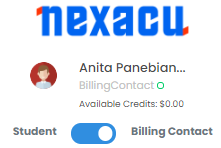
  • You may be in Billing Contact mode.
  • Switch the toggle to Student to view your course details.
Student Portal toggle example
Microsoft Office icon Using an outdated version of Microsoft Office?
  • Microsoft has ended support for Office 2016 and 2019 as of October 14, 2025.
  • Upgrade to Microsoft 365 or Office 2021 to stay secure and compatible with course materials.
  • Older versions may display different menus or lack features used in our training exercises.

Download your Software and Exercise Files

Do not wait until your course date to get set up – get started now!

Select your course below and follow the instructions.

Excel Courses – Beginner to Expert
  • Microsoft Excel
    • Excel (desktop application) must be installed on your device.
    • Check you are licensed to use it.

    • Supported versions: Microsoft 365 (desktop) or Office 2021. Older versions (e.g., 2016/2019) are no longer supported after October 14, 2025.
    • Required versions by course level:
    • Excel Beginner & Excel Intermediate: Microsoft 365 (desktop) or Office 2021.
    • Excel Advanced & Excel Expert: Microsoft 365 (desktop) subscription required (some features are Microsoft 365–only).
  • Browser:
    • Use Chrome, Edge, or Firefox (latest version).
    • Internet Explorer is not compatible with our delivery technologies
  • Windows
    • Windows 11 (recommended) for best compatibility.
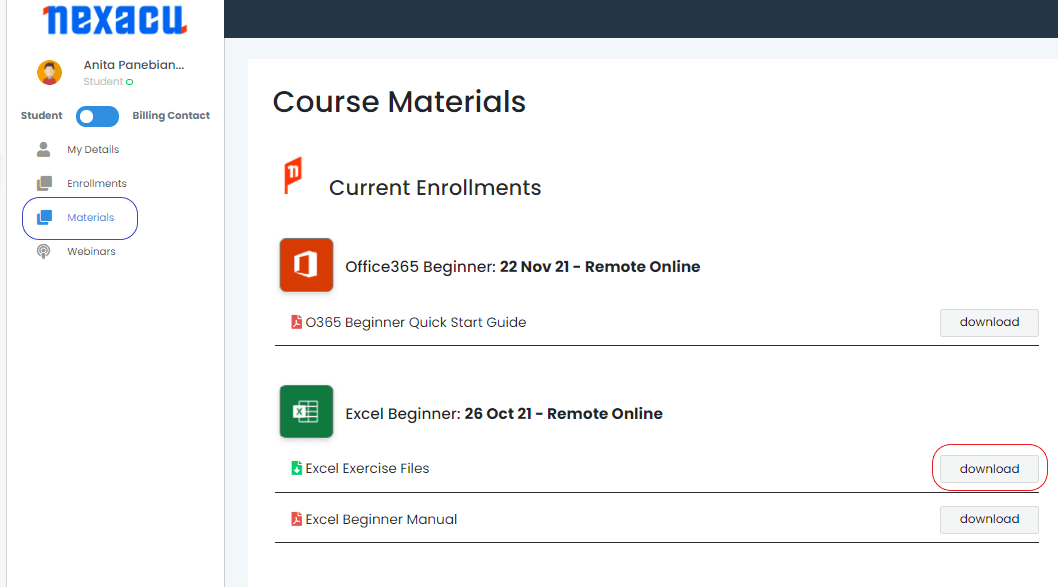
  • Download and Unzip Files
  • Download your exercise files.
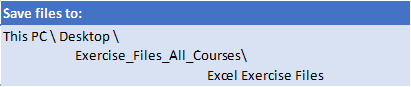
  • Extract your Exercise Files to the specified folder below:
  • How to save files to the folder specified above:
  • On your computer (in This PC) create a folder called Exercise_Files_All_Courses
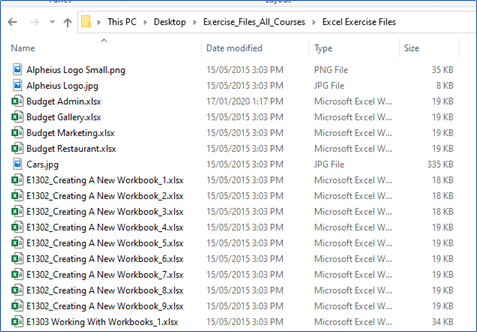
  • Create another folder under this called Excel Exercise Files.
  • All files should be unzipped or copied to this folder.
  • macOSIf you are using an Apple device:
    • Use Safari or similar modern browser
    • Training experience may diminish due to different features and appearance
    • Nexacu's trainers are unable to provide detailed guidance for macOS
Outlook Courses – Beginner to Advanced
  • Microsoft Outlook
    • Microsoft Outlook (desktop application) must be installed on your device.
    • Supported versions: Microsoft 365 (desktop) or Office 2021. Older versions are no longer supported after October 14, 2025.
    • Adobe Acrobat Reader required for you to view notes
  • Browser:
    • Use Chrome, Edge, or Firefox (latest version).
    • Internet Explorer is not compatible with our delivery technologies
  • Windows
    • Windows 11 (recommended) for best compatibility.
  • Download and Unzip Files
    • Login to your student portal, Nexacu Hub.
    • Click on the "Materials" tab.
    • Download your exercise files.
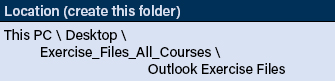
    • Extract your Exercise Files to the specified folder below:

  • How to save files to the folder specified above:
  • On your computer (in This PC) create a folder called Exercise_Files
  • Create another folder under this called Outlook Exercise Files.
  • All files should be unzipped or copied to this folder.
  • macOS - If you are using an Apple device:
    • Use Safari or similar modern browser
    • Training experience may diminish due to different features and appearance
    • Nexacu / City Desktop Training's trainers are unable to provide detailed guidance for macOS
Power BI Courses – Beginner to Advanced
  • Power BI
    • Install the latest Power BI Desktop (available for Windows only)
    • https://powerbi.microsoft.com/en-us/downloads/
    • Power BI Beginner course: 32-bit or 64-bit version supported
    • Power BI Intermediate to DAX courses: 64-bit version strongly recommended, not 32-bit.
    • To find the Power BI Desktop version you are running, open the app, click on the Help tab and select About.
  • Windows
    • Windows 11 (recommended) for best performance and compatibility.
  • Download and Unzip Files

  • Download your exercise files.
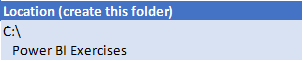
  • Extract your Exercise Files to the specified folder below:

  • Power BI Beginner:
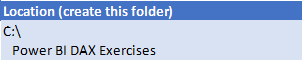
Power BI DAX Course
  • Power BI
    • Install the latest Power BI Desktop (available for Windows only)
    • https://powerbi.microsoft.com/en-us/downloads/
    • Power BI Intermediate to DAX courses: 64-bit version strongly recommended, not 32-bit.
    • To find the Power BI Desktop version you are running, open the app, click on the Help tab and select About.
  • Windows
    • Windows 11 (recommended) for best performance and compatibility.
  • Download and Unzip Files

  • Download your exercise files.
  • Extract your Exercise Files to the specified folder below:

Microsoft 365 Courses
  • Microsoft Teams
    • Install the Microsoft Teams desktop application.
  • Windows
    • Windows 11 (recommended) for best compatibility.
  • Download and Unzip Files (Advanced Only)

  • Download your exercise files.
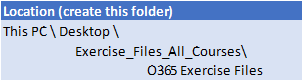
  • Extract your Exercise Files to the specified folder below:

SharePoint Courses
  • Download and Unzip Files
    • Login to your student portal.
    • Click on the "Materials" tab.
    • Download your exercise files.
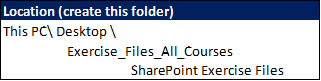
    • Extract your Exercise Files to the specified folder below:

Teams Courses
  • Microsoft Teams
    • Install the Microsoft Teams desktop application.
  • Access your Course Guide
Power Automate Courses
  • Microsoft Teams
    • Install the Microsoft Teams desktop application.
  • Access your Course Guide
  • Power Automate Advanced Only
    • Make sure you have the latest version of Power Automate Desktop installed.
Power Apps Courses
  • Microsoft Teams
    • Install the Microsoft Teams desktop application.
  • Download and Unzip Files

  • Download your exercise files.
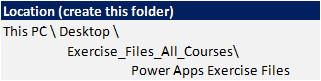
  • Extract your Exercise Files to the specified folder below:

Microsoft Project Courses
  • Project
    • Install Microsoft Project desktop application (Windows only)
    • Confirm you have a valid license: Project Standard or Professional, or Project Plan 3 or Plan 5 (not Plan 1).
    • Supported versions: Microsoft 365 (desktop) or Office 2021.
  • Windows
    • Windows 11 (recommended) for best compatibility.
  • Download and Unzip Files

  • Download your exercise files.
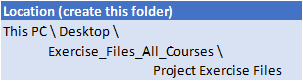
  • Extract your Exercise Files to the specified folder below:

R Programming Courses

R Programming Basics

  • Install R - https://cran.csiro.au/ - select base
  • Install RStudio - https://rstudio.com/products/rstudio/ - RStudio Desktop (open source ed.)
  • Install Hmisc and psych packages. Open RStudio and go to Tools > Install Packages. Under Packages, type 'Hmisc'. Repeat for 'psych'.
    • If you have difficulty installing the packages, go to Tools > Global Options > Packages and untick 'Use secure download method for HTTP'.

R Programming Beginner

  • Install R and RStudio (see links above)
  • Install the tidyverse (Tools > Install Packages > tidyverse)

R Programming Intermediate

  • Install R and RStudio (see links above)
  • Install the Hmisc and tidyverse packages (see instructions above)
Machine Learning in R
  • Install R and RStudio (see links above)
  • Install Power BI Desktop (see Power BI section above)
  • Download dataset from:
  • Go to Data Folder and download the zip file. We will be working with the hour file.
  • Run the following in RStudio (or install each of these packages):

install.packages("DescTools")

install.packages("factoextra")

install.packages("tidyverse")

install.packages("rfm")

install.packages("cluster")

install.packages("rpart")

install.packages("rpart.plot")

install.packages("caret")

install.packages("ranger")

install.packages("Metrics")

install.packages("randomForest")

  • Test R scripts in Power BI
    • Open the Power BI file named Test.
    • Click on Transform Data.
    • With the query Test selected:
    • Click on Run R Script
    • Copy the following into the window:

library(tidyverse)

y <- dataset %>% sqrt

  • If asked about privacy levels, grant access or ignore.
  • If successful, you should see a table containing the square roots of numbers 1-10.
  • If it fails, email [email protected].
Python Courses
  • Download and Unzip Files
    • Login to your student portal, Nexacu Hub.
    • Click on the "Materials" tab.

  • Download your exercise files.
  • Python Intermediate
    • You can work in a new or existing Anaconda environment.
    • Ensure the following packages are installed:
      • pandas
      • NumPy
      • Matplotlib
      • scikit-learn
      • Bokeh
SQL Courses
  • Download and Unzip Exercise Files
  • Login to your student portal.
  • Click on the "Materials" tab.
  • Download your exercise files.

Visio Courses
  • Install Microsoft Visio desktop application (Windows only) – click here for instructions (Subscription version)
  • Confirm you have a valid license: Visio Plan 2.
  • Supported versions: Microsoft 365 (desktop) or Office 2021 where applicable.
  • Windows
    • Windows 11 (recommended) for best compatibility.
  • Download and Unzip Files
    • Login to your student portal, Nexacu Hub.
    • Click on the "Materials" tab.
    • Download your exercise files.
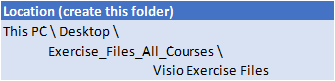
    • Extract your Exercise Files to the specified folder below:

  • Download your exercise files.
  • Extract your Exercise Files to the specified folder below:

Word Courses
  • Microsoft Word
    • Do you have the latest version of Word installed?
    • Are you licensed to use it?
    • Supported versions: Microsoft 365 (desktop) or Office 2021.
  • Browser:
    • Use Chrome, Edge, or Firefox (latest version).
    • Internet Explorer is not compatible with our delivery technologies
  • Windows
    • Windows 11 (recommended) for best compatibility.
  • Download and Unzip Files
    • Login to your student portal, Nexacu Hub.
    • Click on the "Materials" tab.

  • Download your exercise files.
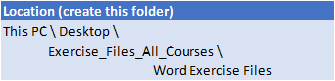
  • Extract your Exercise Files to the specified folder below:

  • macOS - If you are using an Apple device:
    • Use Safari or similar modern browser
    • Training experience may diminish due to different features and appearance
    • Nexacu's trainers are unable to provide detailed guidance for macOS
PowerPoint Courses
  • Microsoft PowerPoint
    • Do you have the latest version of PowerPoint installed?
    • Are you licensed to use it?
    • Supported versions: Microsoft 365 (desktop) or Office 2021.
  • Browser:
    • Use Chrome, Edge, or Firefox (latest version).
    • Internet Explorer is not compatible with our delivery technologies
  • Windows
    • Windows 11 (recommended) for best compatibility
  • Download and Unzip Files
    • Login to your student portal, Nexacu Hub.
    • Click on the "Materials" tab.

  • Download your exercise files.
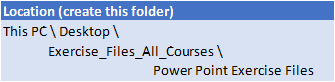
  • Extract your Exercise Files to the specified folder below:

  • macOS - If you are using an Apple device:
    • Use Safari or similar modern browser
    • Training experience may diminish due to different features and appearance
    • Nexacu's trainers are unable to provide detailed guidance for macOS
Adobe InDesign Courses
  • Adobe InDesign
    • Do you have the latest version of Adobe InDesign & Adobe Bridge installed?
    • Are you licensed to use it?
    • Adobe Acrobat Reader required for you to view notes
  • Browser:
    • Use Chrome, Edge, or Firefox (latest version).
    • Internet Explorer is not compatible with our delivery technologies
  • Windows
    • Windows 11 (recommended) for best compatibility
  • Download and Unzip Files
    • Login to your student portal, Nexacu Hub.
    • Click on the "Materials" tab.
    • Download your exercise files.
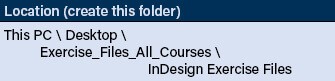
    • Extract your Exercise Files to the specified folder below:

  • How to save files to the folder specified above:
  • On your computer (in This PC) create a folder called Exercise_Files
  • Create another folder under this called InDesign Exercise Files.
  • All files should be unzipped or copied to this folder.
  • macOS - If using an Apple device:
    • Use Safari or similar modern browser
    • Training experience may diminish due to different features and appearance
    • Nexacu trainers cannot provide detailed macOS guidance
Adobe Illustrator Courses
  • Adobe Illustrator
    • Do you have the latest version of Adobe Illustrator & Adobe Bridge installed?
    • Are you licensed to use it?
    • Adobe Acrobat Reader required for you to view notes
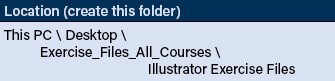
  • Download and Unzip Files
    • Login to your student portal.
    • Click on the "Materials" tab.
    • Download your exercise files.
    • Extract your Exercise Files to the specified folder below:

Adobe Photoshop Courses
  • Adobe Photoshop
    • Do you have the latest version of Adobe Photoshop & Adobe Bridge installed?
    • Are you licensed to use it?
    • Adobe Acrobat Reader required for you to view notes
  • Browser:
    • Use Chrome, Edge, or Firefox (latest version).
    • Internet Explorer is not compatible with our delivery technologies
  • Windows
    • Windows 11 (recommended) for best compatibility
  • Download and Unzip Files
    • Login to your student portal, Nexacu Hub.
    • Click on the "Materials" tab.
    • Download your exercise files.
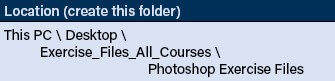
    • Extract your Exercise Files to the specified folder below:

  • How to save files to the folder specified above:
  • On your computer (in This PC) create a folder called Exercise_Files
  • Create another folder under this called Photoshop Exercise Files.
  • All files should be unzipped or copied to this folder.
  • macOS - If you are using an Apple device:
    • Use Safari or similar modern browser
    • Training experience may diminish due to different features and appearance
    • Nexacu / City Desktop Training's trainers are unable to provide detailed guidance for macOS
Adobe Premiere Pro Courses
  • Adobe Premiere Pro
    • Do you have the latest version of Adobe Premiere Pro & Adobe Media Encoder installed?
    • Are you licensed to use it?
    • Adobe Acrobat Reader required for you to view notes
    • Optional Applications: Adobe Bridge & Handbrake
    • Premiere Pro Advanced course:
      • Adobe Audition (Required)
      • Adobe Photoshop (Optional)
  • Browser:
    • Use Chrome, Edge, or Firefox (latest version).
    • Internet Explorer is not compatible with our delivery technologies
  • Windows
    • Windows 11 (recommended) for best compatibility
  • Download and Unzip Files
    • Login to your student portal, Nexacu Hub.
    • Click on the "Materials" tab.
    • Download your exercise files.
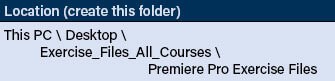
    • Extract your Exercise Files to the specified folder below:

  • How to save files to the folder specified above:
  • On your computer (in This PC) create a folder called Exercise_Files
  • Create another folder under this called Premiere Pro Exercise Files.
  • All files should be unzipped or copied to this folder.
  • macOS - If you are using an Apple device:
    • Use Safari or similar modern browser
    • Training experience may diminish due to different features and appearance
    • Nexacu / City Desktop Training's trainers are unable to provide detailed guidance for macOS
Adobe After Effects Courses
  • Adobe After Effects
    • Do you have the latest version of Adobe After Effects & Adobe Media Encoder installed?
    • Are you licensed to use it?
    • Adobe Acrobat Reader required for you to view notes
    • Optional Applications: Adobe Bridge & Handbrake
    • After Effects Advanced course:
      • Cinema 4D Lite (Activated)
      • Adobe Premiere Pro
      • Adobe Bridge
      • Adobe Character Animator
  • Browser:
    • Use Chrome, Edge, or Firefox (latest version).
    • Internet Explorer is not compatible with our delivery technologies
  • Windows
    • Windows 11 (recommended) for best compatibility
  • Download and Unzip Files
    • Login to your student portal, Nexacu Hub.
    • Click on the "Materials" tab.
    • Download your exercise files.
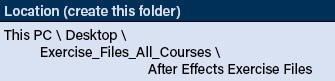
    • Extract your Exercise Files to the specified folder below:

  • How to save files to the folder specified above:
  • On your computer (in This PC) create a folder called Exercise_Files
  • Create another folder under this called After Effects Exercise Files.
  • All files should be unzipped or copied to this folder.
  • macOS - If you are using an Apple device:
    • Use Safari or similar modern browser
    • Training experience may diminish due to different features and appearance
    • Nexacu / City Desktop Training's trainers are unable to provide detailed guidance for macOS

Your Virtual Classroom

  • Find your meeting link in your Final Confirmation Email or in your Student Portal.
  • Join your class at least 15 mins. before your class start time.
What to do on Training Day
  • Join your class at least 15 mins. before the start time.
  • Keep your microphone on mute unless speaking.
  • Keep your webcam on for a more interactive learning experience.
  • Ask questions and participate as you would in the classroom.
  • Let the trainer know if you:
    • can’t hear or see something,
    • have difficulty with any exercises.
  • While the trainer is sharing their screen, you can zoom and pan using your mouse:
    • Hold Ctrl and use the mouse wheel to zoom in or out.
    • Hold Ctrl and press the plus and minus keys.

How to join class with Teams
  1. Find your meeting link in your Final Confirmation Email or in your Student Portal.
  2. Click the link to join your session using Microsoft Teams.
  3. Teams can be accessed via the Desktop Application or the Browser.

Teams Desktop Application

If Teams is installed and you are logged in under your work or school account:

  • Click your meeting link and you will be taken to:
    • Teams desktop or
    • a browser prompt to open Microsoft Teams.
  • Proceed as normal to join the meeting.

Teams via the Browser

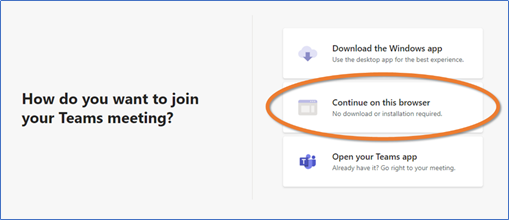
  • After clicking the meeting link your browser will open.
  • Cancel any prompt to open or download Microsoft Teams.
  • Click Continue on this browser.

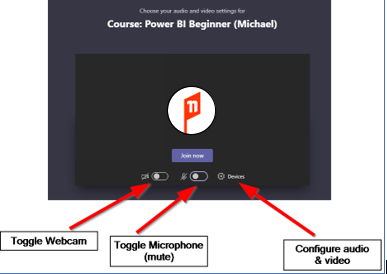
  • Allow access to your microphone and camera.
  • Enter your full name in the Enter name box (unless automatically signed in).
  • Turn on your webcam.
  • Mute your microphone.

  • Click Join now.
  • Wait in the lobby — your trainer will let you into the meeting.

Trusted Nationwide by Leading Organisations

at Nexacu, we're proud to be the trusted training partner for hundreds of leading organisations across Australia and New Zealand. From government departments to top corporates, we help teams upskill and succeed everyday

  • 400+ companies rely on Nexacu for team training
  • Trusted by federal, state, and local government agencies
  • Delivering training across 9 countries

Why Nexacu?

step by step courseware

Step by Step Courseware

Custom workbook included with a step by step exercises

Facility Image 2
Facility Image 3
Facility Image 1

Interactive real time training

Interactive, Real-Time Training

Learn with expert instructors, wherever you are

More than 1,300 Business trust Nexacu

Trusted by Business

Procured by Government

Procured by Goverment

Reviews Not Found

Valued by Individuals