What is the Windows 11 training course?
The Windows 11 training course is a practical course for everyday users who want to build confidence using Windows 11. It covers the Windows 11 interface, Start menu, Taskbar, Settings, File Explorer, file management, OneDrive, built-in apps, productivity tools, security features and common troubleshooting options.
Who should attend Windows 11 training?
This course is suitable for users upgrading from Windows 10, people new to Windows-based systems, workplace teams, administration staff and everyday computer users who want to work more efficiently and securely in Windows 11.
Do I need technical experience to attend this course?
No technical experience is required. Basic computer skills and internet access are recommended, as the course involves navigating the Windows 11 interface, managing files, using settings and working with common built-in tools.
What will I learn in this Windows 11 course?
You will learn how to navigate Windows 11, use the desktop, Start menu, Taskbar and Settings, manage files and folders, use File Explorer, personalise your desktop, work with OneDrive, use built-in productivity tools, manage updates and access basic troubleshooting options.
Is this course suitable for users moving from Windows 10 to Windows 11?
Yes. The course is useful for users upgrading from Windows 10 because it explains key Windows 11 interface changes, new design features, updated navigation, multitasking tools and practical differences between Windows 10 and Windows 11.
Does the course cover file management in Windows 11?
Yes. The course covers File Explorer basics, organising files and folders, managing the desktop, using OneDrive and cloud storage, and understanding backup and restore options for everyday workplace use.
Will I learn how to customise Windows 11?
Yes. You will learn how to personalise your background, themes, Taskbar, desktop icons, accessibility settings and user account options so Windows 11 is easier to use for your working style.
Does Windows 11 training cover productivity tools?
Yes. The course covers built-in productivity tools such as Microsoft Edge, Sticky Notes and Snipping Tool, along with relevant Office apps and Microsoft Store app management where available in the course environment.
Will I learn about Windows 11 security and updates?
Yes. The course introduces Windows Security tools, Windows updates, maintenance options and basic troubleshooting steps to help users work more securely and resolve common issues.
Does the course cover Snap Layouts, Widgets and other Windows 11 features?
Yes. The course introduces Windows 11 features such as Snap Layouts, Virtual Desktops, Widgets, Clipboard History, Nearby Sharing and Microsoft Teams integration where available in the current Windows 11 setup.
Do I need access to Windows 11 before attending?
Windows 11 access is recommended so you can practise the course tasks. Windows 11 access can be provided if needed, depending on the course setup. Check the course page or booking information before attending.
Can I attend Windows 11 training online or face-to-face?
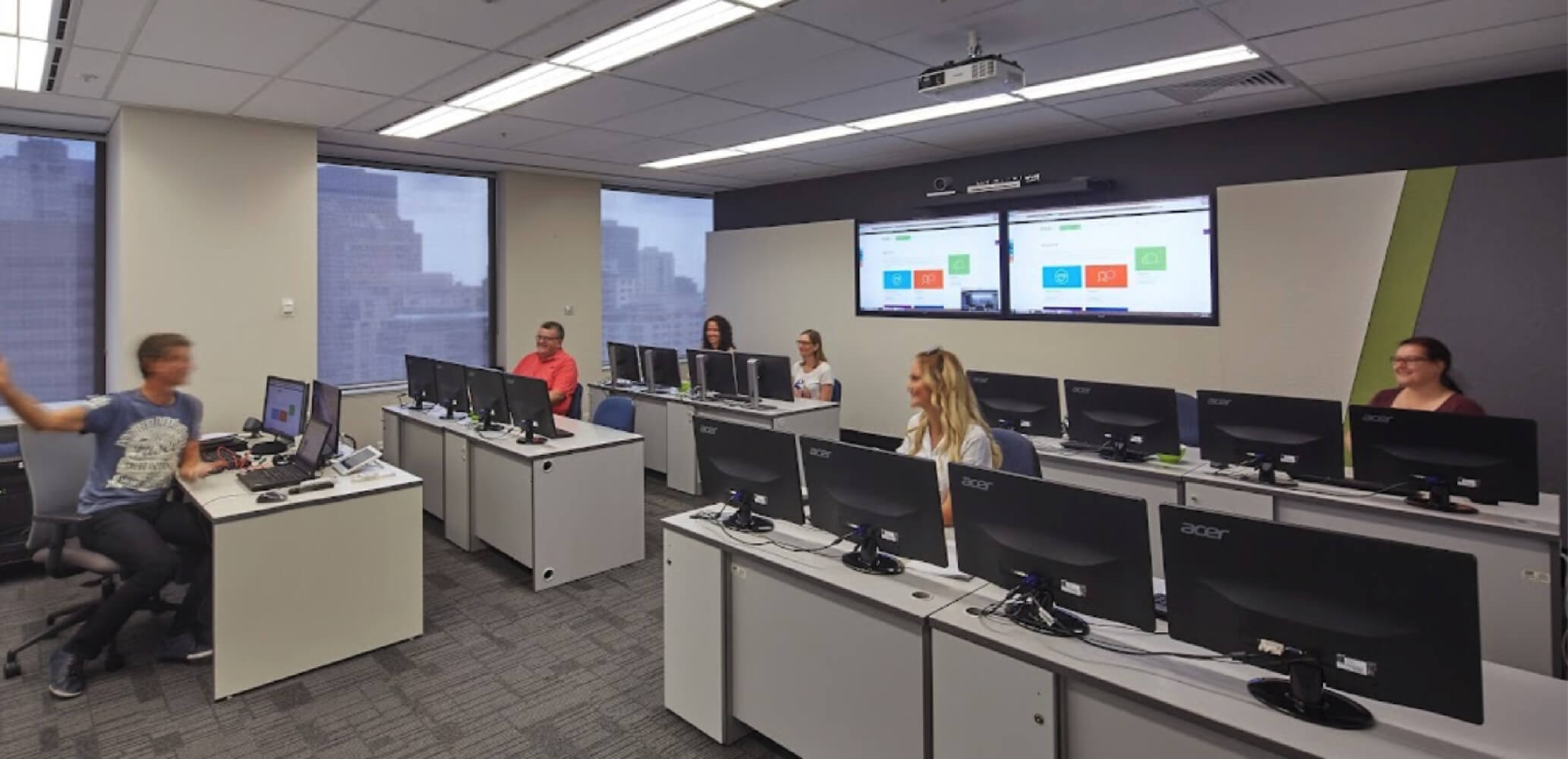
Windows 11 training may be available live online or face-to-face, depending on the current Nexacu schedule. Check the course page for available dates, locations and delivery options before booking.