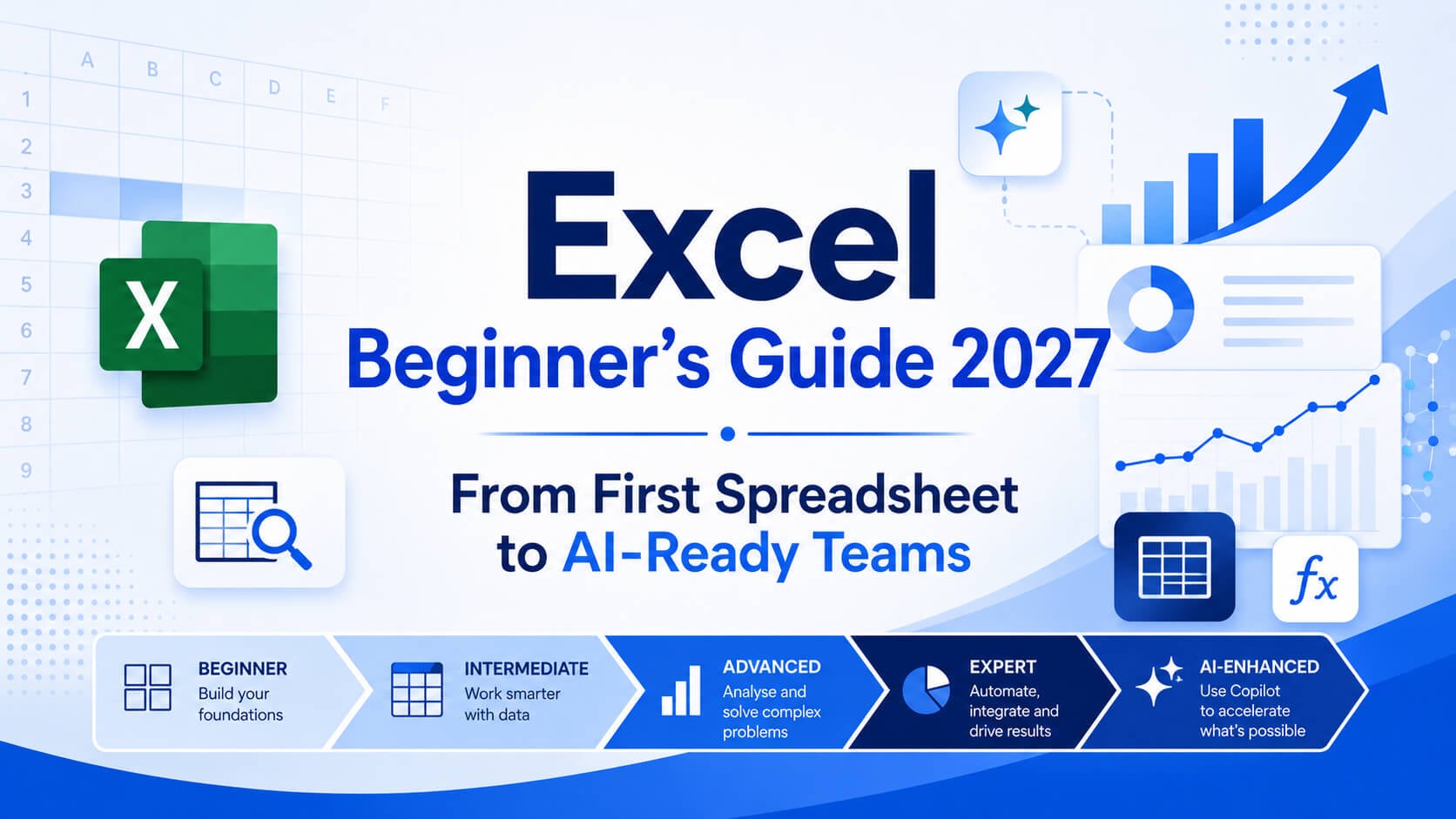
Excel Beginner’s Guide 2027: The Complete Path from First Spreadsheet to AI-Ready Teams
Microsoft Excel is one of the most widely used workplace tools for organising, calculating and analysing data. This guide explains the essential skills beginners should learn first, the full Excel pathway from Beginner to Expert, and how Copilot can support individuals and teams once the fundamentals are in place.
Excel has not become less relevant with the rise of workplace AI. In many organisations, it is becoming more important because AI-assisted tools still depend on clean data, reliable formulas and sound judgement.
Microsoft Copilot can help create formulas, analyse information and prepare reports, but users still need to understand what the spreadsheet is doing. The strongest combination is not AI instead of Excel skills. It is AI built on top of solid Excel skills.
In this guide, we explain what to learn first, how to progress through each Excel level, where specialist training fits, and how role-based Copilot workshops can help workplace teams apply AI more effectively.
TL;DR: Start with the level that matches what you can already do, not the title you want to reach.
If you are unsure, use the free Skills Test before booking. For teams, establish a consistent Excel baseline before introducing role-based Copilot training.
1) What Is Microsoft Excel?
Microsoft Excel is a spreadsheet application used to organise, calculate, analyse and present information. A spreadsheet is built from cells arranged in rows and columns. Those cells can contain text, numbers, dates, formulas, functions and links to other data.
Excel is used across almost every business function. Finance teams use it for budgeting, forecasting and reporting. Operations teams use it for schedules, stock tracking and process management. Marketing teams use it to organise campaign data and compare performance. Administrators use it for registers, rosters and recurring reports.
Its value comes from flexibility. A simple list can become a formatted table. A table can become a PivotTable. A PivotTable can become a dashboard. Repetitive steps can be automated through macros, VBA or connected Microsoft tools.
Practical read: Excel is useful because it can support both simple day-to-day tasks and complex reporting workflows without requiring a separate system for every job.
2) What Should an Excel Beginner Learn First?
A beginner does not need to learn every Excel feature. The immediate goal is to understand the small set of skills that appears in everyday workplace spreadsheets.
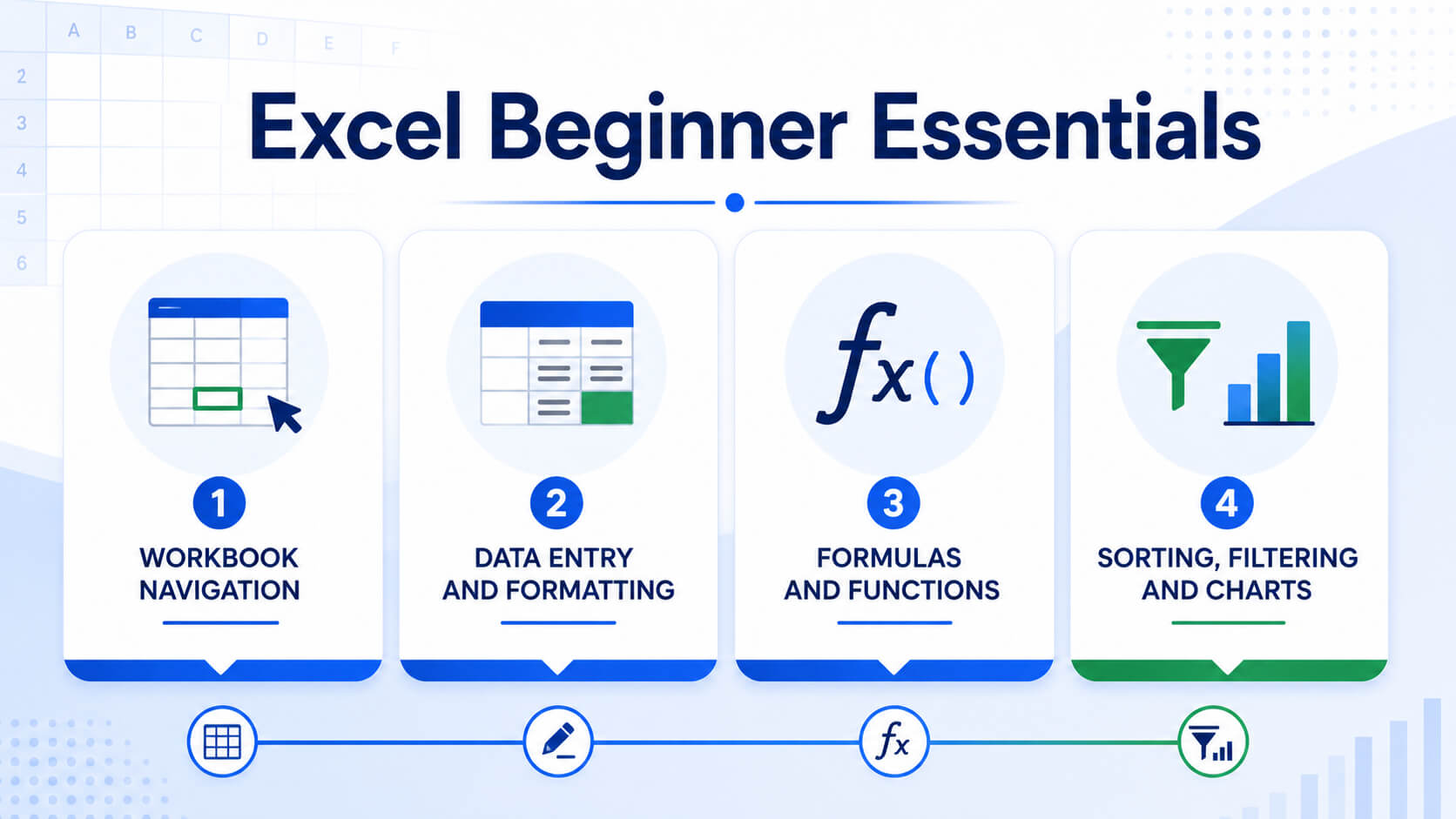
Understand workbooks, worksheets, rows, columns, cells and ranges. Learn how to move quickly and organise worksheet tabs.
Enter text, numbers and dates consistently, then apply headings, number formats, borders and clear column widths.
Start with SUM, AVERAGE and COUNT. Learn how cell references work and how formulas update when data changes.
Use sorting and filtering to find information, then create simple charts that communicate a result clearly.
These four areas create the foundation for lookup functions, PivotTables, dashboards, dynamic arrays and automation later in the pathway.
3) How to Get Started in Excel Step by Step
The simplest way to start is to learn Excel in a practical order. Each step should build on the one before it.
Practise with a file you understand, such as a monthly budget, sales list, project tracker or roster. Familiar data makes it easier to recognise whether the result is correct.
4) Common Excel Beginner Mistakes
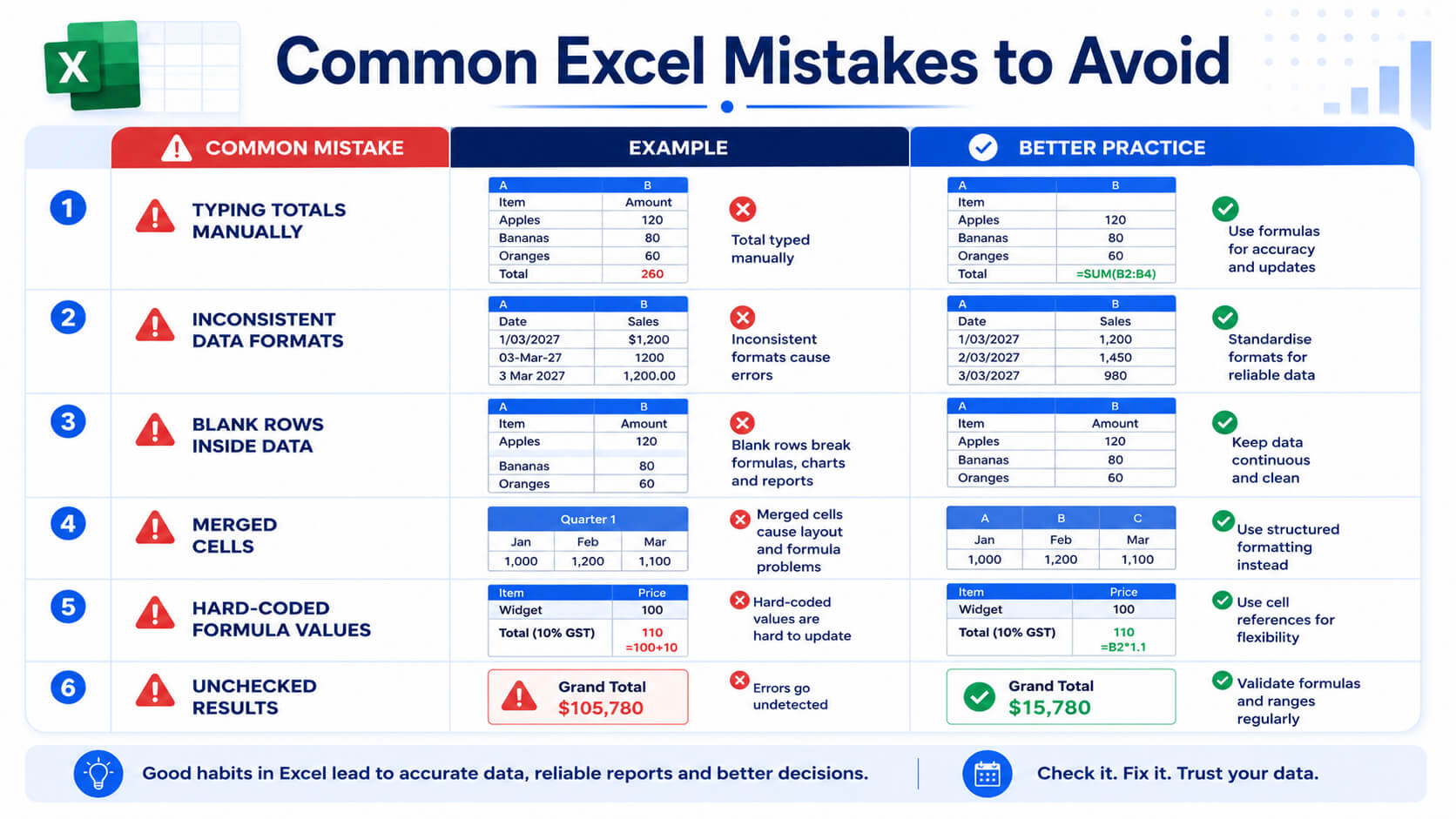
- Typing totals manually: Use formulas so results update when source data changes.
- Using inconsistent formats: Mixed date, number and text formats make analysis unreliable.
- Leaving blank rows inside data: Blank rows can interrupt filters, tables and PivotTables.
- Merging cells throughout a worksheet: Merged cells can interfere with sorting, filtering and copying.
- Hard-coding values in formulas: Refer to source cells rather than repeatedly typing fixed values.
- Using colour without meaning: Formatting should clarify the data, not make the worksheet busier.
- Avoiding PivotTables: PivotTables are often easier than maintaining multiple manual summaries.
- Trusting results without checking: Review formula logic, source ranges and output before using the spreadsheet for a decision.
Most errors come from weak structure or inconsistent habits rather than a lack of ability. Learning the correct method early is usually easier than fixing a fragile workbook later.
5) How Long Does It Take to Learn Excel Basics?
With structured, instructor-led training, a complete beginner can learn the main workplace fundamentals in a single day. Nexacu’s Excel Beginner course covers navigation, formulas, formatting, sorting, filtering and practical data management.
That does not mean someone becomes an Excel expert in one day. It means they leave with a reliable foundation and a clearer way to practise. Confidence develops when those skills are applied to real work over the following days and weeks.
Self-teaching can also work, but it often takes longer because beginners do not always know which features to prioritise. It is easy to learn a workaround without realising that Excel already includes a faster and more reliable tool.
Find your current Excel level
Take the free Nexacu Skills Test and receive a recommendation based on your current knowledge.
6) Your Excel Career Path: Beginner to Expert
Many people learn Excel reactively. They pick up a formula when a deadline demands it, copy a colleague’s workbook and build workarounds around the parts they do not understand. This can work for a while, but knowledge gaps become more obvious as the data grows or the reporting becomes more important.
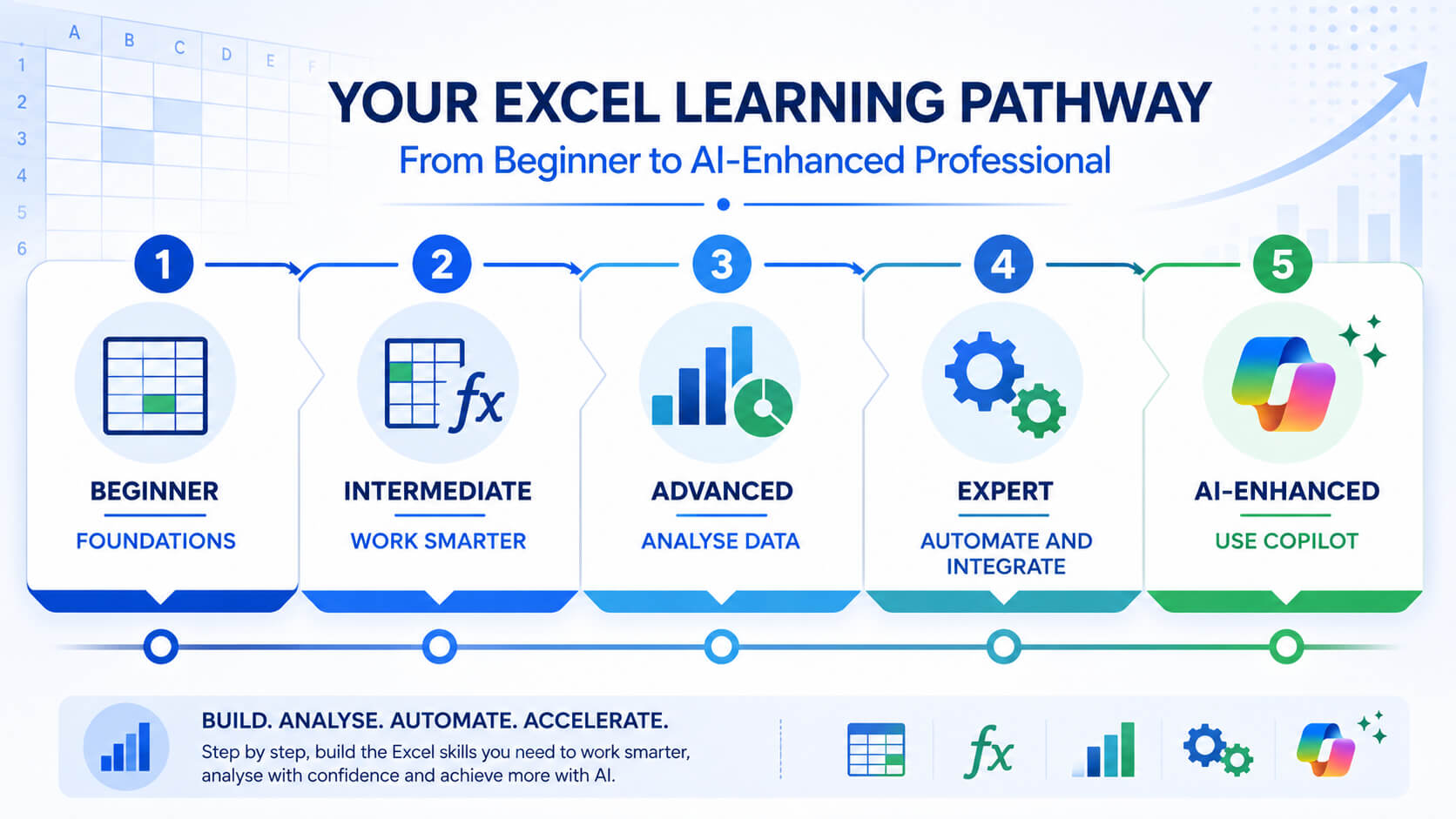
A structured Excel pathway shows what each level is designed to achieve and what to learn next.
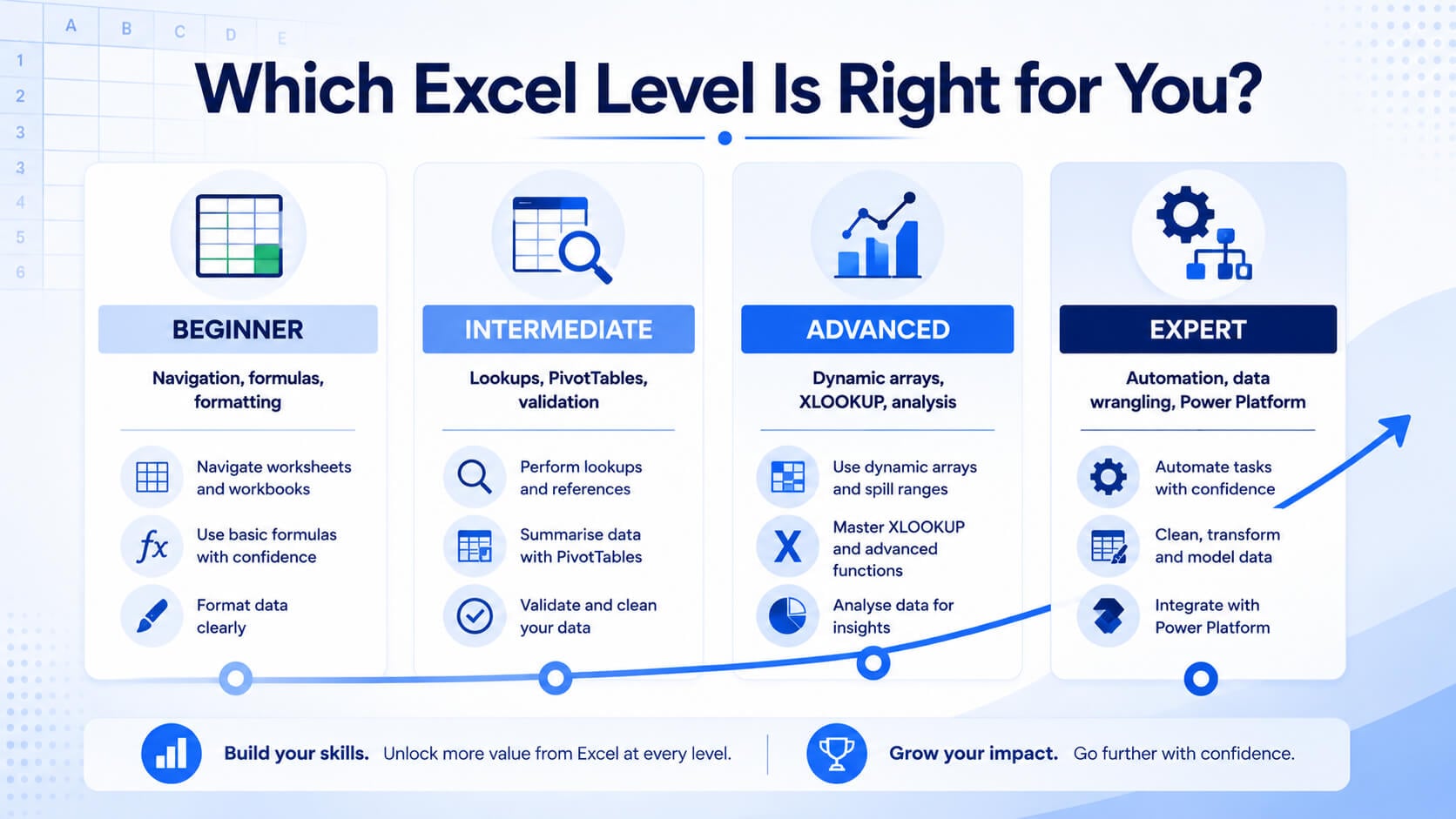
Excel Beginner: Build a reliable foundation
Choose Excel Beginner when you are new to Excel, use it only occasionally or are not confident with formulas and spreadsheet structure. The course focuses on creating clean worksheets, completing everyday calculations and working confidently with lists.
Excel Intermediate: Work faster and analyse more
Choose Excel Intermediate when you can create a basic spreadsheet but need stronger formulas, PivotTables and reporting tools. It is often the right next step for administrators, analysts, finance staff and managers who use Excel regularly.
Excel Advanced: Use modern analysis tools
Choose Excel Advanced when you already work comfortably with formulas and PivotTables and want to use dynamic arrays, structured references, XLOOKUP, INDEX and MATCH.
Excel Expert: Connect data, automation and the Power Platform
Choose Excel Expert when Excel is a major part of your role and you need stronger data preparation, automation and integration with Microsoft Power Platform tools.
7) Specialist Excel Courses: PivotTables, Macros, Modelling and VBA
The core Beginner to Expert pathway provides broad capability, but not every learner needs the same specialisation. Choose the next course based on the work you need to complete.
Best for users who need to summarise, consolidate and visualise larger data sets.
Best for users who repeat the same manual process each week or month.
Best for finance, commercial and planning roles that build budgets, forecasts and business cases.
Best for users who need Power Query, analysis techniques and decision-ready dashboards.
Best for advanced users who want to build custom spreadsheet solutions and automations.
8) Where Does Copilot for Excel Fit?
Microsoft Copilot for Excel can help users clean and analyse data, generate formulas, build dashboards and prepare reports using natural-language instructions.
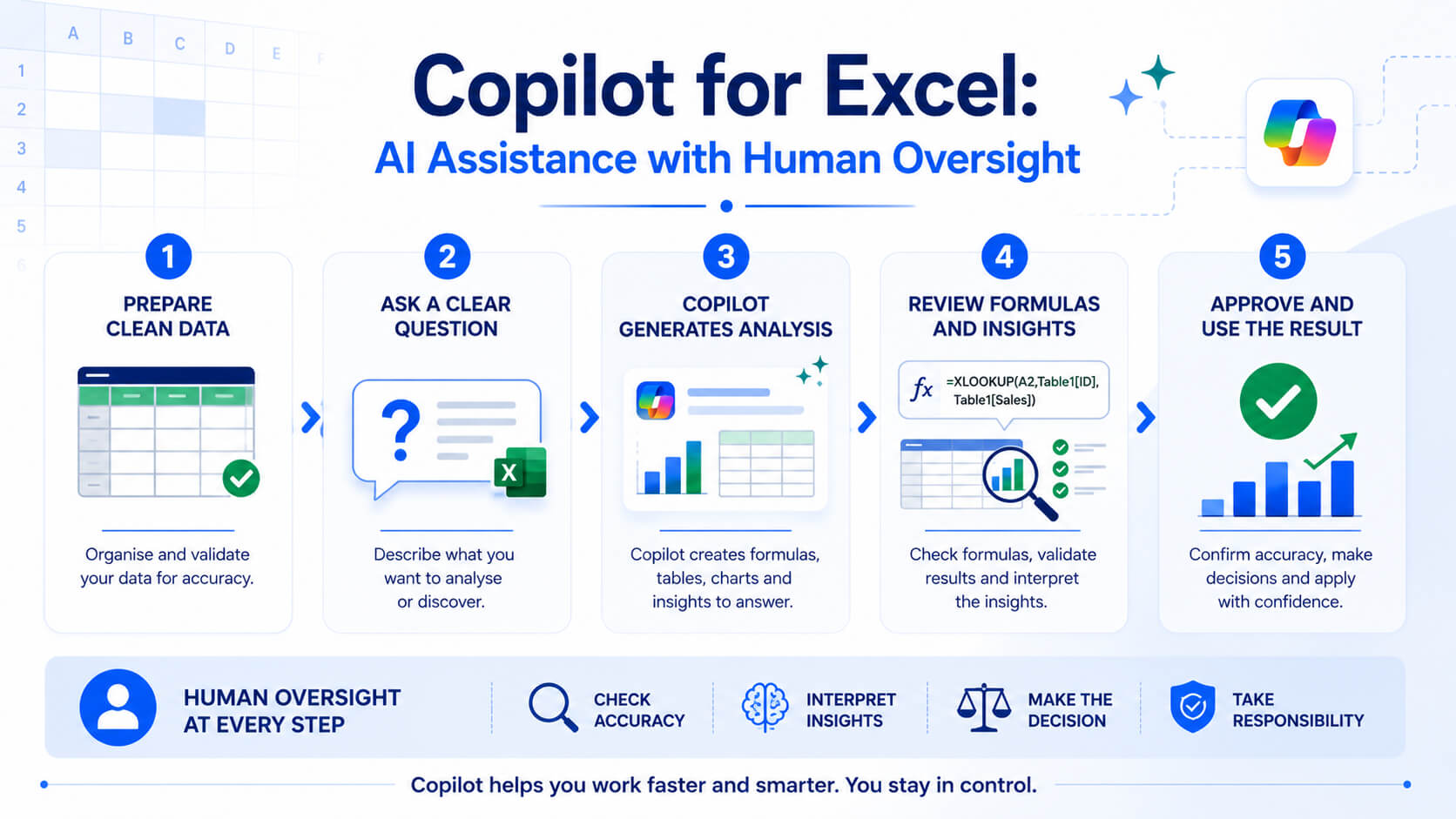
Copilot can reduce the time needed to create a first draft of an analysis or formula, especially when the data is already structured well. It does not remove the need for spreadsheet judgement.
- Check that the source data is complete and consistently formatted.
- Confirm that the formula answers the intended question.
- Review summaries for missing exceptions or misleading patterns.
- Check whether a chart presents the result accurately.
- Apply appropriate care to sensitive or confidential information.
Copilot for Excel works best as a multiplier on existing capability. A user who understands formulas, tables, PivotTables and charts is better equipped to prompt clearly and validate the result.
9) Eight Role-Based Microsoft Copilot Workshops for Teams
Generic Copilot training explains features, but it may not show each team how those features fit into its actual work. A finance team, sales team and HR team deal with different information, decisions and risks. They need different examples and prompts.
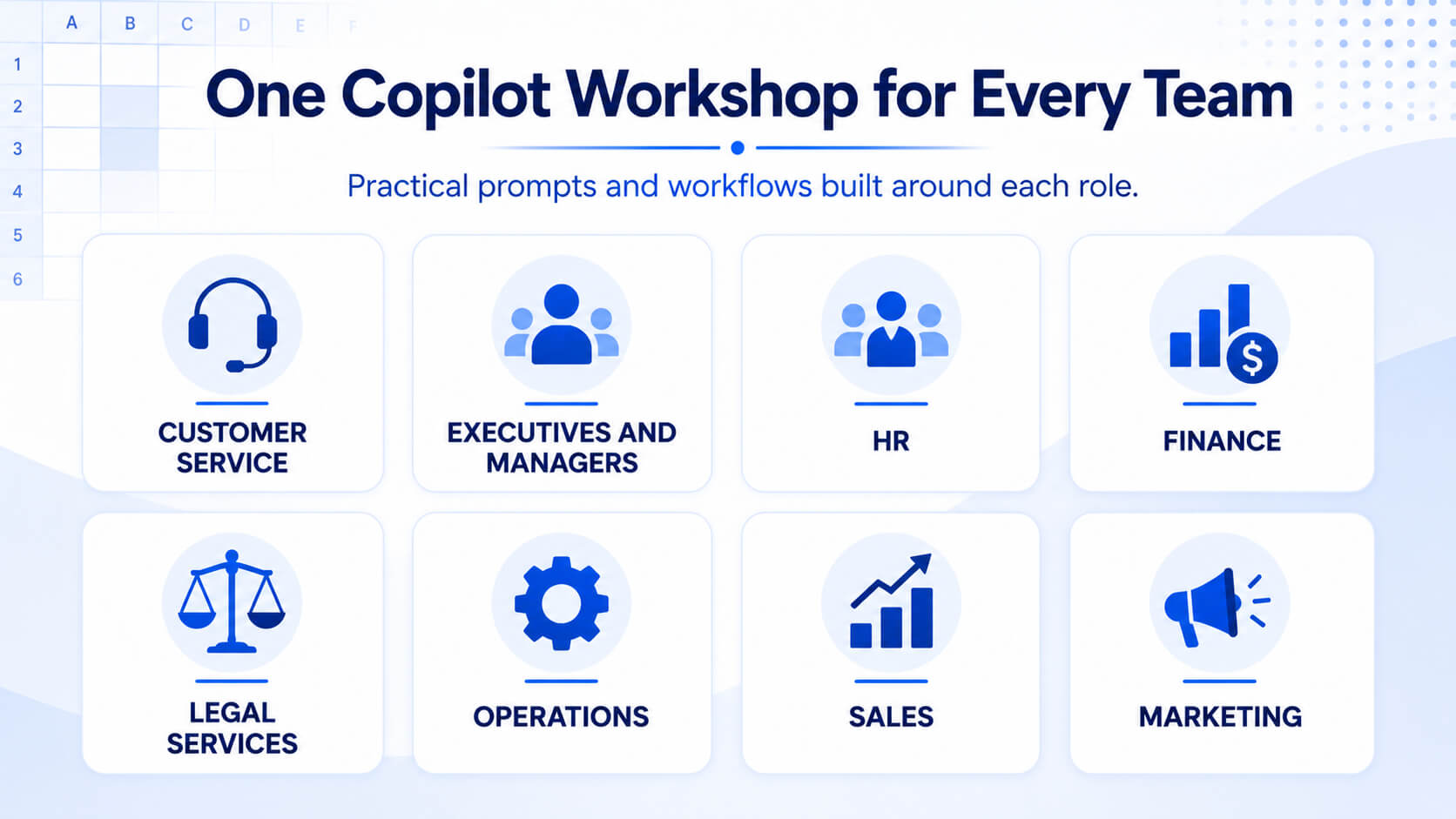
Nexacu’s role-based Copilot workshops focus on the tasks each function is likely to handle.
Prepare clearer responses, summarise issues and improve consistency without losing human judgement.
Summarise information, prepare briefings and support decisions more efficiently.
Support research, policy drafting, planning and employee communication responsibly.
Prepare and analyse data, draft commentary and improve recurring finance tasks.
Support drafting, review and research while maintaining validation and professional judgement.
Improve process documentation, planning, coordination and operational communication.
Research prospects, prepare for calls, draft follow-ups and improve proposal preparation.
Improve research, campaign planning, content development and repurposing.
Role-based training is particularly useful when an organisation has introduced Microsoft 365 Copilot but adoption is inconsistent. Instead of asking employees to explore a broad tool independently, each workshop gives a team practical scenarios and a clearer starting point.
10) How to Choose the Right Training
Choosing an Excel course for yourself
- Choose Beginner if you are new to Excel or lack confidence with formulas and data structure.
- Choose Intermediate if you can build a basic spreadsheet but need stronger formulas, PivotTables and reporting tools.
- Choose Advanced if you regularly analyse data and want modern lookup functions and dynamic arrays.
- Choose Expert if you need advanced data preparation, automation or Power Platform integration.
- Choose a specialist course when your requirement is specific, such as financial modelling, dashboards, macros or VBA.
- Choose Copilot for Excel when you understand the spreadsheet task and want to complete it more efficiently with AI.
Choosing training for a team
Start with the work the team needs to improve, not the course title. Review a sample of the spreadsheets, reports and recurring tasks the team currently handles. Look for inconsistent skill levels, manual processes, fragile formulas and reporting bottlenecks.
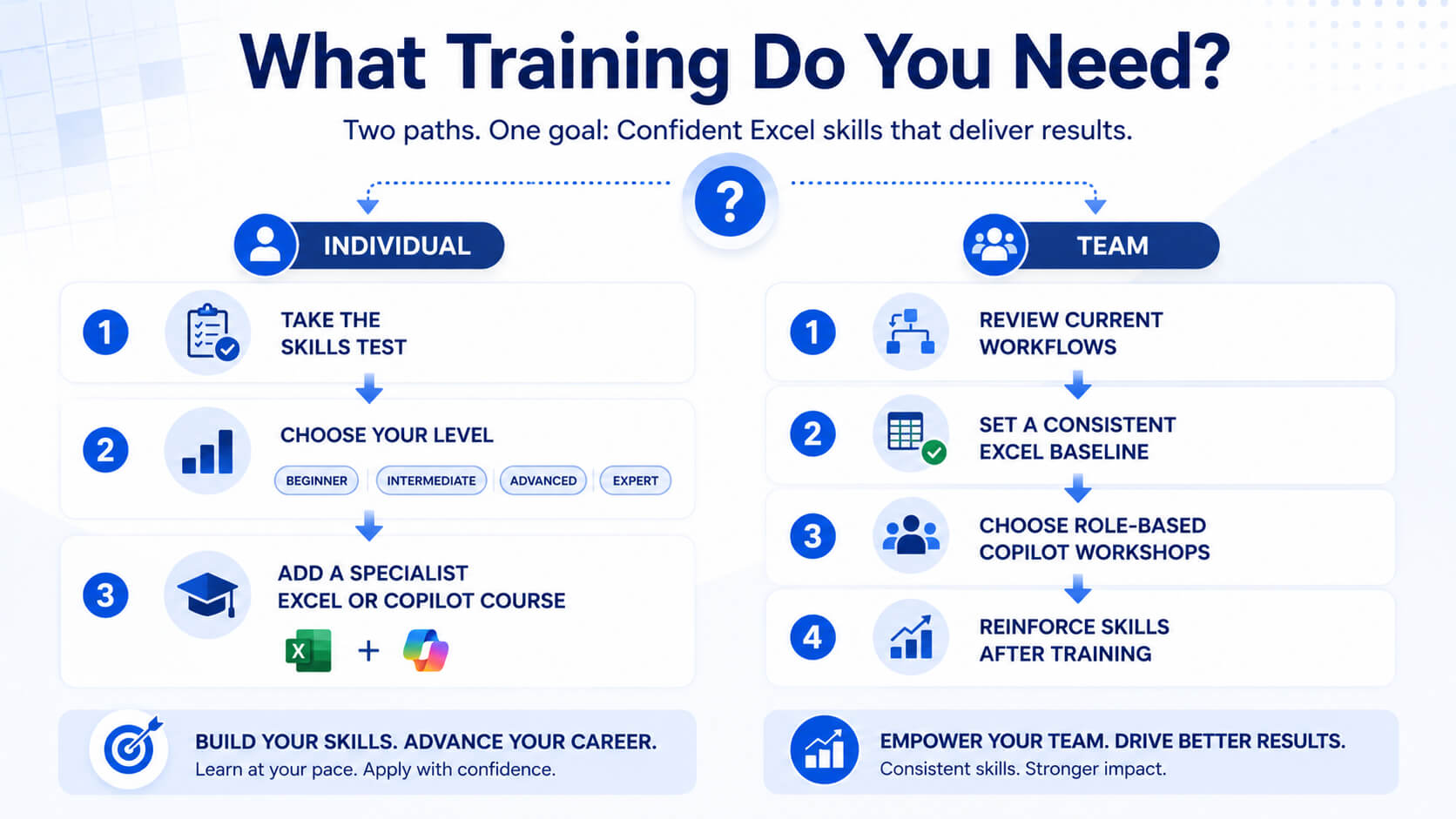
A mixed-skill team may need a common Excel baseline before moving into Copilot. For example, an Excel Intermediate session can align formula, PivotTable and data management habits. A role-based Copilot workshop can then show the same team how AI supports its specific workflow.
For larger rollouts, consider which roles use Excel or Copilot most often, where repetitive work is highest, how managers will reinforce the skills after training, and which examples can be adapted to the organisation’s real processes.
11) Frequently Asked Questions
These are some of the most common questions people ask when choosing Excel or Microsoft Copilot training.
Is Excel hard to learn for a complete beginner?
No. The main beginner skills, including navigation, formulas, formatting, sorting, filtering and simple charts, can be learned without prior experience.
What is the best way to learn Excel in 2027?
Use a structured sequence that begins with navigation, clean data entry, formatting, formulas, sorting and filtering. Continue learning by applying the techniques to real workplace files.
Which Excel course should a beginner take?
Choose Excel Beginner if you are new to spreadsheets or are not confident creating formulas, formatting data and working with lists.
What is the difference between Excel Intermediate and Advanced?
Intermediate focuses on stronger everyday formulas, PivotTables, conditional formatting and data validation. Advanced moves into dynamic arrays, structured references, XLOOKUP, INDEX and MATCH.
Do I need Excel skills before learning Copilot for Excel?
Basic or intermediate Excel knowledge is strongly recommended so you can prepare the data, describe the task and validate Copilot’s output.
How much do Nexacu Excel courses cost?
At the time this guide was prepared, Excel Beginner was $385, Intermediate $410, Advanced $415 and Expert $475. Check the individual course pages for the latest pricing and schedule.
Can I take Excel or Copilot training online?
Yes. Nexacu provides instructor-led live online and face-to-face training, subject to the schedule shown on each course page.
Should a team choose generic Copilot training or a role-based workshop?
Choose a role-based workshop when the priority is immediate relevance to a specific team’s work. Generic or application-based training is useful for broader platform knowledge.
Choose Your Next Excel or Copilot Step
The right training pathway depends on what you can already do and the work you need to complete next.
Start with the free Skills Test if you are unsure. For teams, use the Excel pathway to build a consistent baseline, then choose the Copilot workshop that matches each role.
Find the right Excel level or Copilot workshop
Compare the full Excel pathway, test your current skills or explore role-based Microsoft Copilot training for your team.
- Build stronger Excel foundations
Learn formulas, tables, PivotTables and reporting skills in the right order.
- Reduce manual work
Use modern Excel tools, automation and Copilot more effectively.
- Create more reliable reports
Build spreadsheets that are easier to update, check and maintain.
Nexacu is a Lumify Group company, delivering Microsoft, Adobe, data analytics, AI tools and professional development training to teams across Australia.