Recent Searches
Category

Microsoft Power BI

Category

Microsoft Excel

Category

Microsoft Copilot Courses

Category

SharePoint

Category

Professional Development

Category

Microsoft Project

Category

Power Automate

Category

Power Apps

Category

AI for Business

Category

SQL

Category

Microsoft 365

Category

Microsoft Word

Category

Python

Category

Microsoft Teams

Category

Excel Specialist

Category

Microsoft PowerPoint

Category

Microsoft Outlook

Category

R Programming

Category

Microsoft Access

Category

Microsoft Visio

Category

HTML Courses

Category

WordPress

Category

Microsoft Windows 11 Courses

Category

Adobe InDesign Courses

Category

Adobe Premiere Pro Training

Category

Adobe After Effects Training

Category

Adobe Photoshop Courses

Category

Adobe Illustrator Courses

Category

Canva Courses

Category

Articulate

Category

Adobe Acrobat Courses

Category

Adobe Animate Training

Category

Adobe Captivate Training

Course

Power BI Beginner

Course

Excel Beginner

Course

Copilot for M365

Course

SharePoint Beginner

Course

Achieving Leadership & Success

Course

Project Beginner

Course

Power Apps Beginner

Course

SQL Beginner

Course

Word Intermediate

Course

Word Beginner

Course

Word Advanced

Course

Python Beginner

Course

Teams Essentials

Course

Financial Modelling

Course

PowerPoint Level 1

Course

Microsoft Outlook Beginner to Intermediate

Course

R Programming Beginner

Course

Microsoft Access Essentials

Course

Visio Essentials

Course

HTML Training Intro

Course

Windows 11 End User Course

Course

InDesign Lite

Course

Premiere Training Intro

Course

After Effects Training Intro

Course

Photoshop Lite

Course

Illustrator Training Intro

Course

Articulate Storyline 360 Essentials

Course

Acrobat Essentials

Course

Animate Training Intro

Course

Captivate Training

Course

Power BI Intermediate

Course

Excel Intermediate

Course

Copilot for Word

Course

SharePoint Intermediate

Course

Anger Management & Negotiation Skills

Course

Project Intermediate

Course

Power Apps Intermediate

Course

ChatGPT Beginner

Course

SQL Intermediate

Course

Python Intermediate

Course

Analysis and Dashboards

Course

PowerPoint Level 2

Course

R Programming Intermediate

Course

InDesign Training Intro

Course

Photoshop Training Intro

Course

Articulate Storyline 3 & 360 Advanced

Course

Acrobat Forms

Course

Power BI Advanced

Course

Excel Advanced

Course

Copilot for Excel

Course

SharePoint Advanced (Site Owner)

Course

Assertiveness & Confidence

Course

Project Advanced

Course

Power Apps Intermediate | Power Automate + Power BI Integration

Course

AI Prompting Fundamentals

Course

Python Advanced

Course

Excel VBA

Course

R Programming Advanced

Course

Microsoft Access Advanced

Course

InDesign Training Advanced

Course

Canva Beginners

Course

Power BI DAX

Course

Excel Expert

Course

Copilot for PowerPoint

Course

SharePoint Advanced (Document Governance)

Course

Building Resilience

Course

Power Apps Advanced

Course

Machine Learning in R

Course

Canva Intermediate

Course

Copilot for Outlook and Teams

Course

Coaching and Mentoring

Course

Canva Advanced

Course

Communications

Course

WordPress Essentials

Course

Premiere Basics Training

Course

Advanced After Effects Training

Course

Illustrator Training Advanced

Course

Canva AI

Course

Microsoft Copilot Agent Builder

Course

Communications & Quality Client Service Training

Course

AI for Business Leaders and Managers

Course

Advanced Premiere Training

Course

Photoshop Training Advanced

Course

Power BI Copilot Training

Course

Critical Thinking and Problem Solving

Course

AI Governance Training

Course

InDesign Interactivity Training

Course

Copilot for Customer Service

Course

Cultural Diversity in the Workplace

Course

InDesign Accessibility Training

Course

Copilot for Executives and Managers

Course

Embracing Change

Course

Microsoft Outlook Advanced

Course

Copilot for Finance

Course

Growing Emotional Intelligence

Course

SQL Advanced

Course

Copilot for HR

Course

Minute Taking

Course

Planner Premium

Course

Excel Tables and Pivot Tables

Course

Copilot for Legal Services

Course

Power Automate Beginner

Course

Microsoft 365 Essentials

Course

Data Transformation with Power Query

Course

Excel Macro Mastery

Course

Copilot for Marketing

Course

Persuasion and Negotiation Skills

Course

Power Automate Intermediate

Course

Power BI Desktop Advanced Reporting

Course

Copilot for Operations

Course

Presentation Skills and Public Speaking

Course

Data Visualisation with Power BI Desktop

Course

Copilot for Sales

Course

Practical Project Management

Course

Respect, Equity and Diversity (RED)

Course

Resumé Writing and Interview Skills

Course

Stress Management

Course

Team Leadership, Management and Development

Course

Time Management Intensive

Course

Train the Trainer

Course

Write Effective Business Documents

Course

Dealing with Difficult People

Course

Managing Difficult Conversations

Course

Managing the Virtual Workplace

Course

Customer Service Training

Course

Technical Writing

How to Use XLOOKUP in Excel: Complete 2027 Guide

Nexacu | Jul 06
Excel Training Australia • XLOOKUP • Excel Skills

How to Use XLOOKUP in Excel: Complete 2027 Guide

XLOOKUP is one of the most useful Excel functions for finding and matching data. It can help you search for a value in one range and return a related result from another range, making it useful for reports, pricing sheets, customer records, employee lists and everyday business spreadsheets.

X
Quick answer

XLOOKUP is an Excel function that searches for a value in one range and returns a matching result from another range. The basic formula is =XLOOKUP(lookup_value, lookup_array, return_array).

Example: Use =XLOOKUP(E2, A2:A100, B2:B100) to find the value in cell E2, search for it in A2:A100, and return the matching result from B2:B100.

If you work with lists, reports, pricing tables, employee records or customer data, XLOOKUP can save time and reduce manual checking.

It is commonly used as a more flexible alternative to VLOOKUP because it can search in different directions, return a custom not-found message and work with exact matches by default.

In this guide, we explain how XLOOKUP works, how to write the formula, common mistakes to avoid and where it fits in your Excel learning pathway.

What you will learn
How to use XLOOKUP to find matching data in Excel.
Why it matters
XLOOKUP helps reduce manual searching and makes reports easier to maintain.
Who it is for
Excel users, analysts, administrators, finance teams and reporting professionals.
XL

TL;DR: XLOOKUP is one of the most useful formulas to learn after basic Excel functions.

It is ideal for users who already understand simple formulas and want to work more efficiently with business data.

1) What Is XLOOKUP in Excel?

XLOOKUP is an Excel function used to find a value in one range and return a related value from another range.

For example, you could use XLOOKUP to enter a product code and return the matching product name, price or category. You could also use it to enter an employee ID and return the matching employee name, department or manager.

XLOOKUP is especially useful because it can search vertically or horizontally, return values from columns to the left or right, and show a custom result when no match is found.

Practical read: If you regularly search for matching data between tables, XLOOKUP is a formula worth learning.

2) XLOOKUP Syntax Explained

The full XLOOKUP syntax is:
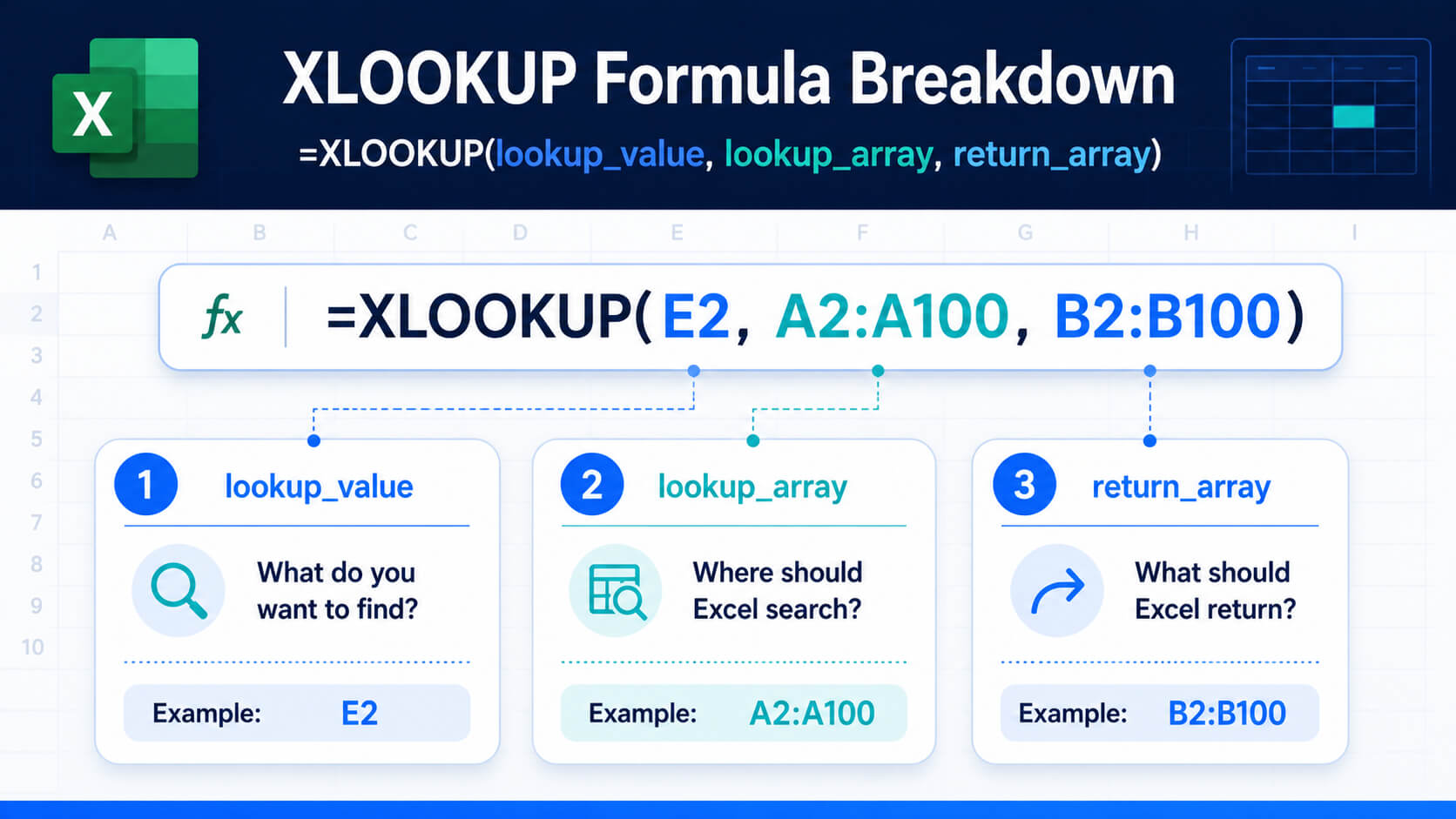
=XLOOKUP(lookup_value, lookup_array, return_array, [if_not_found], [match_mode], [search_mode])
Infographic explaining the XLOOKUP formula structure with lookup value, lookup array and return array.
XLOOKUP uses three core arguments: the value to find, the range to search and the range to return results from.
XLOOKUP arguments
lookup_value
The value you want Excel to find.
lookup_array
The range where Excel should search for the value.
return_array
The range where Excel should return the matching result from.
if_not_found
Optional message or value to return if no match is found.
match_mode
Optional setting for exact, approximate or wildcard matches.
search_mode
Optional setting that controls search direction.

For most day-to-day Excel users, the first three arguments are enough to start using XLOOKUP.

3) How to Use XLOOKUP Step by Step

The simplest way to understand XLOOKUP is to break the formula into three questions:

1. What do you want to find?

This is your lookup value, such as a product code, employee ID or invoice number.

2. Where should Excel search?

This is your lookup array, such as a column of product codes or employee IDs.

3. What should Excel return?

This is your return array, such as a column of prices, names, categories or departments.

Basic example

Imagine you have a product list with product codes in column A and product names in column B. If the product code you want to find is in cell E2, the formula would be:

=XLOOKUP(E2, A2:A100, B2:B100)

Excel looks for the value in E2, searches for it in A2:A100, and returns the matching product name from B2:B100.

4) Practical XLOOKUP Examples
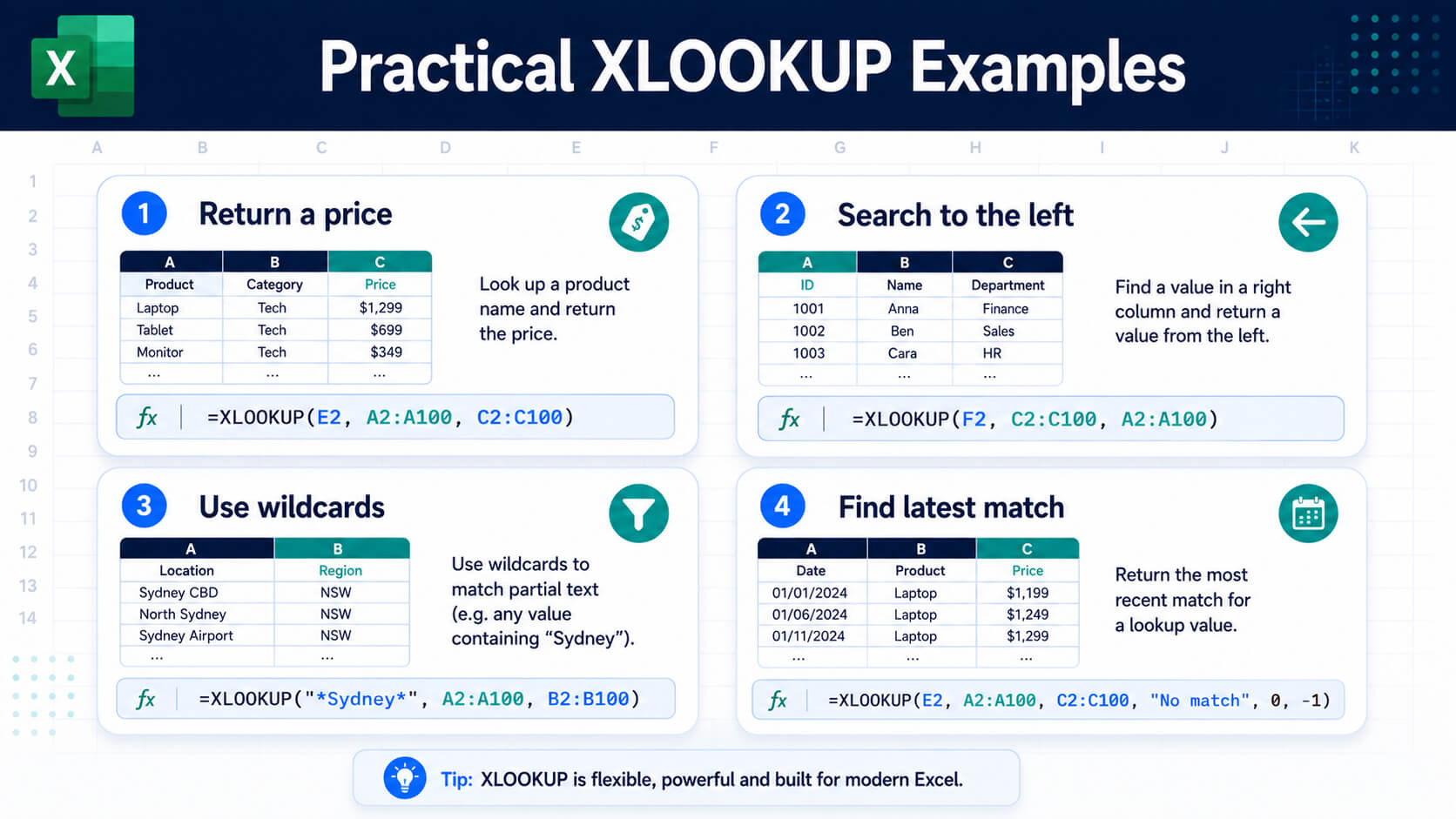
Infographic showing practical XLOOKUP examples including returning a price, searching to the left, using wildcards and finding the latest match.
Practical XLOOKUP examples include returning prices, searching to the left, using wildcard matches and finding the latest matching record.

Example 1: Return a price from a product code

Use XLOOKUP to enter a product code and return the matching price:

=XLOOKUP(E2, A2:A100, C2:C100, "Product not found")

This formula searches for the product code in E2, looks through A2:A100, and returns the matching price from C2:C100. If there is no match, Excel returns “Product not found”.

Example 2: Search to the left

Unlike VLOOKUP, XLOOKUP can return a value from a column to the left of the lookup column.

=XLOOKUP(F2, C2:C100, A2:A100, "Employee not found")

This could search for an employee ID in column C and return the employee name from column A.

Example 3: Use XLOOKUP with approximate match

Approximate matching is useful for scores, pricing bands, discount levels or commission tiers.

=XLOOKUP(E2, A2:A10, B2:B10, "No match", -1)

The match mode -1 tells Excel to find the exact match or the next smaller item.

Example 4: Use XLOOKUP with wildcards

Wildcards are useful when you want to match partial text.

=XLOOKUP("*Sydney*", A2:A100, B2:B100, "No match", 2)

The match mode 2 enables wildcard matching. This formula searches for text containing “Sydney”.

Example 5: Search from bottom to top

If a list contains multiple matches, you may want to return the latest match instead of the first match.

=XLOOKUP(E2, A2:A100, C2:C100, "No match", 0, -1)

The final argument -1 tells Excel to search from last to first.

5) XLOOKUP vs VLOOKUP

XLOOKUP is often easier and more flexible than VLOOKUP for modern Excel workbooks.
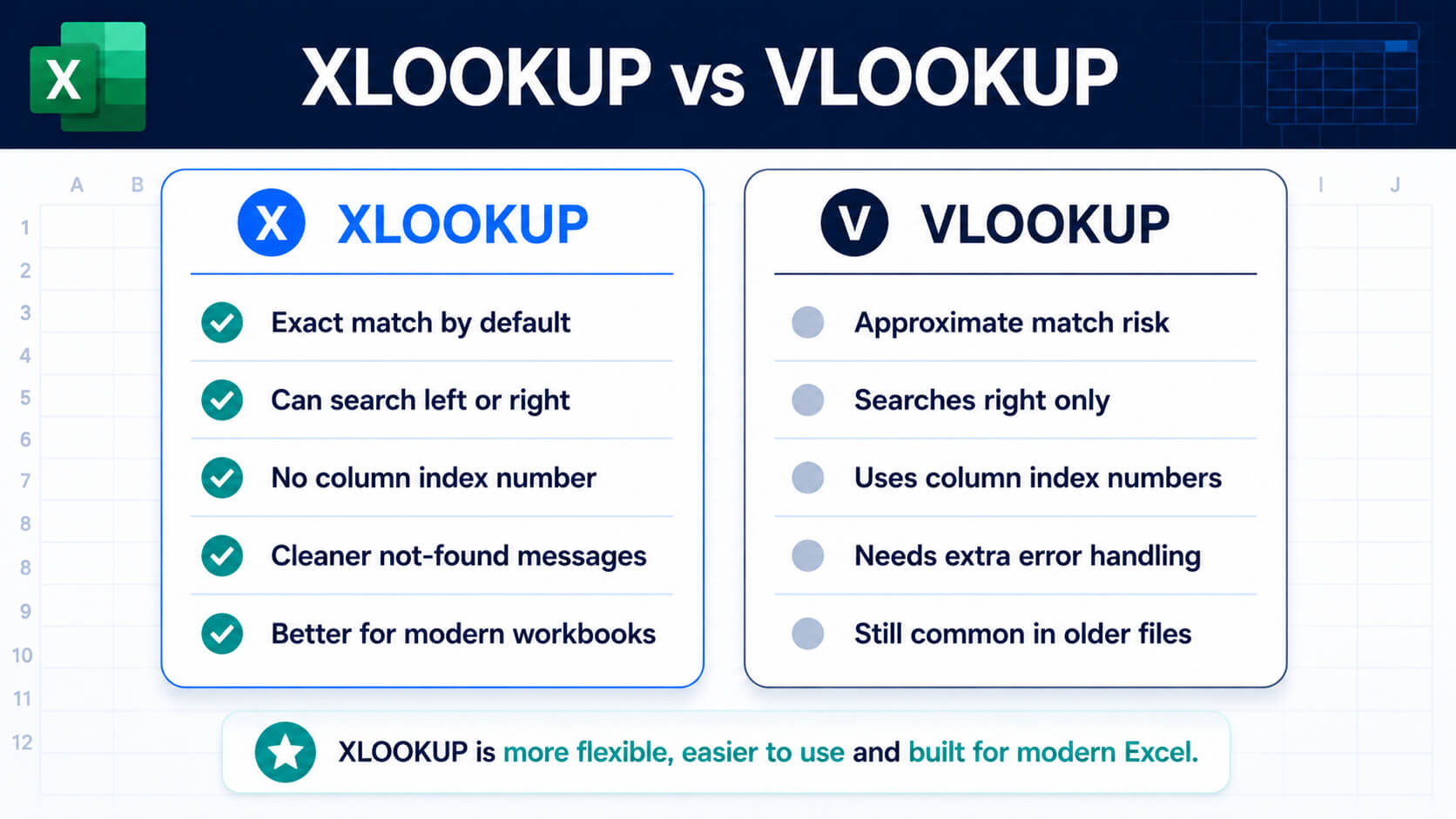
Comparison infographic explaining the differences between XLOOKUP and VLOOKUP in Excel.
XLOOKUP is generally more flexible than VLOOKUP because it can search left or right and uses exact match by default.
Feature
XLOOKUP
VLOOKUP
Exact match by default
Yes
No
Can search left
Yes
No
Can return custom not-found message
Yes
Requires extra formula logic
Column insert risk
Lower
Higher

VLOOKUP is still widely used, especially in older spreadsheets. However, XLOOKUP is usually the better option for users working in current Microsoft 365 versions of Excel.

6) Common XLOOKUP Mistakes
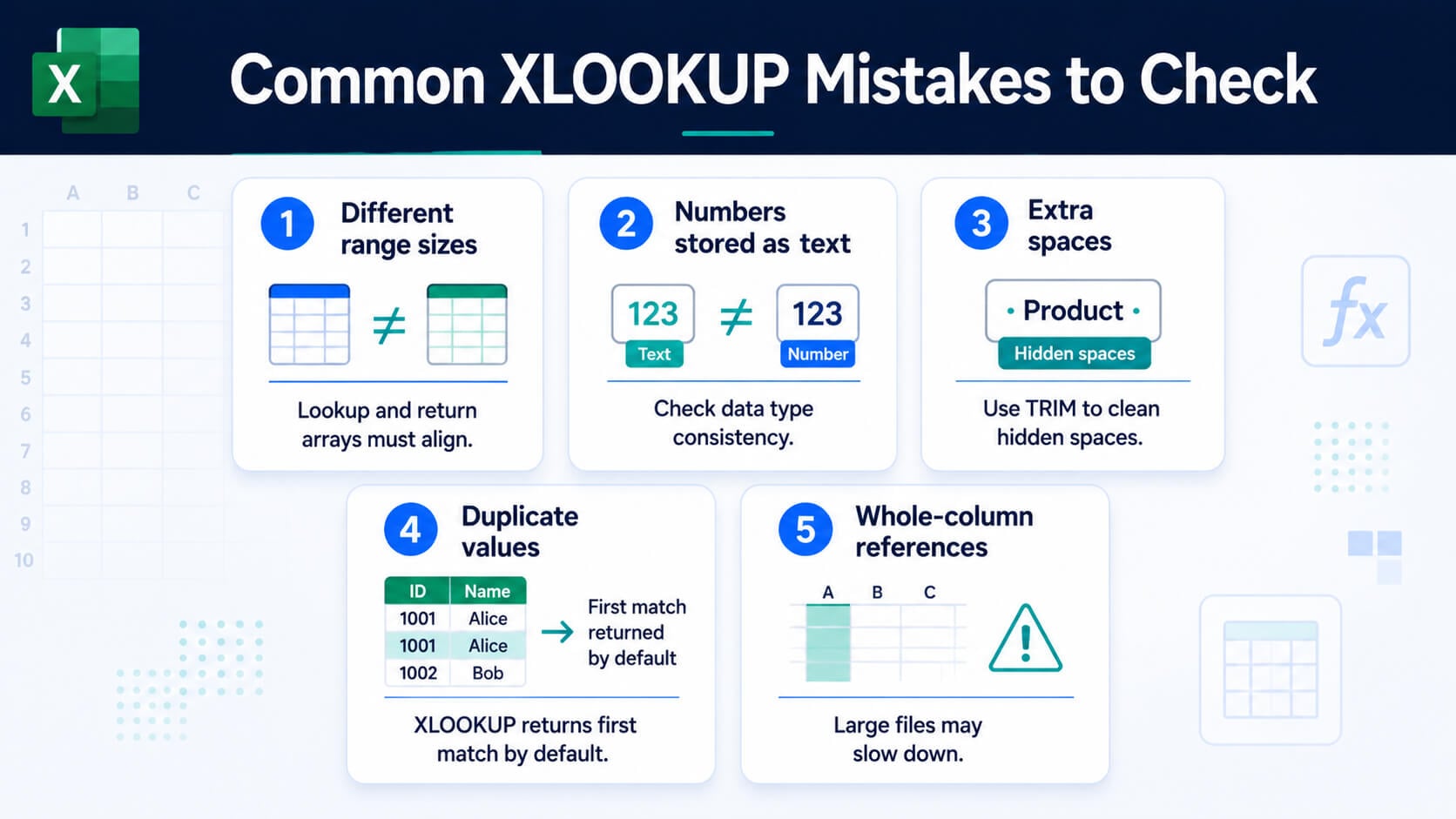
Infographic listing common XLOOKUP mistakes including different range sizes, numbers stored as text, extra spaces, duplicate values and whole-column references.
Most XLOOKUP issues are caused by mismatched ranges, inconsistent data formats, hidden spaces or duplicate lookup values.
  • Different range sizes: The lookup array and return array should be the same size.
  • Numbers stored as text: Excel may not match values if one value is stored as text and the other is stored as a number.
  • Extra spaces: Hidden spaces can stop exact matches from working correctly.
  • Duplicate values: XLOOKUP usually returns the first match unless you change the search mode.
  • Very large whole-column references: Whole-column formulas can slow down large workbooks.

If your XLOOKUP formula is not working, check the source data first. Many XLOOKUP errors are caused by inconsistent formatting, hidden spaces or mismatched range sizes.

7) Where XLOOKUP Fits in Your Excel Learning Pathway

XLOOKUP is usually an intermediate Excel skill. It is a good next step once you are comfortable with basic formulas such as SUM, AVERAGE and IF.
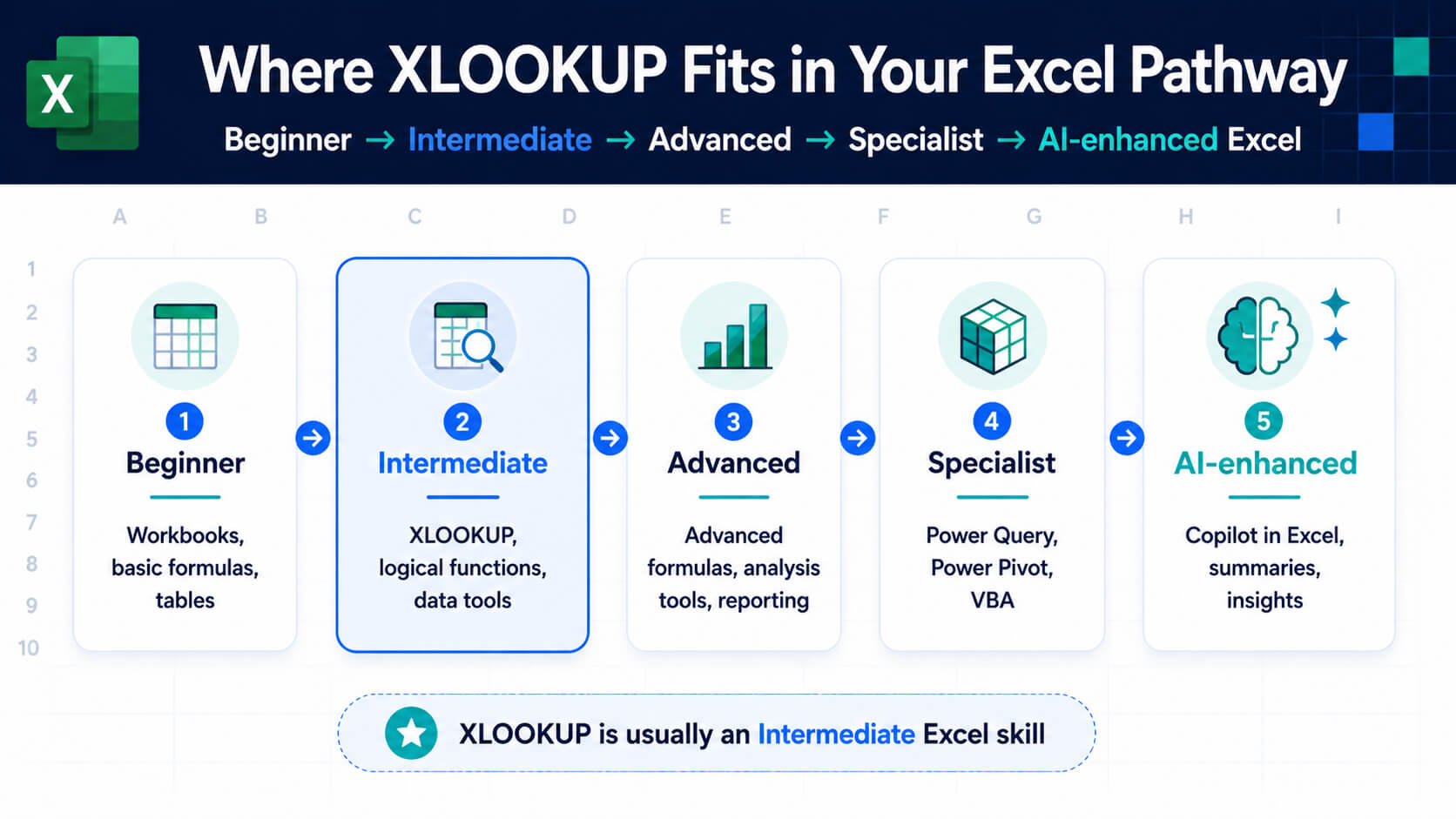
Excel learning pathway infographic showing XLOOKUP as an intermediate Excel skill between beginner formulas and advanced reporting.
XLOOKUP usually fits at the intermediate level of Excel learning, after basic formulas and before advanced analysis techniques.
Recommended Excel learning pathway
Excel Beginner
Workbooks, formatting, basic formulas, charts and tables.
Excel Intermediate
XLOOKUP, logical functions, data tools and structured spreadsheets.
Excel Advanced
Advanced formulas, analysis tools, automation techniques and reporting workflows.
Specialist Excel
Power Query, Power Pivot, VBA, dashboards and financial modelling.
AI-enhanced Excel
Use Copilot in Excel to analyse, summarise and work with data faster.

If you are already using Excel regularly but want to work faster and reduce manual checks, Excel Intermediate is usually the right place to build confidence with XLOOKUP.

Learn Excel with Nexacu

Nexacu’s Excel courses are designed for professionals who want to improve practical spreadsheet skills and apply them directly at work.

If you are new to Excel, start with Excel Beginner. If you already use formulas and spreadsheets regularly, Excel Intermediate is a good next step. If you want to work with advanced formulas, analysis tools and reporting techniques, Excel Advanced may be the right fit.

Our instructor-led Excel training is available live online and in person, with courses designed around practical workplace examples.

8) FAQs

These are some of the most common questions people ask when learning XLOOKUP in Excel.

What is XLOOKUP in Excel?

XLOOKUP is an Excel function used to search for a value in one range and return a matching value from another range.

What is the basic XLOOKUP formula?

The basic formula is =XLOOKUP(lookup_value, lookup_array, return_array).

Is XLOOKUP better than VLOOKUP?

For many modern Excel tasks, XLOOKUP is more flexible than VLOOKUP because it can search left or right, uses exact match by default and does not rely on column index numbers.

Why is my XLOOKUP not working?

XLOOKUP may not work if the lookup value does not exist, the lookup range and return range are different sizes, numbers are stored as text, or there are hidden spaces in the data.

Can XLOOKUP search to the left?

Yes. XLOOKUP can search one column and return a value from another column to the left or right of the lookup column.

Which Excel course teaches XLOOKUP?

XLOOKUP is usually covered in intermediate or advanced Excel training. Nexacu’s Excel Intermediate and Excel Advanced courses are suitable for professionals who want to build stronger formula, data analysis and reporting skills.

Build Faster, Cleaner Excel Workbooks

XLOOKUP is a practical Excel skill that can help you reduce manual searching, clean up reports and work more confidently with business data.

Once you understand how it works, you can use it across reports, pricing sheets, dashboards, employee records, customer lists and many other workplace spreadsheets.

Ready to improve your Excel skills?

Learn XLOOKUP and other practical Excel formulas

Explore Nexacu’s Excel Intermediate and Excel Advanced courses to build stronger formula, reporting and data analysis skills.

Training can help you:
  • Write formulas with more confidence
    Use functions like XLOOKUP, IF and logical formulas.
  • Work faster with business data
    Reduce manual searching and checking.
  • Build more reliable reports
    Create spreadsheets that are easier to update and maintain.

Nexacu is a Lumify Group company, delivering Microsoft, Adobe, data analytics, AI tools and professional development training to teams across Australia.

Trusted Nationwide by Leading Organisations

at Nexacu, we're proud to be the trusted training partner for hundreds of leading organisations across Australia and New Zealand. From government departments to top corporates, we help teams upskill and succeed everyday

  • 400+ companies rely on Nexacu for team training
  • Trusted by federal, state, and local government agencies
  • Delivering training across 9 countries

Why Nexacu?

step by step courseware

Step by Step Courseware

Custom workbook included with a step by step exercises

Facility Image 2
Facility Image 3
Facility Image 1

Interactive real time training

Interactive, Real-Time Training

Learn with expert instructors, wherever you are

More than 1,300 Business trust Nexacu

Trusted by Business

Procured by Government

Procured by Goverment

Reviews Not Found

Valued by Individuals