What Is Microsoft Copilot? Plain-English Guide 2027
If you have heard people at work talk about Copilot but you are still not sure what it actually is, you are in the right place. This guide answers the question what is Microsoft Copilot in plain English, explains what it can and cannot access, and helps you work out which version your team needs.
1) What Is Microsoft Copilot, in Plain English?
Think of Copilot as an assistant that sits inside the software you already use and responds to instructions written in ordinary language. Instead of remembering a menu path or a formula, you type (or say) what you want, using plain instructions like "summarise this thread", "draft a reply" or "turn this document into slides", and Copilot has a go.
"Copilot" is an umbrella term rather than one product. Under that umbrella sit several different experiences:
- Microsoft 365 Copilot Chat: a secure chat assistant that answers questions and drafts content, grounded in information from the web.
- Microsoft 365 Copilot (the licensed version): the same idea, but connected to your work content, so it can reason over your own emails, files, chats and meetings.
- Copilot features inside the apps: Copilot in Word, Copilot in Excel, Copilot in Outlook, Copilot in Teams and Copilot in PowerPoint.
There are also specialist Copilots aimed at particular jobs: GitHub Copilot for developers, Security Copilot for security teams, and Copilot Studio for building custom AI agents. These are separate products with their own licensing, and most business users will not touch them day to day, so we will not dwell on them here.
Key takeaway: when someone says "Copilot", it is worth asking which Copilot they mean.
2) How Microsoft Copilot Works
Copilot is built on large language models, meaning AI trained to understand and generate human-like text. When you send a prompt in the licensed Microsoft 365 Copilot, it does not just pass your words straight to the model. It first goes through a step Microsoft calls grounding.
Grounding means Copilot gathers relevant context before it answers. The licensed experience uses Microsoft Graph, the service that holds your organisation's content, to find emails, documents, chats and meetings that you already have permission to see. It combines that context with your prompt, sends the enriched request to the language model, and returns a response inside your app.
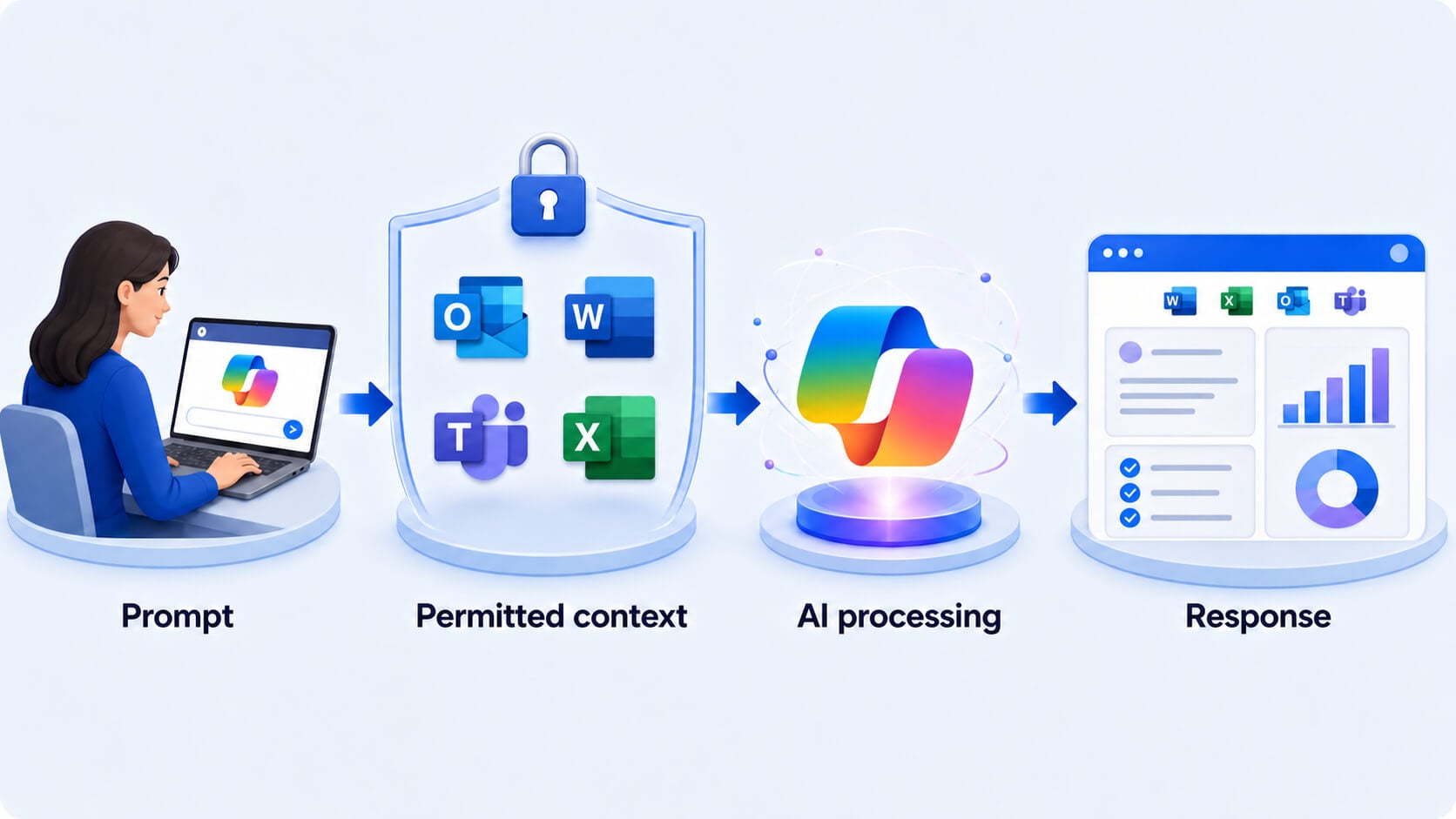
Two points are worth holding onto. Copilot operates within your organisation's Microsoft 365 service boundary, and access is always scoped to the signed-in user's permissions. In Microsoft's words, "Copilot doesn't access data that the user doesn't have permission to access." And Copilot Chat (grounded only in the web) does not reach into your work content unless you deliberately supply it, for example by uploading a file.
3) Is Copilot the Same as ChatGPT?
No. ChatGPT is a separate product made by OpenAI. Microsoft Copilot is Microsoft's own family of assistants, built on large language models and integrated directly into Microsoft 365.
The practical difference for a business is context and protection. A general chatbot has no secure link to your Outlook, your SharePoint or your Teams meetings. The licensed Microsoft 365 Copilot does, and it is designed to respect your existing permissions and data protections while it works. They feel similar to type into, but they are not interchangeable.
4) The Main Copilot Experiences at a Glance
Because the names are close, here is a simple comparison of the two experiences most business users will encounter.
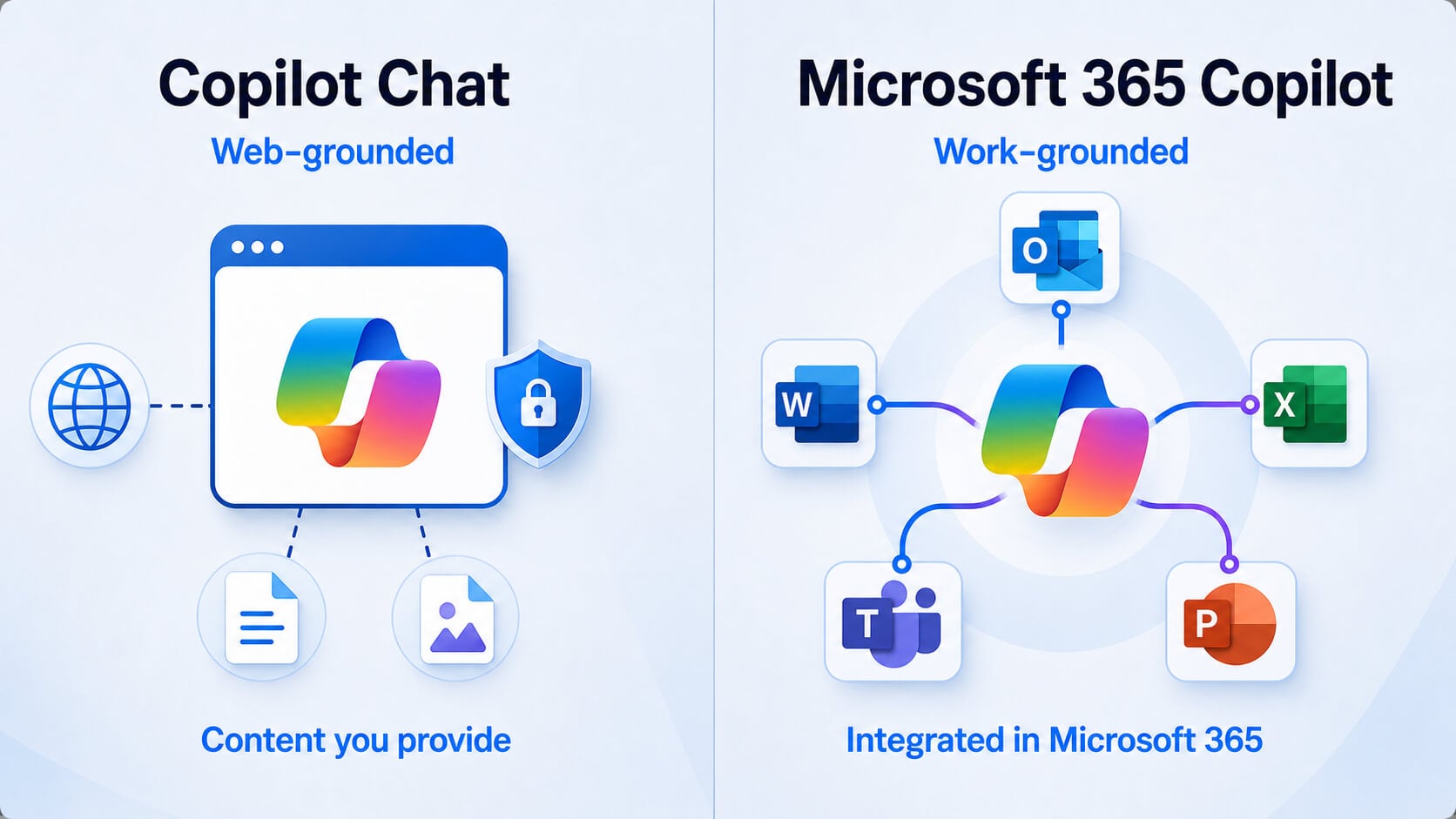
The headline difference is the work data. Copilot Chat is a secure, web-grounded assistant. The licensed Microsoft 365 Copilot adds the ability to reason over your content, which is exactly what makes it useful for tasks like "summarise everything I missed on the Henderson account this week".
5) What Copilot Can Do in Microsoft 365
Once you have the licensed experience, Copilot shows up inside the apps you already use. Here is what that looks like in practice.
Draft new documents from a short prompt, generate or rewrite passages, summarise a long document and answer questions about its contents. You can also point it at an existing file so it drafts from material you already have.
Make sense of data. Copilot can suggest formulas, recommend chart types and surface insights about the figures in your spreadsheet, useful when you know what you want to learn but not how to get there.
Summarise a long email thread so you can catch up quickly, draft replies that pull from other content you already have access to, and offer coaching tips on clarity and tone before you send.
In meetings, Copilot uses the live transcript to answer questions and afterwards capture key points, decisions and action items. In chats, it can summarise recent conversation, and it can recap calls with next steps and owners.
Create a first-draft presentation from a prompt or an existing Word document using your organisation's templates, summarise a deck, and handle light commands like adding slides or making deck-wide formatting changes.
Five realistic workplace examples
- Catching up after leave. You return from a week off and ask Copilot to summarise the key email threads and Teams messages about a project, so you are up to speed before lunch.
- Turning a report into a deck. You ask Copilot in PowerPoint to draft a slide deck from a finished Word proposal using your company template, then refine it.
- Making sense of a spreadsheet. A colleague sends a sales export, and you ask Copilot in Excel to highlight trends and suggest a chart showing the year-on-year change.
- Clearing the inbox. Copilot in Outlook summarises a twelve-message thread into three lines and drafts a reply you can quickly edit and send.
- Writing the first draft. Facing a blank page for a policy update, you give Copilot in Word a few bullet points and ask for a plain-English first version to sharpen.
What Copilot cannot do
Being clear about the limits is part of using Copilot well. Copilot does not automatically automate every repetitive task. It responds to your prompts in the moment. For hands-off automation, such as a workflow that runs on a schedule or triggers when something happens, you generally need additional tools such as agents, Copilot Studio or Power Automate, plus some configuration. That is a project, not a checkbox.
Copilot also cannot see content you do not have permission to see, cannot act outside your organisation's admin settings, and will not have every feature the moment it is announced, because capabilities roll out over time and vary by plan, app and platform. And like any AI, it can be wrong or incomplete, so its output needs a human check before it goes anywhere important.
6) Security, Privacy and Licensing
Does Microsoft Copilot keep your information secure?
For the licensed Microsoft 365 Copilot, your content stays within the Microsoft 365 service boundary, and Copilot only surfaces organisational data the individual user already has at least view permission to access. It honours your existing security and compliance controls, including Conditional Access and sensitivity labels, and data is encrypted in transit.
On the point people worry about most: according to Microsoft, "prompts, responses, and data accessed through Microsoft Graph aren't used to train foundation LLMs, including those used by Microsoft 365 Copilot." Copilot Chat is likewise covered by enterprise data protection.
One honest caveat: Copilot's respect for permissions is only as good as your underlying permissions. If a sensitive file is shared too widely, Copilot can surface it to anyone who already had access, so getting your SharePoint and file permissions in order is part of being Copilot-ready.
Do you need a Microsoft 365 Copilot licence?
It depends on what you want to do. If web-grounded chat with enterprise data protection is enough, such as drafting, brainstorming or summarising content you paste or upload, Copilot Chat may already be available with your subscription at no extra cost.
If you want Copilot working inside Word, Excel, Outlook, Teams and PowerPoint, reasoning over your own emails, files and meetings, you need the paid Microsoft 365 Copilot add-on licence, sitting on top of an eligible Microsoft 365 plan. Your administrator assigns those licences and controls the settings, so the answer for your organisation ultimately rests with your IT team.
7) How to Get Better Results from Copilot
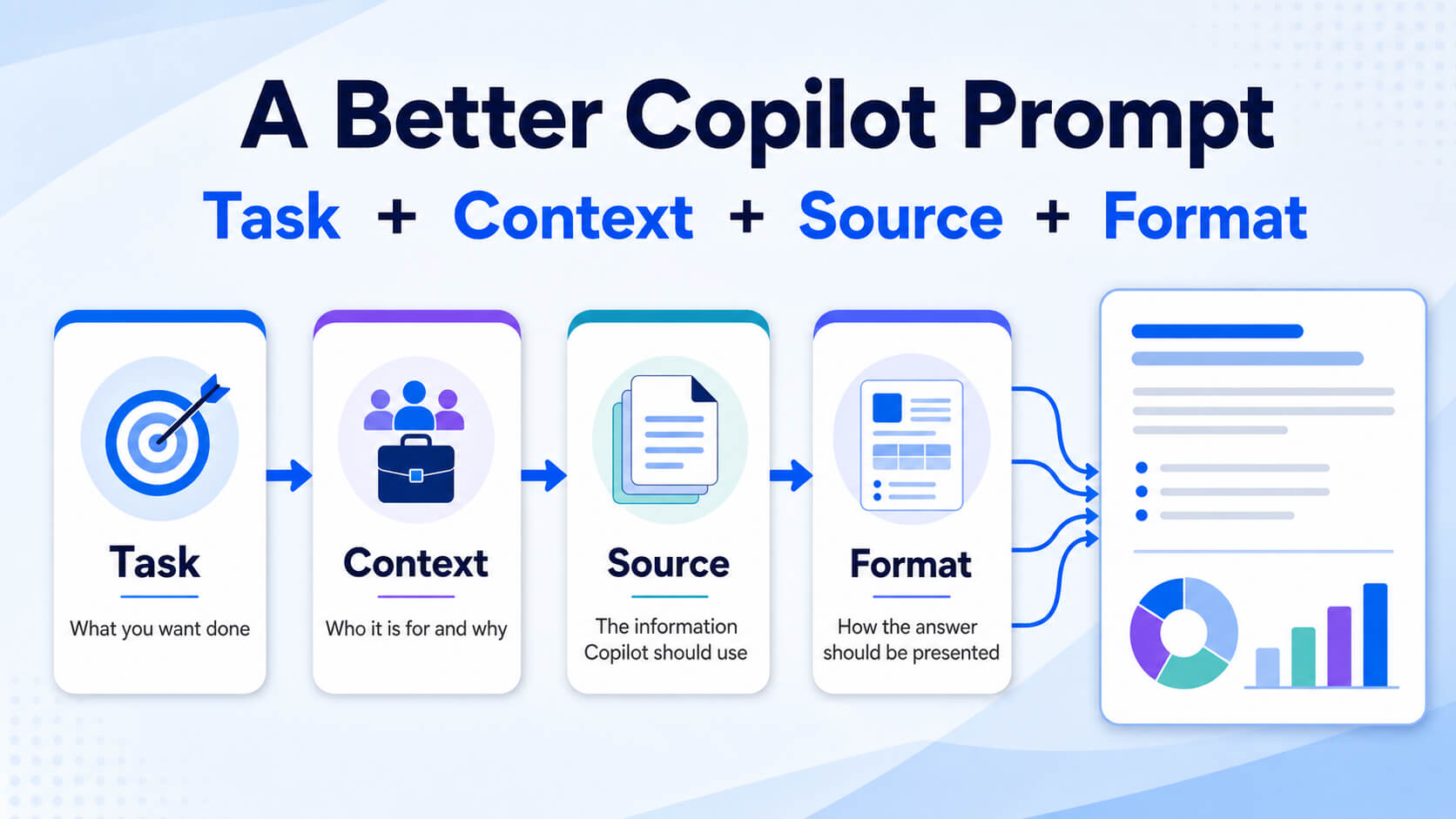
The difference between a disappointing answer and a useful one is usually the prompt. A vague request gets a vague reply. The habit to build is giving Copilot enough to work with: tell it the task, the context, what to use as a source, and the format you want back. Treat the first answer as a draft, refine it with follow-up instructions ("make it shorter", "more formal", "add a risks section"), and always review before you rely on it.
- Task: what you want done
- Context: who it is for and why
- Source: what Copilot should base it on
- Format: how you want the result
1. "Draft a friendly reminder email (task) to clients who have not returned their forms (context), based on the overdue list in this spreadsheet (source), as three short paragraphs (format)."
2. "Summarise the key decisions (task) for someone who missed the meeting (context) from this Teams meeting transcript (source), as five bullet points with owners (format)."
3. "Create a first-draft presentation (task) for our quarterly team update (context) from this Word report (source), as eight slides using our template (format)."
Is Microsoft Copilot right for your organisation?
Copilot tends to pay off where teams spend a lot of time writing first drafts, summarising information, catching up after meetings and wrangling routine data. It is a weaker fit if your data permissions are messy, if your work rarely lives in Microsoft 365, or if you expect it to fully automate complex processes without setup. The most successful rollouts usually pair the licence with a little training, so people know how to prompt well and where the limits are.
- Microsoft Copilot is a family of AI assistants, not one product.
- Copilot Chat is web-grounded and often included; licensed Microsoft 365 Copilot adds your work data and in-app help.
- What you get depends on the product, plan, licence, admin settings, app, platform and rollout status.
- Copilot respects your existing permissions and, per Microsoft, does not use your prompts or work data to train its foundation models.
- Full automation needs extra tools such as agents, Copilot Studio or Power Automate.
- Good prompts and a quick human review make all the difference.
8) Frequently Asked Questions
What is Microsoft Copilot used for?
Drafting content, summarising documents, emails and meetings, analysing data and reducing repetitive work, all through natural-language prompts inside Microsoft 365 apps.
Is Microsoft Copilot free?
Copilot Chat is included with many Microsoft 365 subscriptions at no extra cost. The full in-app Microsoft 365 Copilot experience requires a paid add-on licence.
Is Microsoft Copilot the same as ChatGPT?
No. ChatGPT is a separate product from OpenAI. Copilot is Microsoft's own assistant family, built into Microsoft 365 with enterprise data protection and, in the licensed version, a secure connection to your work content.
Can Microsoft Copilot read my emails and files?
The licensed Microsoft 365 Copilot can reason over emails, files, chats and meetings you already have permission to access. Copilot Chat does not reach your work content unless you add it yourself. Neither can see content you are not authorised to open.
What is the difference between Copilot Chat and Microsoft 365 Copilot?
Copilot Chat is grounded in the web and included with many plans. Licensed Microsoft 365 Copilot is also grounded in your organisational data via Microsoft Graph and works inside Word, Excel, Outlook, Teams and PowerPoint.
Does Microsoft Copilot use company data to train public AI models?
Microsoft states that prompts, responses and data accessed through Microsoft Graph are not used to train the foundation large language models, including those used by Microsoft 365 Copilot.
Which Microsoft 365 applications include Copilot?
With the licensed experience, Copilot appears in Word, Excel, Outlook, Teams and PowerPoint, among others. Exact availability depends on your plan, platform and rollout status.
Do I need training to use Microsoft Copilot?
You can start without it, but short, role-relevant training helps you write better prompts, get more reliable results and understand what Copilot can and cannot do.
Learn Copilot the way your team actually works
Copilot rewards people who know how to prompt it and understand its limits. Nexacu's instructor-led Copilot for Microsoft 365 course gives you hands-on practice with real workplace tasks across Word, Excel, Outlook, Teams and PowerPoint.
- Confirm which Copilot licence your team has
- Pick one repetitive task to test this week
- Book instructor-led training for your team
This guide is based on Microsoft's official documentation. Product names, licensing and feature availability change frequently, so confirm current details against Microsoft Learn before you rely on them.