Recent Searches
Category

Microsoft Power BI

Category

Microsoft Excel

Category

Microsoft Copilot Courses

Category

SharePoint

Category

Professional Development

Category

Microsoft Project

Category

Power Automate

Category

Power Apps

Category

AI for Business

Category

SQL

Category

Microsoft 365

Category

Microsoft Word

Category

Python

Category

Microsoft Teams

Category

Excel Specialist

Category

Microsoft PowerPoint

Category

Microsoft Outlook

Category

R Programming

Category

Microsoft Access

Category

Microsoft Visio

Category

HTML Courses

Category

WordPress

Category

Microsoft Windows 11 Courses

Category

Adobe InDesign Courses

Category

Adobe Premiere Pro Training

Category

Adobe After Effects Training

Category

Adobe Photoshop Courses

Category

Adobe Illustrator Courses

Category

Canva Courses

Category

Articulate

Category

Adobe Acrobat Courses

Category

Adobe Animate Training

Category

Adobe Captivate Training

Course

Power BI Beginner

Course

Excel Beginner

Course

Copilot for M365

Course

SharePoint Beginner

Course

Achieving Leadership & Success

Course

Project Beginner

Course

Power Apps Beginner

Course

SQL Beginner

Course

Word Intermediate

Course

Word Beginner

Course

Word Advanced

Course

Python Beginner

Course

Teams Essentials

Course

Financial Modelling

Course

PowerPoint Level 1

Course

Microsoft Outlook Beginner to Intermediate

Course

R Programming Beginner

Course

Microsoft Access Essentials

Course

Visio Essentials

Course

HTML Training Intro

Course

Windows 11 End User Course

Course

InDesign Lite

Course

Premiere Training Intro

Course

After Effects Training Intro

Course

Photoshop Lite

Course

Illustrator Training Intro

Course

Articulate Storyline 360 Essentials

Course

Acrobat Essentials

Course

Animate Training Intro

Course

Captivate Training

Course

Power BI Intermediate

Course

Excel Intermediate

Course

Copilot for Word

Course

SharePoint Intermediate

Course

Anger Management & Negotiation Skills

Course

Project Intermediate

Course

Power Apps Intermediate

Course

ChatGPT Beginner

Course

SQL Intermediate

Course

Python Intermediate

Course

Analysis and Dashboards

Course

PowerPoint Level 2

Course

R Programming Intermediate

Course

InDesign Training Intro

Course

Photoshop Training Intro

Course

Articulate Storyline 3 & 360 Advanced

Course

Acrobat Forms

Course

Power BI Advanced

Course

Excel Advanced

Course

Copilot for Excel

Course

SharePoint Advanced (Site Owner)

Course

Assertiveness & Confidence

Course

Project Advanced

Course

Power Apps Intermediate | Power Automate + Power BI Integration

Course

AI Prompting Fundamentals

Course

Python Advanced

Course

Excel VBA

Course

R Programming Advanced

Course

Microsoft Access Advanced

Course

InDesign Training Advanced

Course

Canva Beginners

Course

Power BI DAX

Course

Excel Expert

Course

Copilot for PowerPoint

Course

SharePoint Advanced (Document Governance)

Course

Building Resilience

Course

Power Apps Advanced

Course

Machine Learning in R

Course

Canva Intermediate

Course

Copilot for Outlook and Teams

Course

Coaching and Mentoring

Course

Canva Advanced

Course

Communications

Course

WordPress Essentials

Course

Premiere Basics Training

Course

Advanced After Effects Training

Course

Illustrator Training Advanced

Course

Canva AI

Course

Microsoft Copilot Agent Builder

Course

Communications & Quality Client Service Training

Course

AI for Business Leaders and Managers

Course

Advanced Premiere Training

Course

Photoshop Training Advanced

Course

Power BI Copilot Training

Course

Critical Thinking and Problem Solving

Course

AI Governance Training

Course

InDesign Interactivity Training

Course

Copilot for Customer Service

Course

Cultural Diversity in the Workplace

Course

InDesign Accessibility Training

Course

Copilot for Executives and Managers

Course

Embracing Change

Course

Microsoft Outlook Advanced

Course

Copilot for Finance

Course

Growing Emotional Intelligence

Course

SQL Advanced

Course

Copilot for HR

Course

Minute Taking

Course

Planner Premium

Course

Excel Tables and Pivot Tables

Course

Copilot for Legal Services

Course

Power Automate Beginner

Course

Microsoft 365 Essentials

Course

Data Transformation with Power Query

Course

Excel Macro Mastery

Course

Copilot for Marketing

Course

Persuasion and Negotiation Skills

Course

Power Automate Intermediate

Course

Power BI Desktop Advanced Reporting

Course

Copilot for Operations

Course

Presentation Skills and Public Speaking

Course

Data Visualisation with Power BI Desktop

Course

Copilot for Sales

Course

Practical Project Management

Course

Respect, Equity and Diversity (RED)

Course

Resumé Writing and Interview Skills

Course

Stress Management

Course

Team Leadership, Management and Development

Course

Time Management Intensive

Course

Train the Trainer

Course

Write Effective Business Documents

Course

Dealing with Difficult People

Course

Managing Difficult Conversations

Course

Managing the Virtual Workplace

Course

Customer Service Training

Course

Technical Writing

SharePoint vs OneDrive vs Teams: Where to Store Files

Nexacu | Aug 03
 
Microsoft 365 file management

SharePoint vs OneDrive vs Teams: Where Should You Store Your Files?

OneDrive, SharePoint and Microsoft Teams all help you work with files, but they are designed for different jobs. This guide gives you a simple storage rule, practical examples and a governance checklist for keeping Microsoft 365 content organised.

?

Quick answer

Use OneDrive for personal work, SharePoint for shared and governed business content, and Teams for active collaboration. Teams channel files are stored in SharePoint, while files shared in Teams chats are generally stored in the sender's OneDrive.

OneDrive
Files I am working on
SharePoint
Files the organisation owns
Teams
Where we discuss and collaborate

A simple way to remember it: OneDrive is for me, SharePoint is for us, and Teams is where we work together.

Microsoft 365 gives organisations several ways to store and share files. The overlap is useful, but it also creates a familiar problem: staff save documents wherever they happen to be working, then nobody knows which copy is current.

The solution is not to choose one platform for every file. It is to understand how OneDrive, SharePoint and Teams fit together, then give people a consistent rule for each type of content.

1. SharePoint vs OneDrive vs Teams at a glance

The best location depends on who owns the file, how long it must remain available and how people need to work with it.
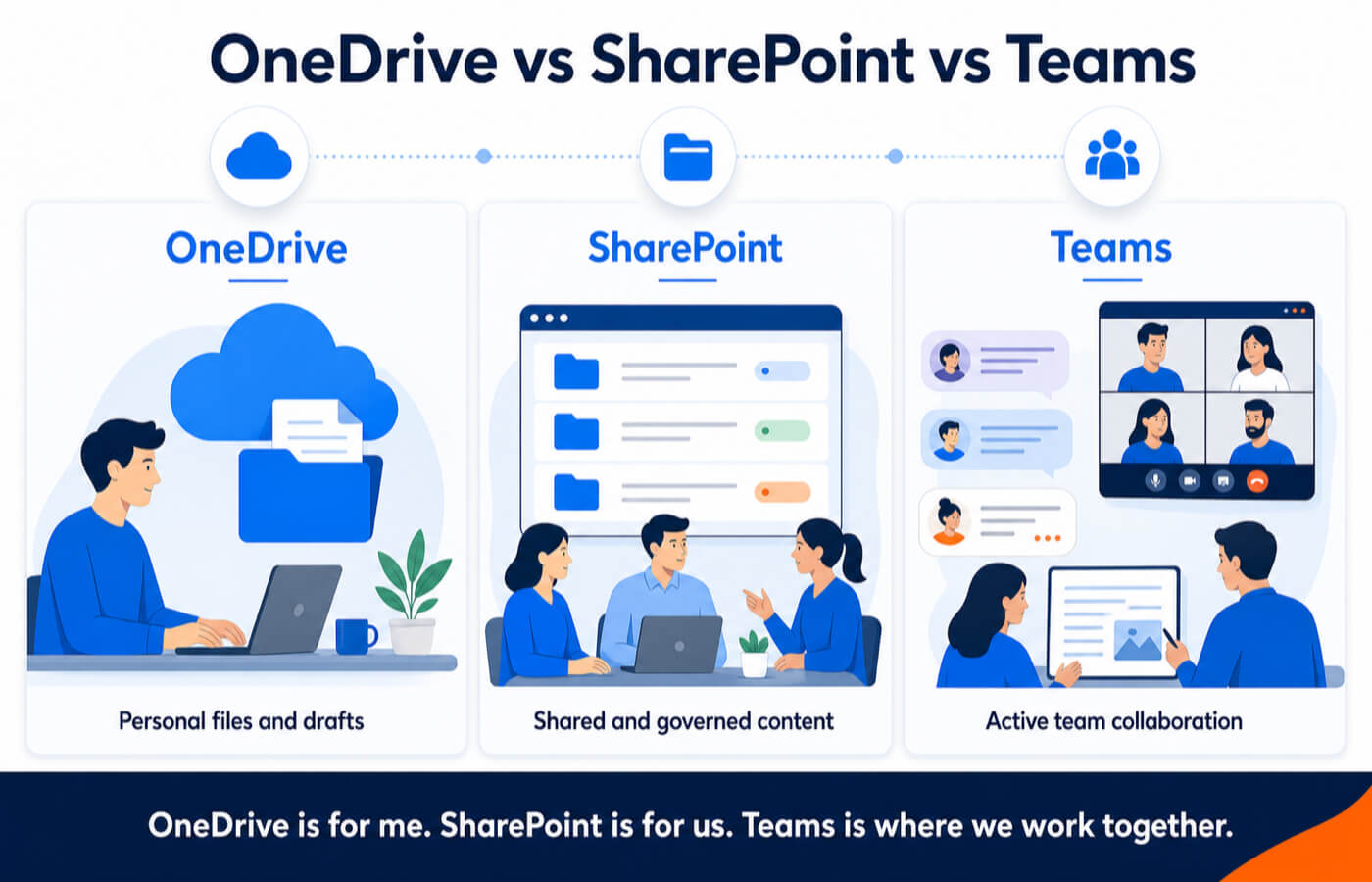
Comparison showing OneDrive for personal files, SharePoint for governed content and Teams for active collaboration.
OneDrive supports personal work, SharePoint manages shared organisational content, and Teams provides the collaboration layer.
Platform Best for Ownership Typical examples
OneDrive Personal work and early drafts An individual user Working notes, draft reports, temporary files
SharePoint Shared and governed business content A team or organisation Policies, templates, records, department documents
Teams Active communication and collaboration Depends on where the file is shared Project files, meeting documents, collaborative presentations

The important detail: Teams is often the working interface, not a separate file storage system. Channel files are stored in SharePoint. Files shared in chats are generally stored in OneDrive.

2. When should you use OneDrive?

OneDrive is best for personal work files and documents that are not yet ready to become shared team resources. Files in your work OneDrive are private unless you share them.

Good uses for OneDrive
  • Early drafts and personal working documents
  • Notes, research and personal reference files
  • Temporary files
  • Documents needing limited, short-term sharing
  • Files you access across multiple devices
Move beyond OneDrive when
  • The entire team relies on the document
  • It needs a permanent business owner
  • It forms part of a controlled process
  • It requires consistent classification or retention
  • It must remain accessible after staff changes

For example, the first draft of a presentation can begin in OneDrive. Once it becomes a team deliverable, move it to the appropriate SharePoint library or Teams channel so ownership and access no longer depend on one person.

3. When should you use SharePoint?

SharePoint is designed for shared information, document management and organisational content. It gives teams a central location for files that must remain accessible beyond one person's involvement.

Use SharePoint for company policies, department files, approved templates, project records, internal knowledge and documents that need metadata, structured permissions or lifecycle controls.

Example: an approved workplace policy
One source of truth
Staff access the current approved document.
Managed editing
Permissions can separate editors from readers.
Document history
Version history can support recovery and review.

SharePoint becomes especially useful when folders alone are no longer enough. Document libraries can use metadata, content types, custom views and filters to help people organise and find information.

Build practical SharePoint skills

Learn libraries, metadata, views and search

Nexacu's SharePoint Beginner course helps new users organise information and collaborate confidently in modern SharePoint sites.

4. When should you use Microsoft Teams?

Microsoft Teams is best used as the collaboration layer for active work. It brings conversations, meetings, apps and files into one workspace, helping people work on a document with the discussion and context beside it.

Use Teams for active projects, department collaboration, working groups, meeting documents, shared planning and files that need regular discussion.

Where do Teams files actually go?
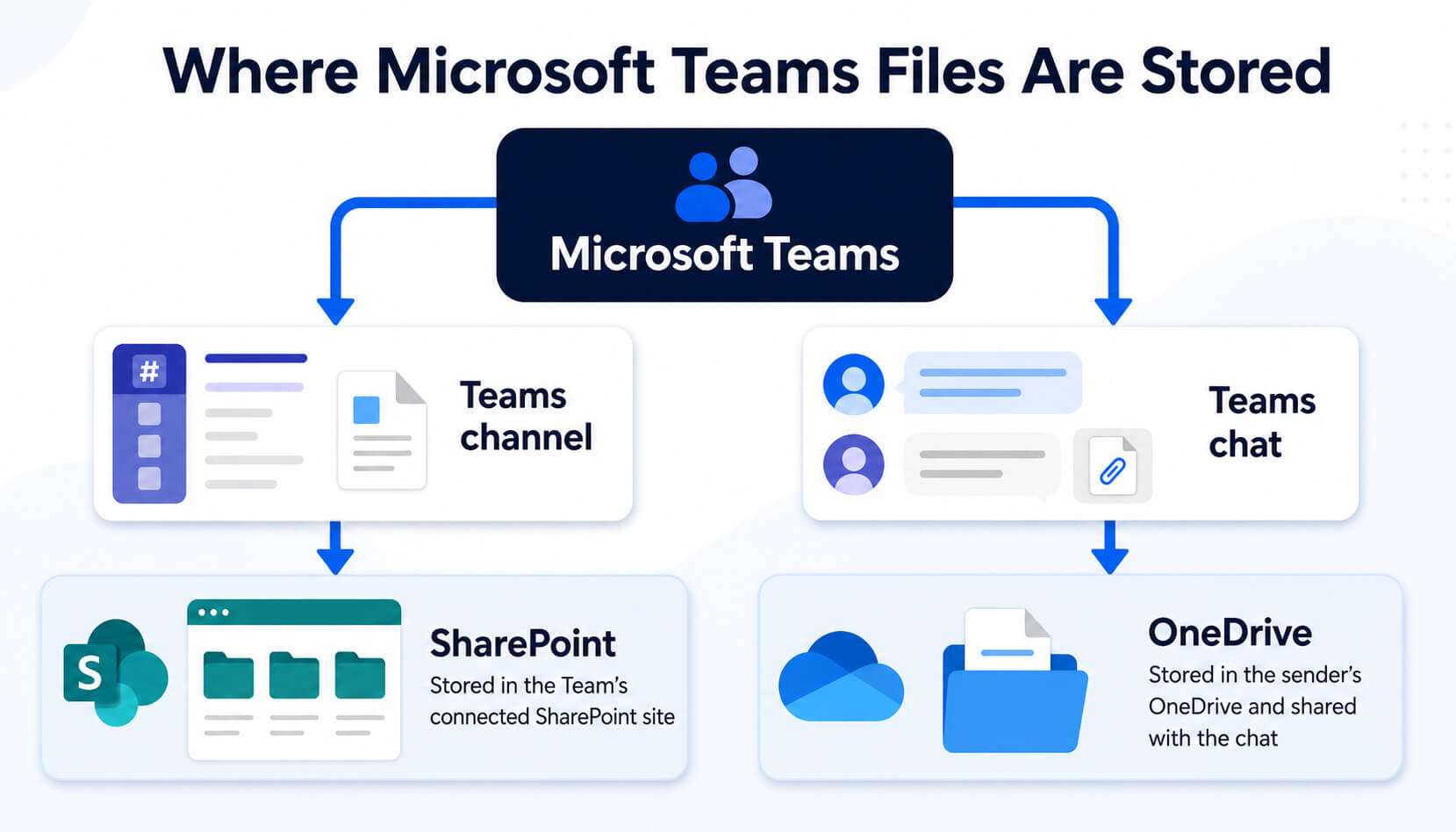
Diagram showing Teams channel files stored in SharePoint and Teams chat files stored in OneDrive.
Teams channel files are stored in SharePoint, while files shared in Teams chats are generally stored in the sender's OneDrive.

This distinction matters. A file placed in a channel becomes part of the team's SharePoint-backed workspace. A chat file can remain connected to an individual's OneDrive.

Is Teams better than SharePoint? Not for file storage, because Teams channel files already use SharePoint. Use Teams when people need conversation and active collaboration. Open the same content in SharePoint when you need richer library management, metadata, navigation or governance.

5. Where should you save a file?

Use this quick decision guide before creating another mystery copy called Final_Final_v7.
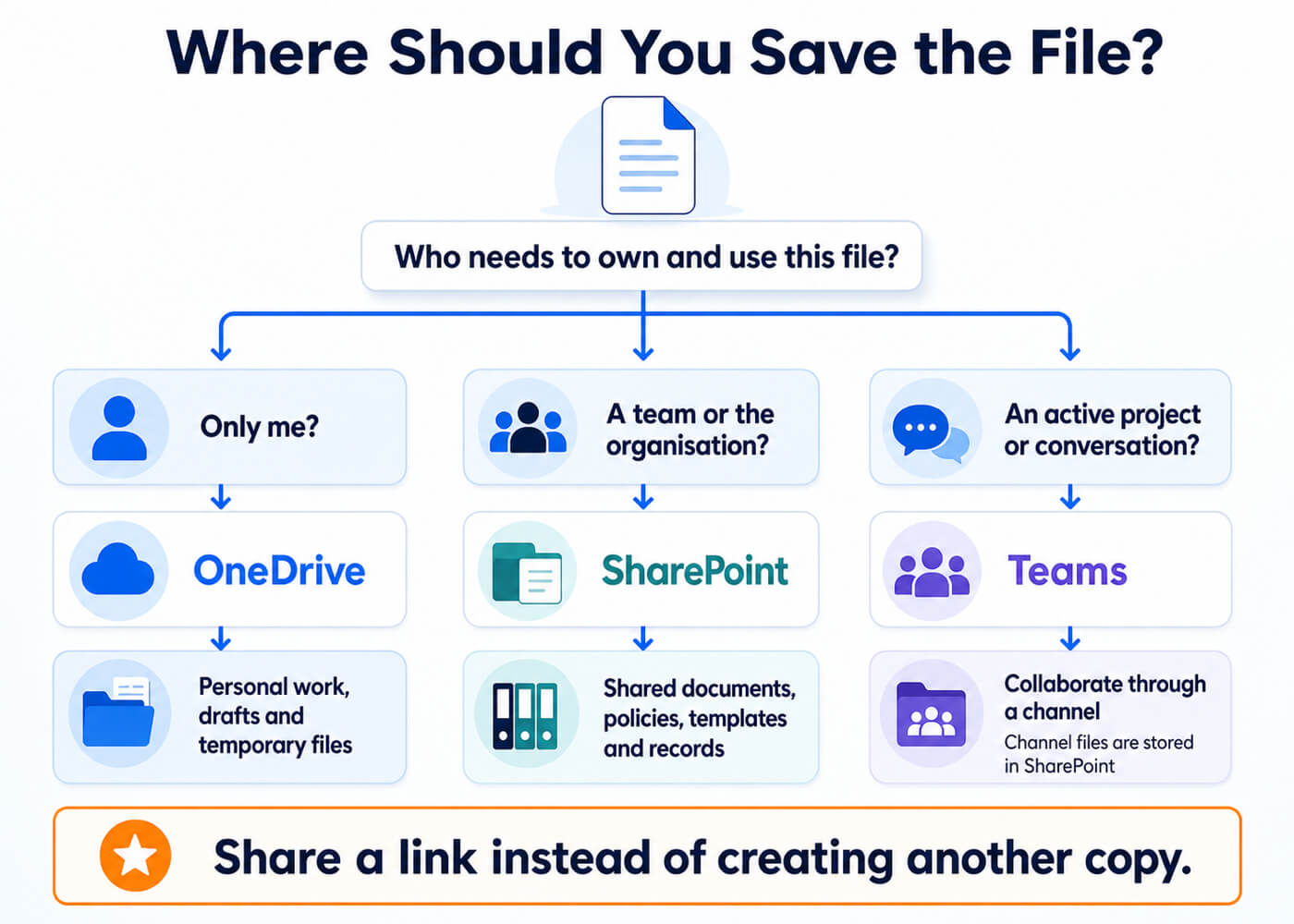
Decision workflow for choosing OneDrive, SharePoint or Teams based on file ownership and collaboration needs.
Choose the storage location according to who owns the file and how people need to work with it.
Am I the only person working on it?
Use OneDrive. Move it when the file becomes a lasting team resource.
Does it belong to a team or department?
Use SharePoint, directly or through the correct Teams channel.
Is it part of an active project discussion?
Work through Teams. Prefer a channel for ongoing team ownership.
Is it an official policy, template or record?
Use a governed SharePoint library.
Am I about to email another copy?
Share a link instead, then check that the recipients have suitable access.

6. Common Microsoft 365 file storage mistakes

Using OneDrive as a team drive
Important shared files should not depend indefinitely on one person's account.
Uploading the same file everywhere
Multiple copies create conflicting edits and confusion about which version is current.
Treating chats as document libraries
Move important files into the correct channel or SharePoint library for ongoing access.
Building endless folder trees
Metadata, views and filters can make larger SharePoint libraries easier to explore.
Managing access person by person
Use suitable Microsoft 365 and SharePoint groups wherever practical.
Ignoring ownership and lifecycle
Important content needs an owner, an appropriate location and a plan for retention or disposal.
Practical resource

7. SharePoint governance checklist

Use this checklist to review how your organisation stores, shares and manages Microsoft 365 files.

✓ Define when staff should use OneDrive, SharePoint and Teams.
✓ Assign an owner to every SharePoint site and Team.
✓ Store important shared content in team-owned locations.
✓ Use links instead of duplicate file attachments.
✓ Review membership and external access regularly.
✓ Use metadata and views when folders become unwieldy.
✓ Confirm version history and retention settings.
✓ Apply sensitivity controls where appropriate.
✓ Define how inactive Teams and sites will be handled.
✓ Train staff on the agreed storage rules.

8. Build better Microsoft 365 file management skills

Choosing the right storage location is only the beginning. Teams also need consistent skills in sharing, permissions, document libraries, metadata and collaboration.

New to SharePoint

SharePoint Beginner

Learn sites, libraries, lists, metadata, views, search and OneDrive synchronisation.

Broader foundations

Microsoft 365 Essentials

Understand the connected Microsoft 365 environment and build more confident workplace habits.

For site managers

Document Governance

Explore metadata, permissions, retention, sensitivity labels and document lifecycle management.

Instructor-led training across Australia

Turn Microsoft 365 confusion into a clear way of working

Explore beginner, intermediate and advanced SharePoint courses, available face-to-face and live online.

9. Frequently asked questions

Quick answers to common questions about SharePoint, OneDrive and Teams file storage.

What is the main difference between SharePoint, OneDrive and Teams?

OneDrive is primarily for personal work files. SharePoint is for shared, team-owned and governed organisational content. Teams provides a collaborative interface for conversations, meetings and files.

Should shared team files be stored in SharePoint or Teams?

Shared team files are generally stored in SharePoint. When people use a Teams channel to access those files, they are working with the document library connected to that Team.

Are Microsoft Teams files stored in OneDrive?

Files uploaded to Teams channels are stored in SharePoint. Files shared in one-to-one or group chats are generally stored in the sender's OneDrive and shared with the other participants.

When should I move a file from OneDrive to SharePoint?

Move it when the file becomes an ongoing team resource, needs organisational ownership or requires structured document management, metadata, permissions, retention or governance.

Can SharePoint files be accessed through Microsoft Teams?

Yes. Teams channels display files from the SharePoint document library connected to the Team. Users can work with the same files through either Teams or SharePoint.

Should we share files as attachments or links?

Sharing a link is usually preferable when the file is stored in SharePoint or OneDrive. A link helps everyone work from the same document. Always check access settings before sharing sensitive content.

Nexacu is a Lumify Group company, delivering practical Microsoft, data, AI, Adobe and professional development training across Australia.

Trusted Nationwide by Leading Organisations

at Nexacu, we're proud to be the trusted training partner for hundreds of leading organisations across Australia and New Zealand. From government departments to top corporates, we help teams upskill and succeed everyday

  • 400+ companies rely on Nexacu for team training
  • Trusted by federal, state, and local government agencies
  • Delivering training across 9 countries

Why Nexacu?

step by step courseware

Step by Step Courseware

Custom workbook included with a step by step exercises

Facility Image 2
Facility Image 3
Facility Image 1

Interactive real time training

Interactive, Real-Time Training

Learn with expert instructors, wherever you are

More than 1,300 Business trust Nexacu

Trusted by Business

Procured by Government

Procured by Goverment

Reviews Not Found

Valued by Individuals