Excel skills · Microsoft Copilot
Copilot can help you write formulas faster. Excel skills help you understand the answer. Bring both together to work more confidently with your data.
Practical guide · Includes a worked example and checklist
You describe a calculation to Microsoft Copilot, receive a suggested Excel formula and get a result in your spreadsheet. It is a useful way to move past a blank cell and get started.
The next step is knowing whether the result answers your question. A formula can run without an error and still include cancelled orders, miss new rows or apply an assumption that does not fit your report.
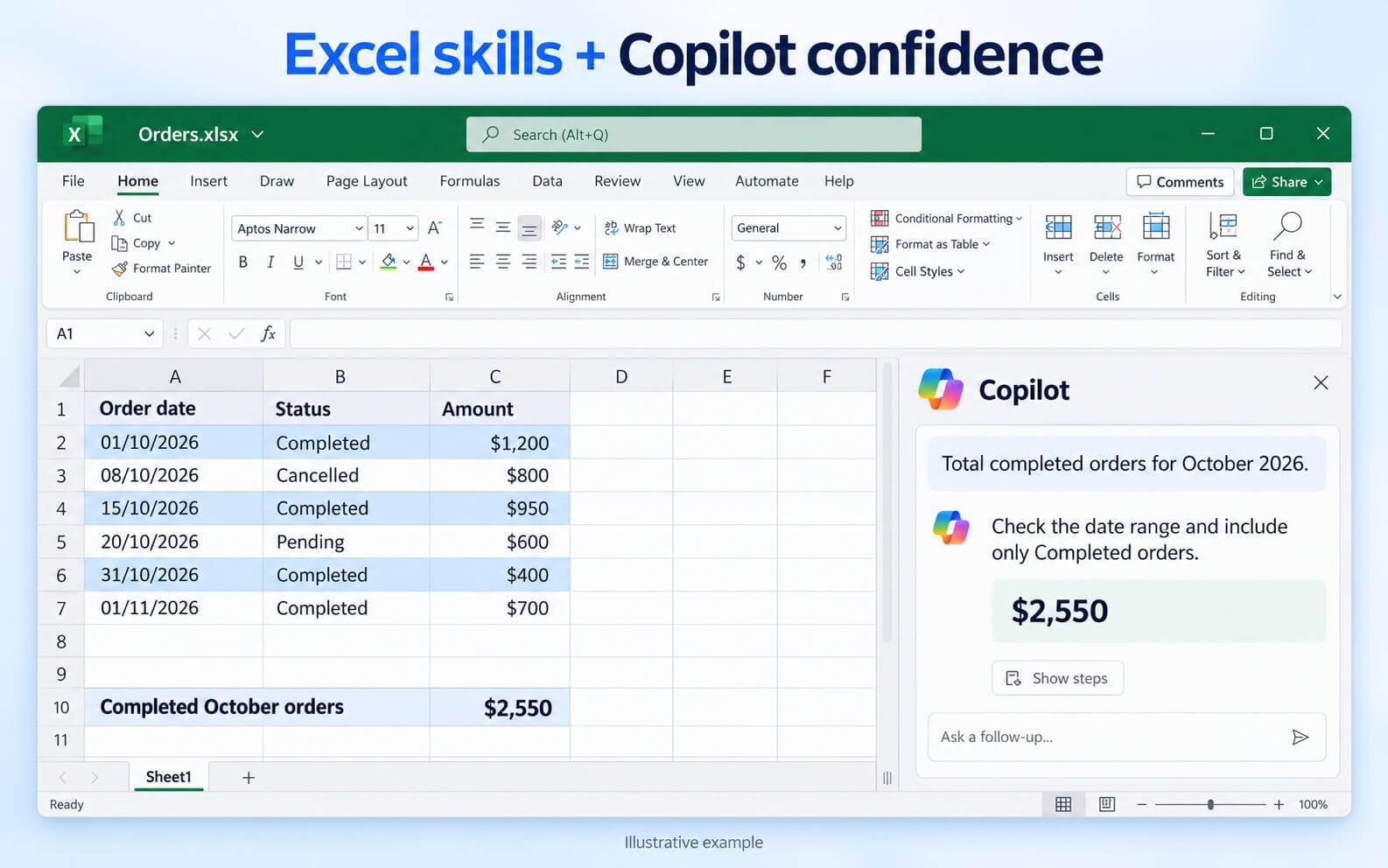
Excel knowledge helps you understand the calculation. Copilot skills help you describe the task clearly, explore suggestions and refine the formula. Together, they give you a more confident way to work.
Start with the question your formula needs to answer
“Calculate sales for October” sounds clear. But does that mean all orders placed in October, completed orders only, or payments received during the month?
A clearer instruction
Add the value of completed orders dated in October 2026. Exclude pending and cancelled orders.
This gives you a specific rule to test. Apply the same approach to other calculations: define whether averages include zeros, deadlines include the final day and customer counts mean unique customers or individual transactions.
Worked example
A valid formula can still give you the wrong total
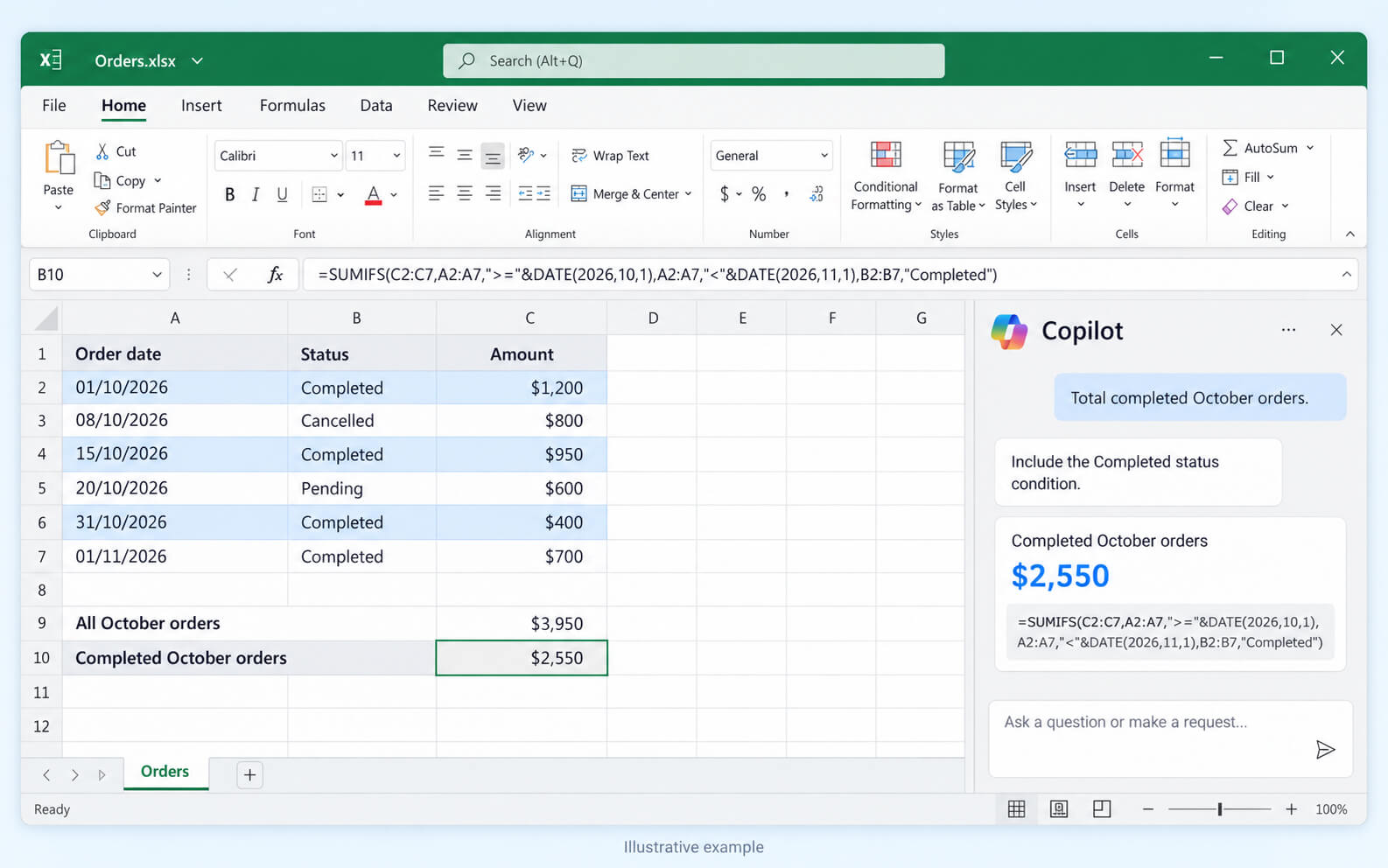
Imagine this sample data is in A1:C7, with headers in row 1. Column A contains real Excel dates, column B contains statuses and column C contains numeric amounts.
You want the value of completed October orders. If an AI tool overlooks the status requirement, it could suggest this formula:
Includes all October orders
=SUMIFS(C2:C7,A2:A7,">="&DATE(2026,10,1),A2:A7,"<"&DATE(2026,11,1))
Result: $3,950
The dates are correct, but the total includes cancelled and pending orders. Add the missing status condition:
Includes completed October orders only
=SUMIFS(C2:C7,A2:A7,">="&DATE(2026,10,1),A2:A7,"<"&DATE(2026,11,1),B2:B7,"Completed")
Correct result: $2,550
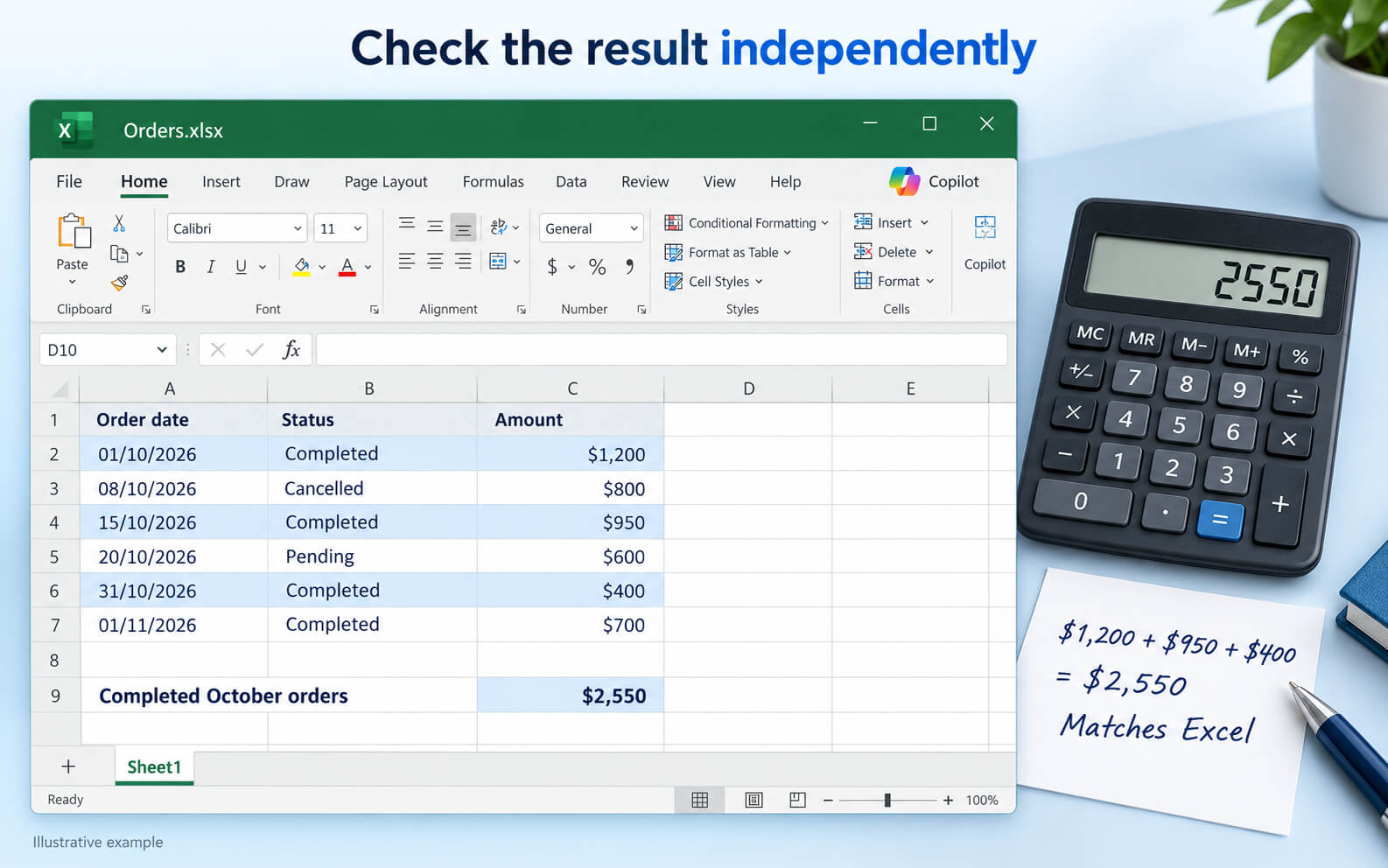
The manual check is $1,200 + $950 + $400 = $2,550. Excel calculated both formulas as instructed. Only the second formula matched the question.
Five checks before you use the result
1. Check the cells and ranges
Confirm that the formula uses the right columns and every relevant row. Watch for subtotals included alongside the transactions they summarise.
In SUMIFS, the sum range and criteria ranges must have matching dimensions. Also check what happens when you add data: a fixed range ending at row 7 will not automatically include a new order in row 8.
2. Confirm the conditions
Read each condition as a sentence. Our formula includes dates on or after 1 October, excludes dates on or after 1 November and includes only Completed orders.
Using “before 1 November” also includes records on 31 October that contain a time. Check your source data, too: text dates, extra spaces in statuses and amounts stored as text can affect results.
3. Compare a small sample manually
Choose a few records where you can calculate the expected answer yourself. For a lookup, find several matches manually. For a percentage, calculate one example independently.
Ask Copilot to explain its formula if that helps you understand the logic. Then compare the result with your independent check.
4. Test the exceptions
In a copy of your workbook, test records on the first and last day of the reporting period, blank fields, duplicate IDs and missing lookup matches.
Decide what should happen before testing. Two similar rows might be separate transactions or an accidental duplicate. Your reporting rules determine how they should be treated.
5. Check copied formulas and new rows
A reference such as F2 normally moves when you copy a formula. $F$2 stays fixed. Check whether a shared rate or target cell needs a fixed reference.
Review the first, middle and final copied formulas. For recurring reports, consider an Excel Table with structured references, then test that newly added records are included.
Give Copilot a clearer brief
Include the data location, conditions and anything that might require clarification. This gives Copilot more useful context and makes the suggested formula easier to assess.
Example prompt
Write an Excel formula to total completed orders for October 2026. Order dates are in A2:A7, statuses are in B2:B7 and amounts are in C2:C7. Include only rows with the status Completed. Dates may contain times. Explain each condition and suggest three test cases. Ask me about any missing business rules before making assumptions.
Use only information your organisation permits you to share with the AI tool.
Your formula-checking checklist
- I can explain what the formula should calculate.
- The columns and ranges are correct.
- The conditions match the business rules.
- A small manual calculation matches the result.
- I have tested relevant exceptions.
- Copied formulas use the correct references.
- New data is included as intended.
Put your skills into practice
Build your Excel skills. Get more from Copilot.
Excel knowledge helps you understand your data and check the result. Copilot skills help you describe tasks clearly and apply AI assistance to everyday work. Nexacu offers practical training for both.
Excel training
Build confidence with spreadsheets, formulas and data analysis. Find an Excel course that matches your current experience and next learning goal.
Explore Excel trainingCopilot for Excel training
Learn how to use Copilot in Excel for practical spreadsheet tasks and build your confidence applying AI assistance to your work.
Explore Copilot for Excel