Recent Searches
Category

Microsoft Power BI

Category

Microsoft Excel

Category

Microsoft Copilot Courses

Category

SharePoint

Category

Professional Development

Category

Microsoft Project

Category

Power Automate

Category

Power Apps

Category

AI for Business

Category

SQL

Category

Microsoft 365

Category

Microsoft Word

Category

Python

Category

Microsoft Teams

Category

Excel Specialist

Category

Microsoft PowerPoint

Category

Microsoft Outlook

Category

R Programming

Category

Microsoft Access

Category

Microsoft Visio

Category

HTML Courses

Category

WordPress

Category

Microsoft Windows 11 Courses

Category

Adobe InDesign Courses

Category

Adobe Premiere Pro Training

Category

Adobe After Effects Training

Category

Adobe Photoshop Courses

Category

Adobe Illustrator Courses

Category

Canva Courses

Category

Articulate

Category

Adobe Acrobat Courses

Category

Adobe Animate Training

Category

Adobe Captivate Training

Course

Power BI Beginner

Course

Excel Beginner

Course

Copilot for M365

Course

SharePoint Beginner

Course

Achieving Leadership & Success

Course

Project Beginner

Course

Power Apps Beginner

Course

SQL Beginner

Course

Word Intermediate

Course

Word Beginner

Course

Word Advanced

Course

Python Beginner

Course

Teams Essentials

Course

Financial Modelling

Course

PowerPoint Level 1

Course

Microsoft Outlook Beginner to Intermediate

Course

R Programming Beginner

Course

Microsoft Access Essentials

Course

Visio Essentials

Course

HTML Training Intro

Course

Windows 11 End User Course

Course

InDesign Lite

Course

Premiere Training Intro

Course

After Effects Training Intro

Course

Photoshop Lite

Course

Illustrator Training Intro

Course

Articulate Storyline 360 Essentials

Course

Acrobat Essentials

Course

Animate Training Intro

Course

Captivate Training

Course

Power BI Intermediate

Course

Excel Intermediate

Course

Copilot for Word

Course

SharePoint Intermediate

Course

Anger Management & Negotiation Skills

Course

Project Intermediate

Course

Power Apps Intermediate

Course

ChatGPT Beginner

Course

SQL Intermediate

Course

Python Intermediate

Course

Analysis and Dashboards

Course

PowerPoint Level 2

Course

R Programming Intermediate

Course

InDesign Training Intro

Course

Photoshop Training Intro

Course

Articulate Storyline 3 & 360 Advanced

Course

Acrobat Forms

Course

Power BI Advanced

Course

Excel Advanced

Course

Copilot for Excel

Course

SharePoint Advanced (Site Owner)

Course

Assertiveness & Confidence

Course

Project Advanced

Course

Power Apps Intermediate | Power Automate + Power BI Integration

Course

AI Prompting Fundamentals

Course

Python Advanced

Course

Excel VBA

Course

R Programming Advanced

Course

Microsoft Access Advanced

Course

InDesign Training Advanced

Course

Canva Beginners

Course

Power BI DAX

Course

Excel Expert

Course

Copilot for PowerPoint

Course

SharePoint Advanced (Document Governance)

Course

Building Resilience

Course

Power Apps Advanced

Course

Machine Learning in R

Course

Canva Intermediate

Course

Copilot for Outlook and Teams

Course

Coaching and Mentoring

Course

Canva Advanced

Course

Communications

Course

WordPress Essentials

Course

Premiere Basics Training

Course

Advanced After Effects Training

Course

Illustrator Training Advanced

Course

Canva AI

Course

Microsoft Copilot Agent Builder

Course

Communications & Quality Client Service Training

Course

AI for Business Leaders and Managers

Course

Advanced Premiere Training

Course

Photoshop Training Advanced

Course

Power BI Copilot Training

Course

Critical Thinking and Problem Solving

Course

AI Governance Training

Course

InDesign Interactivity Training

Course

Copilot for Customer Service

Course

Cultural Diversity in the Workplace

Course

Claude AI Course

Course

InDesign Accessibility Training

Course

Copilot for Executives and Managers

Course

Embracing Change

Course

Microsoft Outlook Advanced

Course

Copilot for Finance

Course

Growing Emotional Intelligence

Course

SQL Advanced

Course

Copilot for HR

Course

Minute Taking

Course

Planner Premium

Course

Excel Tables and Pivot Tables

Course

Copilot for Legal Services

Course

Power Automate Beginner

Course

Microsoft 365 Essentials

Course

Data Transformation with Power Query

Course

Excel Macro Mastery

Course

Copilot for Marketing

Course

Persuasion and Negotiation Skills

Course

Power Automate Intermediate

Course

Power BI Desktop Advanced Reporting

Course

Copilot for Operations

Course

Presentation Skills and Public Speaking

Course

Data Visualisation with Power BI Desktop

Course

Copilot for Sales

Course

Practical Project Management

Course

Respect, Equity and Diversity (RED)

Course

Resumé Writing and Interview Skills

Course

Stress Management

Course

Team Leadership, Management and Development

Course

Time Management Intensive

Course

Train the Trainer

Course

Write Effective Business Documents

Course

Dealing with Difficult People

Course

Managing Difficult Conversations

Course

Managing the Virtual Workplace

Course

Customer Service Training

Course

Technical Writing

Office in Copilot: What’s Changing?

Nexacu | Oct 29

Microsoft Copilot · Practical workplace skills

Word, Excel and PowerPoint are becoming part of a more connected Copilot experience. Discover what is changing, where it could help and which skills will help you get useful results.

Updated 29 October 2026 · Practical guide for business professionals

You have a project brief to write, a budget to organise and a presentation to prepare. The information is there, but turning it into something useful means moving between files, checking details and explaining the same context more than once.

Microsoft’s latest Copilot direction aims to make that process more connected.

For people who use Microsoft 365 every day, this raises a practical question: what should you learn to make the most of it?

A more connected workspace

What is Office in Copilot?

Office in Copilot brings familiar Office capabilities into the Copilot experience. Microsoft describes a workflow where you can ask for a document, workbook or presentation, then continue refining the editable file alongside your AI conversation.

For example, you could start with a request to prepare a project brief, review the draft and make changes in the same workspace. Microsoft says changes stay in sync between Copilot and the Office apps.

The change discussed here is where you create, edit and collaborate on files. It does not mean AI drafting, spreadsheet help or presentation creation are entirely new capabilities. The examples below illustrate useful tasks, rather than features that are exclusive to this update.

The potential benefit is less time spent moving between an AI conversation and the file you are trying to finish. Reviewing the actual output remains an essential part of the workflow.

Source: Microsoft’s announcement of the new Copilot experience.
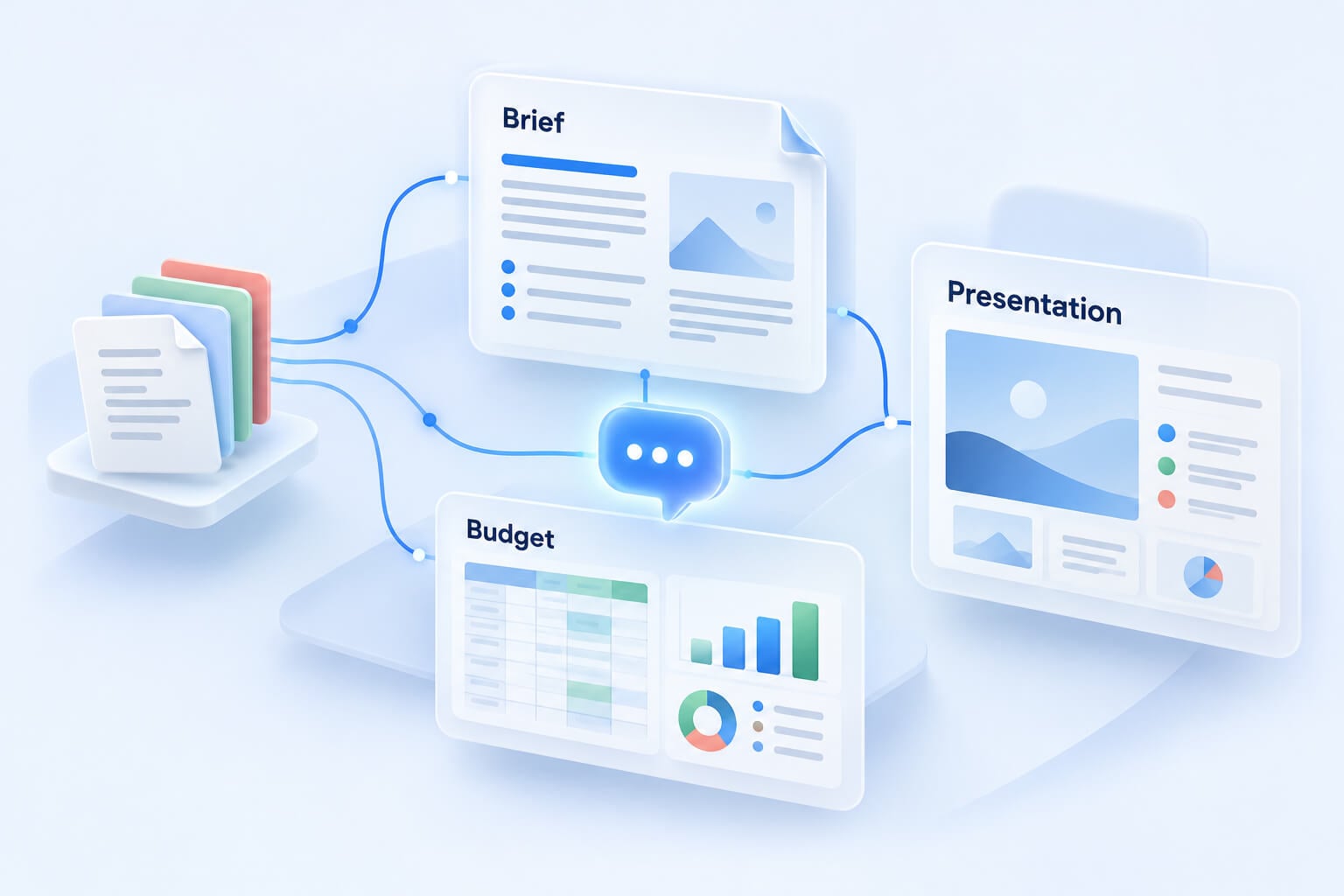
Illustration of source files connected to a project brief, budget and presentation through AI assistance.
A connected workflow from source material to a brief, budget and presentation. Conceptual illustration.

Practical example · Word

Turn project notes into a clearer brief

A useful project brief needs more than polished sentences. It needs a clear purpose, agreed scope, responsibilities and next steps.

Before asking AI to help, gather the approved notes and identify the intended reader. Then give it a specific task.

Example prompt

Using the supplied project notes, draft a one-page brief for our operations manager. Include the objective, scope, agreed deadlines and outstanding decisions. Use Australian English. If an owner or date is missing, mark it as “To be confirmed”.

Review the result against the original notes. Has a suggestion become a commitment? Has an unresolved question been presented as a decision?

Those checks are often more valuable than another round of wording changes. A document can sound convincing while still misrepresenting what the team agreed.

Practical example · Excel

Make a budget easier to review

For an Excel exercise, work on a separate copy of a small, well-labelled sample budget containing planned and actual expenditure. Keep the original file separately; a prompt asking AI to preserve data is not a backup.

Decide what you want to understand before requesting changes.

Example prompt

Review this sample budget and propose a summary comparing planned and actual expenditure by category. Define expenditure variance as actual minus planned, so a positive result means overspending. Flag missing values and do not treat them as zero. Describe your proposed calculations before making changes. Keep the source data unchanged.

Inspect the proposed approach before relying on it. Check whether positive variance means overspending or underspending. Confirm that totals include the correct rows and that blanks have not been treated as confirmed zero values.

Practical example · PowerPoint

Build a presentation around a decision

A presentation should help its audience understand something or make a decision. Start by defining that purpose.

Example prompt

Using this approved project summary, prepare a six-slide presentation for the leadership team. Cover the objective, progress, budget position, risks, decisions required and next steps. Clearly distinguish confirmed facts from recommendations. Do not add unsupported figures.

When reviewing the result, ask whether the main decision is obvious. Check that the presentation has retained important qualifications and that every number matches the source material.

Also review readability. A slide can be accurate and still contain too much information for an audience to absorb.

Better context makes your request more useful

For these exercises, we suggest a five-part briefing checklist:

  • The outcome: What do you need to produce?
  • The audience: Who will read or use it?
  • The source: Which approved information should guide the work?
  • The boundaries: What must remain unchanged or be excluded?
  • The checks: What needs to be flagged for your review?

You do not need a complicated prompt. You need a clear request.

Instead of “make this better”, explain what better means: shorter for a busy manager, clearer for a new employee or more focused on a specific decision.

Work in stages when a task is complex. Review the structure first, then the content, then the final presentation.

Microsoft’s own prompting guidance describes four elements: goal, context, source and expectations. Our checklist adapts that approach for these workplace exercises. Read Microsoft’s prompting guidance.
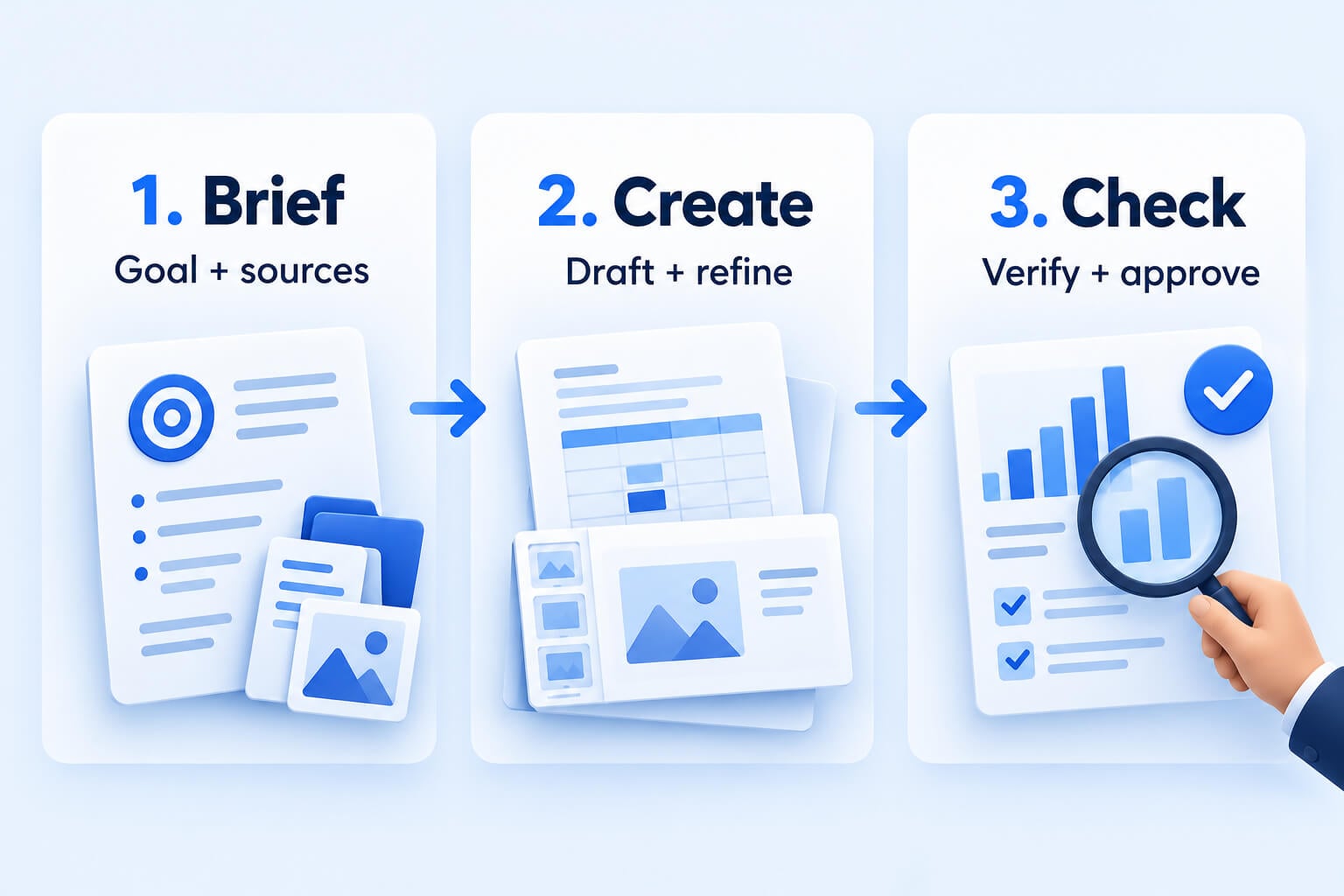
Three-step AI workflow: brief with goals and sources, create and refine a draft, then verify and approve.
Start with a clear brief, refine the draft and verify the result before sharing.

What should you check before getting started?

As at 29 October 2026, Microsoft’s roadmap lists Office in Copilot under Frontier. Early access is not the same as availability across every workplace, and Microsoft notes that roadmap information can change.

Before using it for a team process, confirm with your Microsoft 365 administrator:

  • Whether your account has access to the required experience.
  • Which features your organisation has enabled.
  • Which information you are permitted to use.
  • Whether the intended workflow has additional usage costs.

Begin with one repeatable task and approved sample data. Compare the result with your usual process, including the time spent correcting and reviewing it.

Source: Microsoft’s AI at Work roadmap and release information.

Put your skills into practice

Build practical Copilot skills with Nexacu

A more connected workspace can make it easier to get started. Producing useful work still depends on clear instructions, reliable source material and informed review.

Build on the tools you already use

Knowing how to structure a Word document, validate an Excel calculation and communicate through PowerPoint gives you a stronger foundation for working with AI.

Nexacu offers practical Microsoft Copilot training across Microsoft 365, including courses focused on Word, Excel and PowerPoint. Explore the course outlines to find training that matches your role and learning goals. Confirm with Nexacu whether a particular course covers the new Office in Copilot experience or other Frontier features.

Explore Microsoft Copilot training

Product descriptions and availability references reviewed against Microsoft and Nexacu sources on 29 October 2026. These examples have not been tested in a customer environment. Feature availability can vary by licence, rollout and organisation settings. Example prompts are suggested exercises. Check individual Nexacu course outlines for current training coverage and setup requirements.

Trusted Nationwide by Leading Organisations

at Nexacu, we're proud to be the trusted training partner for hundreds of leading organisations across Australia and New Zealand. From government departments to top corporates, we help teams upskill and succeed everyday

  • 400+ companies rely on Nexacu for team training

  • Trusted by federal, state, and local government agencies
  • Delivering training across 9 countries

Why Nexacu?

step by step courseware

Step by Step Courseware

Custom workbook included with a step by step exercises

Facility Image 2
Facility Image 3
Facility Image 1

Interactive real time training

Interactive, Real-Time Training

Learn with expert instructors, wherever you are

More than 1,300 Business trust Nexacu

Trusted by Business

Procured by Government

Procured by Goverment

Reviews Not Found

Valued by Individuals