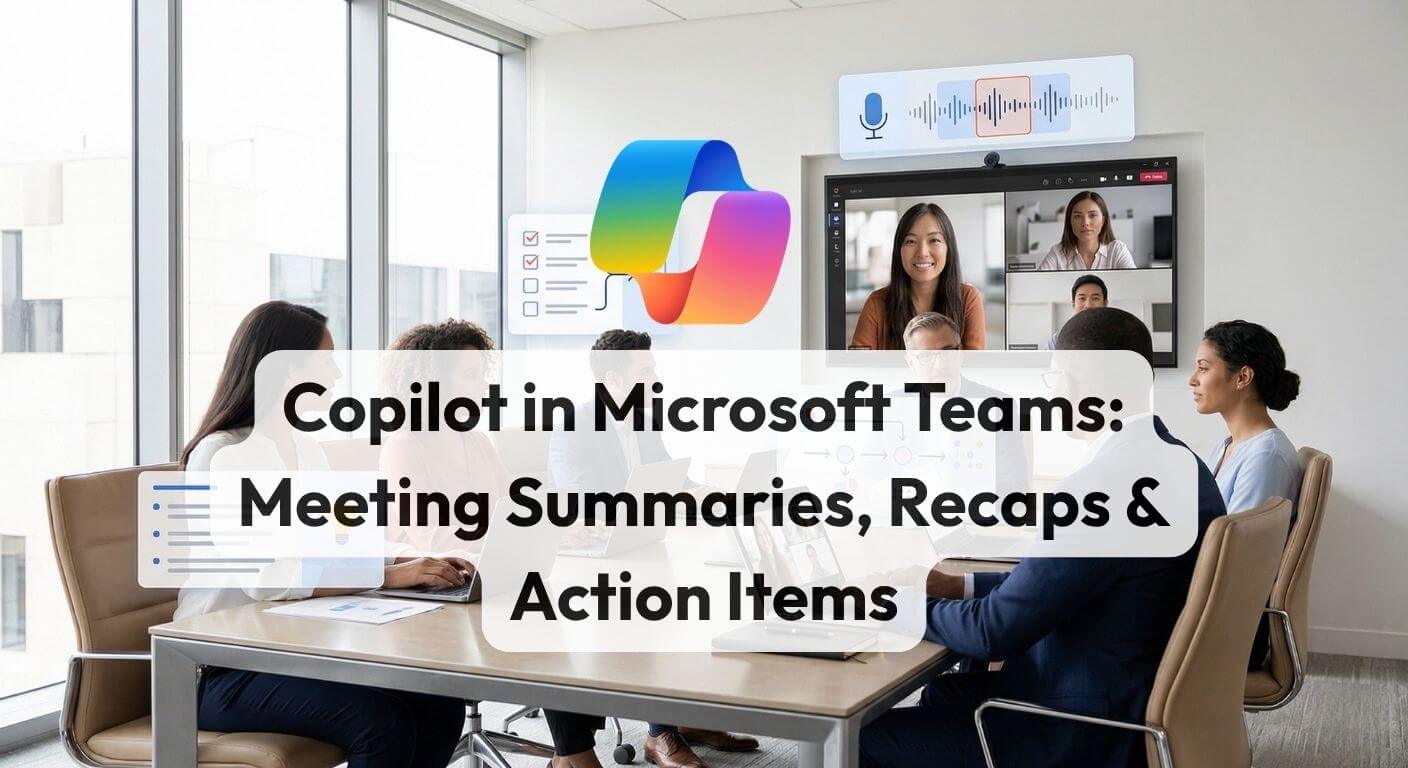
Copilot in Microsoft Teams: Meeting Summaries, Recaps and Action Items
One of the biggest time drains after any meeting is not the meeting itself. It is everything that comes next.
Writing up notes, checking what was agreed, assigning next steps, and sending follow-up emails can easily add another 20 to 30 minutes to a one-hour meeting. Across a team, that turns into hours of admin every week.
This is where Copilot in Microsoft Teams becomes one of the most practical Microsoft 365 Copilot features. Instead of relying on someone to capture everything manually, Copilot creates a structured recap you can review, share and act on within minutes.
TL;DR: If transcription is enabled, Copilot in Teams can create a recap with summary, key discussion points, decisions, action items and transcript highlights. The recap appears in the meeting's Recap tab and can be used to draft follow-up emails, update Planner or To Do, and help absent attendees catch up quickly.
The big benefit is simple: less note-taking, faster follow-up, and clearer accountability after every meeting.
1) Why meeting summaries are one of Copilot's most useful features
Meetings often create more work after they end than during the meeting itself. Notes need to be written up, tasks need to be assigned, and people who missed the call need a clear summary.
Copilot reduces that admin by turning the conversation into a structured recap that is easier to review and use. Rather than searching through a recording or relying on incomplete notes, you get a summary, action items and transcript in one place.
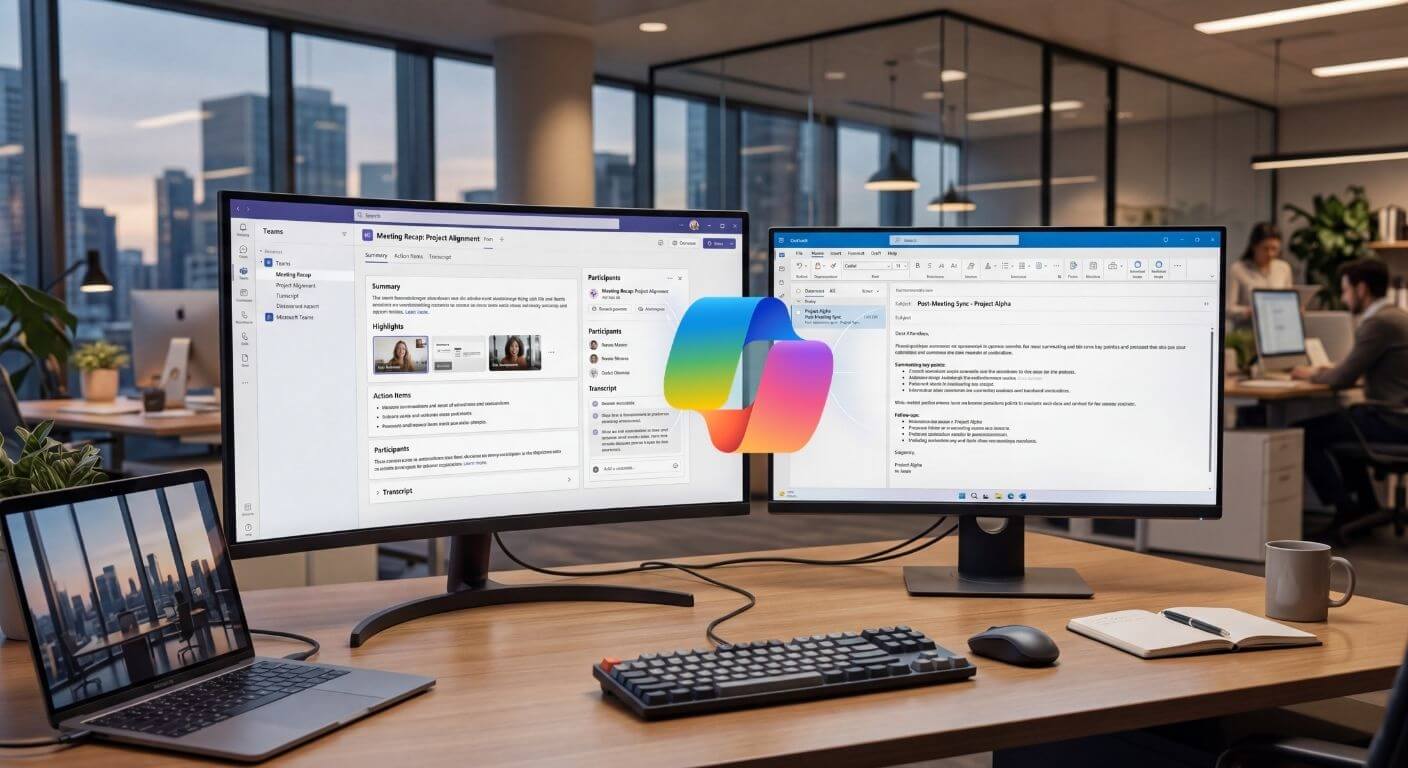
Practical example: Instead of spending time after a project meeting writing notes and chasing owners, Copilot can surface key decisions, pull out action items, and help you draft the follow-up email straight away.
2) What is Copilot meeting summary in Teams?
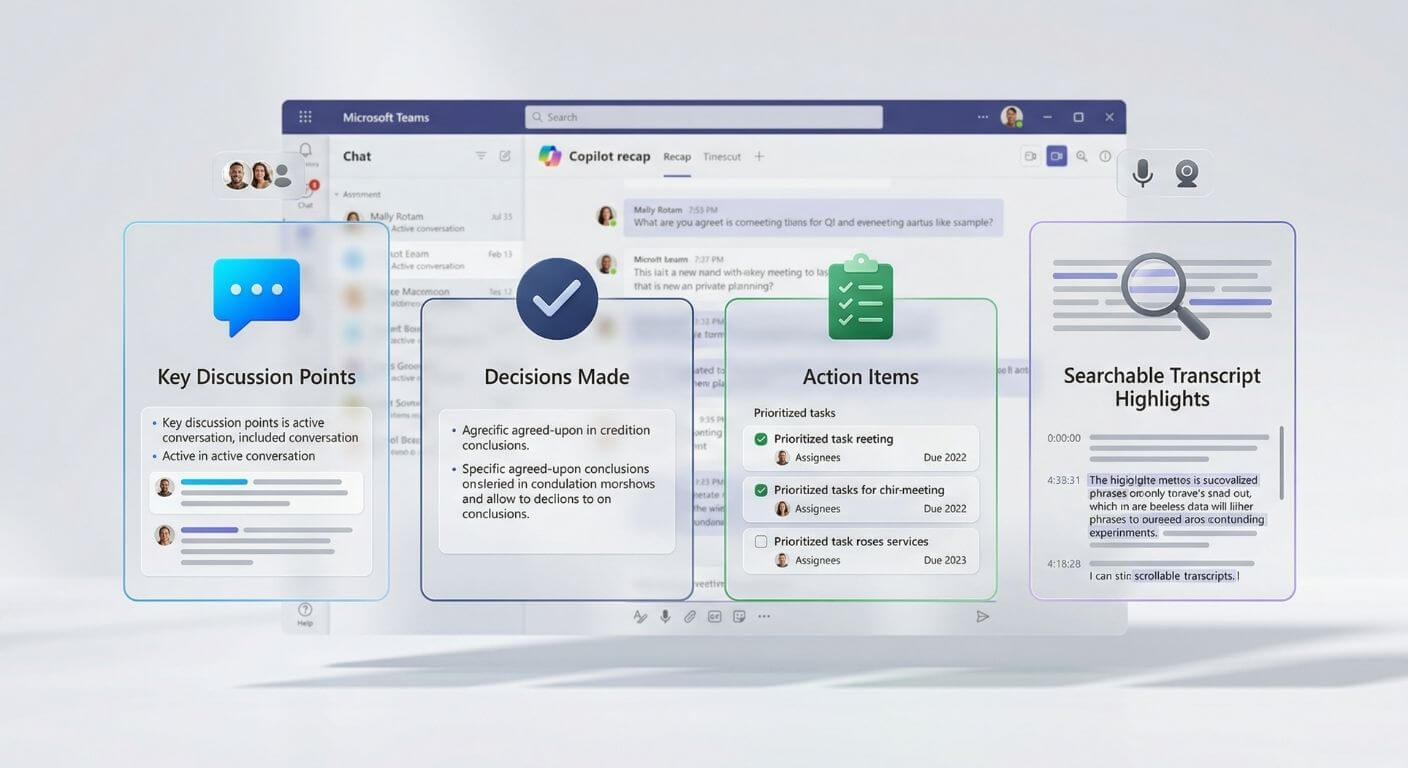
Copilot in Microsoft Teams is built into the Teams meeting experience. When a meeting has transcription enabled, Copilot can analyse the conversation and organise it into a recap that usually includes:
The main themes and topics covered during the meeting.
Important outcomes the group agreed to during the call.
Tasks mentioned in the discussion, often with ownership and context.
A full transcript plus AI-assisted ways to review and query the meeting.
Open Teams, go to your Calendar, select the completed meeting, and click the Recap tab. In many cases, you can also access the recap from the meeting chat.
3) What you need before you start
Before you can use Copilot for meeting recaps, it is worth checking a few setup requirements first.
- Microsoft Copilot for Microsoft 365 licence: standard Microsoft 365 plans do not include Copilot by default.
- Transcription enabled: recording alone is not enough. Transcription must be on.
- Admin policy enabled: your Microsoft 365 or Teams admin needs to allow Copilot in meetings.
- Teams desktop or web app: this is where the full experience works best.
4) How to use Copilot to summarise a Teams meeting
The workflow is simple once you know where each step happens.
- Enable transcription before the meeting in Meeting options where possible.
- Start transcription during the meeting if it was not enabled beforehand.
- Use Copilot during the meeting to ask questions like what has been discussed so far or what action items have come up.
- Open the Recap tab after the meeting from the Teams calendar or meeting chat.
- Review the summary, decisions, tasks and transcript to confirm what happened.
- Turn recap content into follow-up actions such as emails, task updates or reminders.
Good habit: If your team relies on recap quality, make transcription part of your standard meeting setup rather than leaving it to chance after the meeting starts.
5) Copilot prompts for Teams meetings
Copilot becomes more useful when people know what to ask. These are practical prompts for common meeting situations.
6) Copilot in Teams vs manual meeting notes
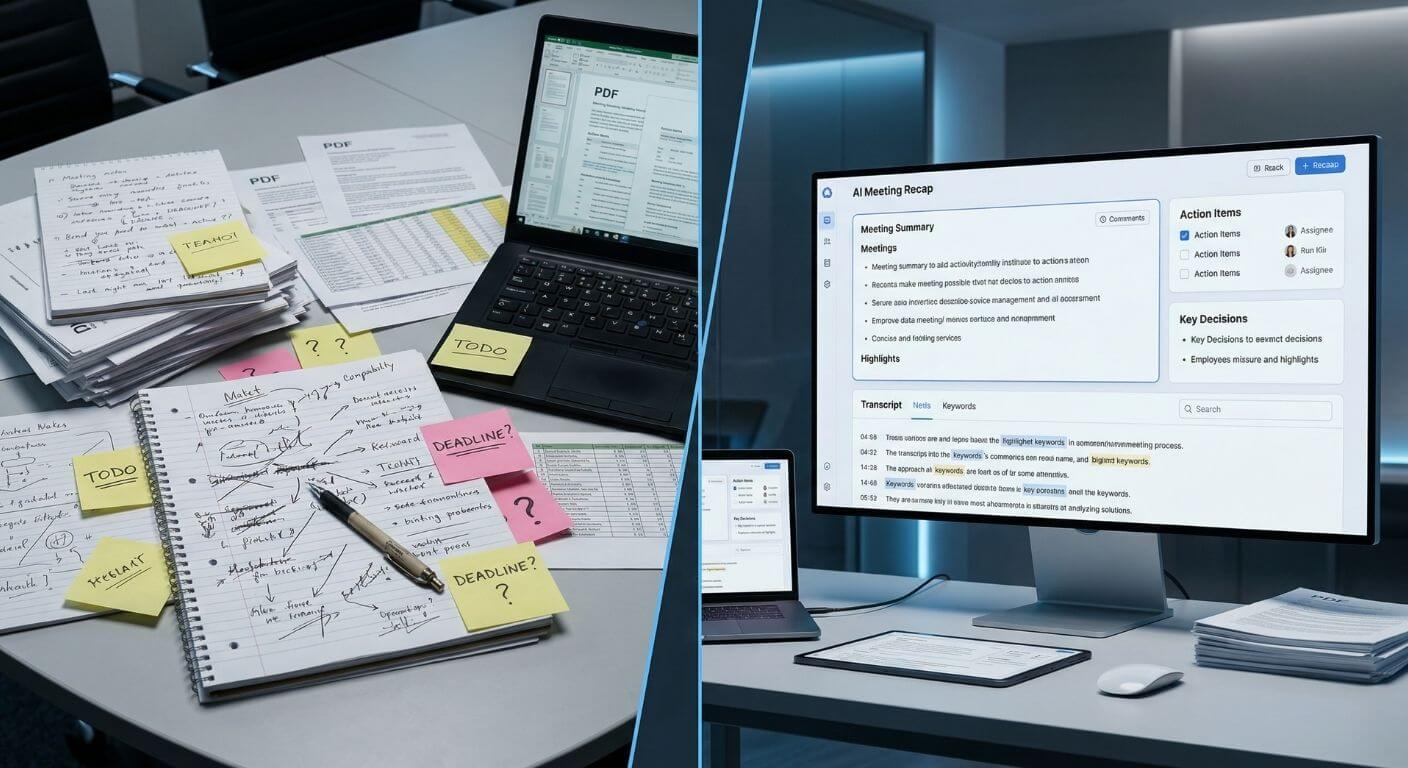
The real difference is not just speed. It is consistency, searchability and how easy it is to turn a meeting into follow-up action.
7) How Copilot in Teams and Outlook work together
The recap becomes even more useful when it feeds directly into your post-meeting communication workflow.
Review the recap, confirm decisions, and check the action items and transcript.
Use Copilot to draft the follow-up email using the decisions, owners and next steps from the meeting recap.
Typical prompt: "Draft a follow-up email summarising today's meeting, listing the agreed action items with owners, and confirming next steps."
8) Privacy and compliance considerations
Before rolling out Copilot meeting recaps widely, organisations should also think about governance and communication.
- Participants are notified when transcription starts.
- Retention policies still apply to transcripts and recap data.
- Access should be governed through Microsoft 365 permissions and admin settings.
- External participants may be included in the meeting but internal access to recap outputs may differ depending on licensing and policy.
9) Common issues and how to fix them
When the feature does not work as expected, the cause is usually straightforward.
- No Recap tab: transcription was probably not enabled.
- No action items: tasks may not have been stated clearly in the conversation.
- No Copilot prompts during the meeting: check licensing or admin settings.
- Summary is too generic: ask a more specific prompt in the recap.
10) FAQs (expand to read)
These are some of the most common questions about Copilot meeting summaries in Teams.
Can I get a Copilot summary if I missed the meeting?
Yes. If transcription was enabled, invited attendees can usually access the recap after the meeting ends.
Does Copilot work for recurring meetings?
Yes. Each meeting occurrence can have its own recap, which is helpful for weekly team meetings and project check-ins.
Can Copilot identify who said what?
It can attribute comments based on the transcript, although accuracy depends on audio quality, speaker separation and setup.
Can I use Copilot recap without a Copilot licence?
No. AI-generated summaries, structured recap features and Copilot prompts require the relevant Microsoft Copilot licensing.
What is the difference between a recording and a Copilot recap?
A recording is the video or audio file. A Copilot recap is the structured AI summary, decisions, action items and searchable transcript generated from the meeting.
11) The bottom line
Copilot in Microsoft Teams is not just a convenience feature. It helps turn meetings into usable outputs faster, with less manual effort and better visibility of what was agreed.
For organisations already using Teams heavily, meeting summaries, recaps and action items are one of the clearest examples of how Copilot can save time in day-to-day work.
Learn practical Copilot workflows for Teams and Outlook
Nexacu's one-day Microsoft Copilot course covers practical workplace use cases across Teams, Outlook, Word, Excel and more, helping your team use Copilot confidently in real day-to-day workflows.
- How to use Copilot in Teams meetings
Recaps, summaries and action items
- How to follow up faster in Outlook
Drafting emails from meeting outcomes
- How to apply Copilot in daily work
Practical workflows people actually use
Note: Copilot features and licensing can vary by tenant configuration and Microsoft 365 setup. Check with your Microsoft 365 admin if recap features are not appearing as expected.