Copilot Chat vs Copilot for Microsoft 365: What’s the Difference?
What’s included, why users feel stuck, and which one your organisation actually needs.
Copilot has officially entered the “one name, many things” era. Someone says “We’ve got Copilot now,” and half the business assumes it will magically summarise their inbox, find that Teams message from three weeks ago, and draft a project update that sounds like a competent adult wrote it. Then reality arrives: Copilot can be amazing, but the experience, licensing, surface, and configuration matter.
This guide is written for AU and NZ IT decision makers, Microsoft 365 admins, team leaders, and end users who want clear answers with minimal hype. We will explain the difference between Copilot Chat and Copilot for Microsoft 365, call out the gotchas that trigger frustration, and give you a practical decision guide. We will also cover security and privacy in careful, accurate wording, because nobody wants the security team turning up to the pilot with a metaphorical fire extinguisher.
Table of contents
What is Copilot Chat?
Copilot Chat is Microsoft’s work-focused AI chat experience for drafting, summarising, rewriting and brainstorming using information you provide in the prompt, such as pasted text and uploaded files (where allowed). In many environments it does not automatically access Microsoft Graph or your tenant data unless your licensing and configuration support work grounding.
Think of Copilot Chat as your high-speed writing and thinking partner. It is brilliant at turning rough inputs into polished outputs: emails, meeting summaries, project updates, customer responses, policy drafts, and training materials. If you give it evidence, it can produce genuinely useful work. If you do not give it evidence, it will still respond, but the output will be generic, and users will call that “hallucination”.
Here is the key point that stops 80 per cent of confusion: Copilot Chat is not automatically your organisation’s search engine. Many users expect it to instantly “see my emails, my Teams chats, and my SharePoint files.” Whether it can do that depends on the Copilot experience you are using and the entitlements you have. A safe, accurate way to state it is this:
If you want Copilot to use specific content, give it the content (paste or upload), or use the Microsoft 365 Copilot experience designed to be grounded in your tenant content.
Copilot Chat is often the best starting point for building AI confidence across a business, because it does not require your Microsoft 365 information architecture to be perfect on day one. People can start using it for drafting and summarising right away, and you can teach them a repeatable prompt pattern: goal, audience, source, format, and checks.
Want to accelerate that adoption without turning your service desk into a counselling hotline? Link users to Nexacu Copilot training, and include a short prompt library for common roles (leaders, HR, finance, PMs, sales, customer service).
What is Copilot for Microsoft 365?
Copilot for Microsoft 365 is the paid add-on that brings Copilot into Microsoft 365 apps like Word, Excel, PowerPoint, Outlook and Teams. It is designed to operate inside your tenant boundary and honour the signed-in user’s permissions. Microsoft states prompts and responses, and data accessed via Microsoft Graph for this experience, are not used to train foundation models.
This is the Copilot experience most people are imagining when they talk about “AI in Microsoft 365.” It sits inside the apps your users already live in. That matters, because the easiest tool to adopt is the one that appears exactly where the work is happening.
Copilot for Microsoft 365 can help users draft documents in Word, summarise and respond to email threads in Outlook, turn meetings into actions in Teams, and generate presentations in PowerPoint. The big upgrade is context. In the right configuration, it can use work content the user has access to, rather than relying only on what the user pastes into a chat.
This is also where governance becomes real. Copilot does not invent permissions, it uses the permissions you already have. If your SharePoint and Teams access model is “set it to everyone and hope for the best,” Copilot may surface content people did not realise they already had access to. That is not Copilot leaking data. That is Copilot making your existing access reality more visible.
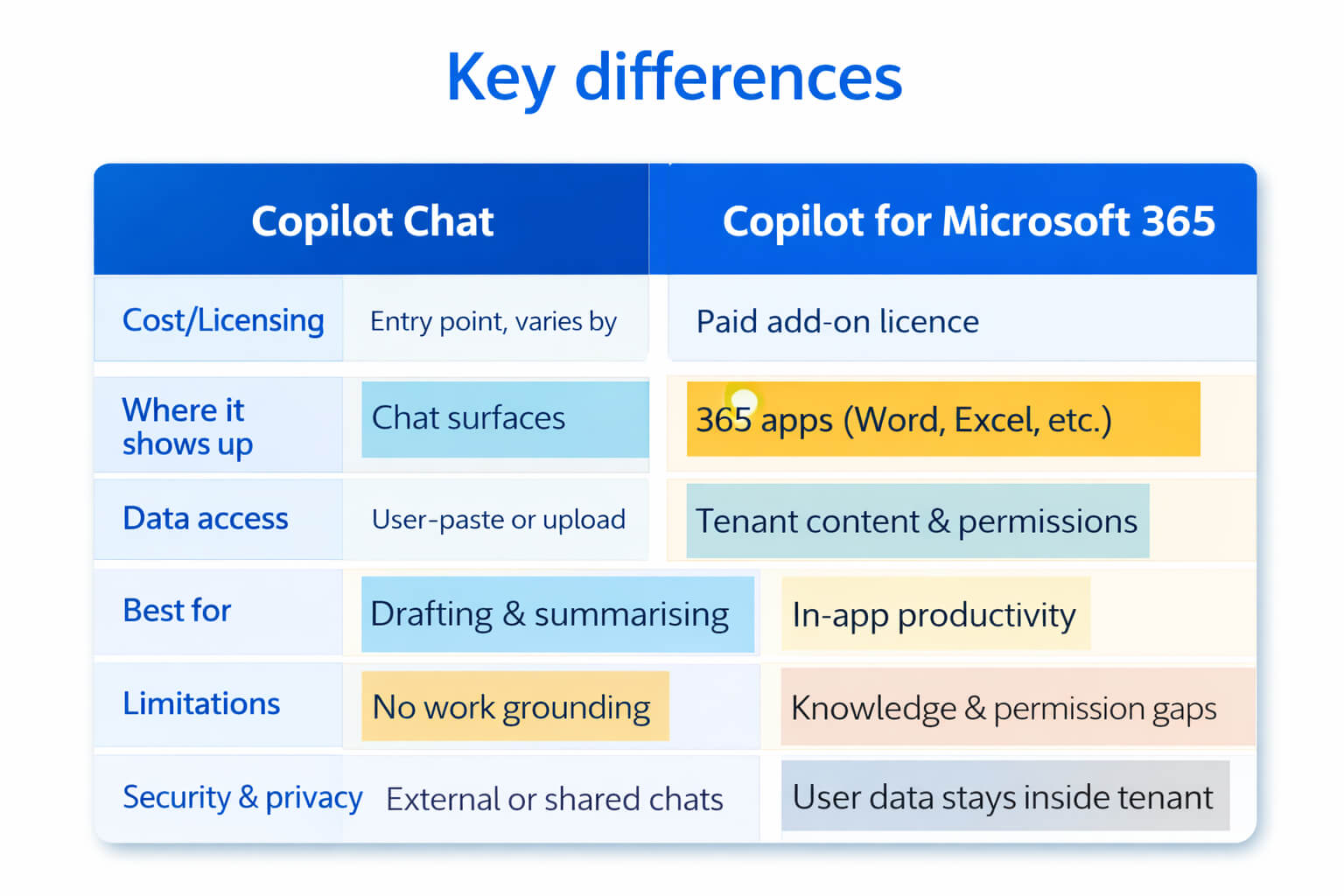
The key differences (comparison)
Copilot Chat helps you create great outputs from inputs you provide. Copilot for Microsoft 365 helps you create great outputs inside Microsoft 365 apps, potentially grounded in your work content, and still governed by permissions.
Security and privacy: what matters for enterprise and personal users
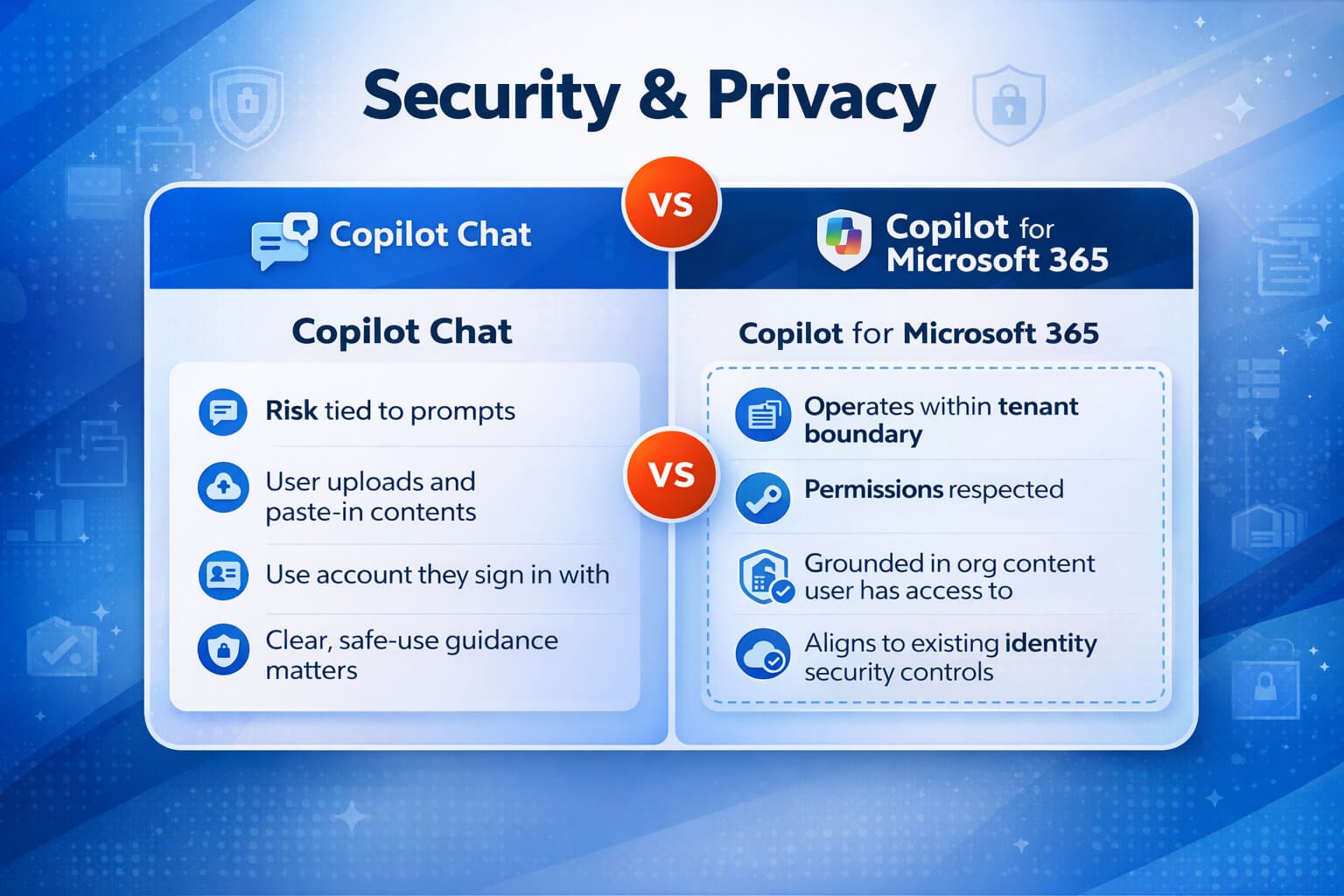
Let’s tackle the big concern head on: “Where does my data go?” The honest answer is that it depends on which Copilot experience you are using, how your tenant is configured, and whether you are signed in with a work account or a personal Microsoft account. The key is to separate three things: what Copilot can access, what it can return, and what your users choose to paste into prompts.
Quick rule: treat prompts like a message you would be comfortable posting in the wrong Teams channel. Not because Copilot is trying to leak, but because humans paste things. Humans are chaos.
Copilot for Microsoft 365 (enterprise): tenant boundary and permissions
For organisations, the core security story is this: Microsoft 365 Copilot is designed to work within your Microsoft 365 tenant and honour the permissions of the signed-in user. It does not magically gain access to content a user cannot access. If a user has access to a SharePoint site or a Teams file, Copilot may help them discover and summarise that content faster. That is why permissions hygiene matters.
What security teams usually want to hear (in plain English)
• Permissions apply: Copilot outputs are scoped to what the user can access.
• Identity controls still matter: Conditional Access, MFA, and device posture remain relevant because Copilot follows the user session.
• Microsoft states prompts and responses, and Graph data used by Microsoft 365 Copilot, are not used to train foundation models.
• Visibility improves: Copilot can surface what is already shared, which makes oversharing easier to spot and remediate.
If your organisation uses Microsoft Purview features such as sensitivity labels and data loss prevention, those are part of the broader governance conversation. The practical takeaway is simple: if content is labelled, stored, and permissioned properly, Copilot outcomes are both safer and more useful.
Copilot Chat: safety depends on account type and what users paste
Copilot Chat is often used for drafting and summarising from user-provided inputs. That changes the risk profile: the biggest risk is not Copilot “accessing everything.” The biggest risk is a user pasting sensitive data into a prompt without thinking. That is why a one-page safe use guide and short user training makes such a difference.
Safe use guidance you can copy
• Do not paste secrets: passwords, private keys, MFA codes, or confidential client identifiers.
• Avoid raw HR and medical details. Summarise or anonymise first.
• If you need AI help with sensitive content, prefer approved Microsoft 365 surfaces and governance controls, and keep it within your tenant.
• Teach users to remove identifying details and ask for structure, tone, and clarity instead.
Personal users and “shadow AI”: the real-world gotcha
In many organisations, the biggest Copilot risk is not Microsoft 365 Copilot. It is staff using consumer AI tools with a personal account, on a work device, with work content. That is not a Copilot problem. That is a policy and training problem.
Practical recommendation: tell users which tools are approved for work content, and which are not. If it is not approved, the rule is simple: do not paste work data into it.
If you want a clean rollout, combine Copilot adoption with governance basics: permissions review, sensitivity labels, and a short “how not to accidentally leak stuff” session. Nexacu can support this alongside Copilot training and Microsoft 365 readiness.
What users find frustrating (and why)
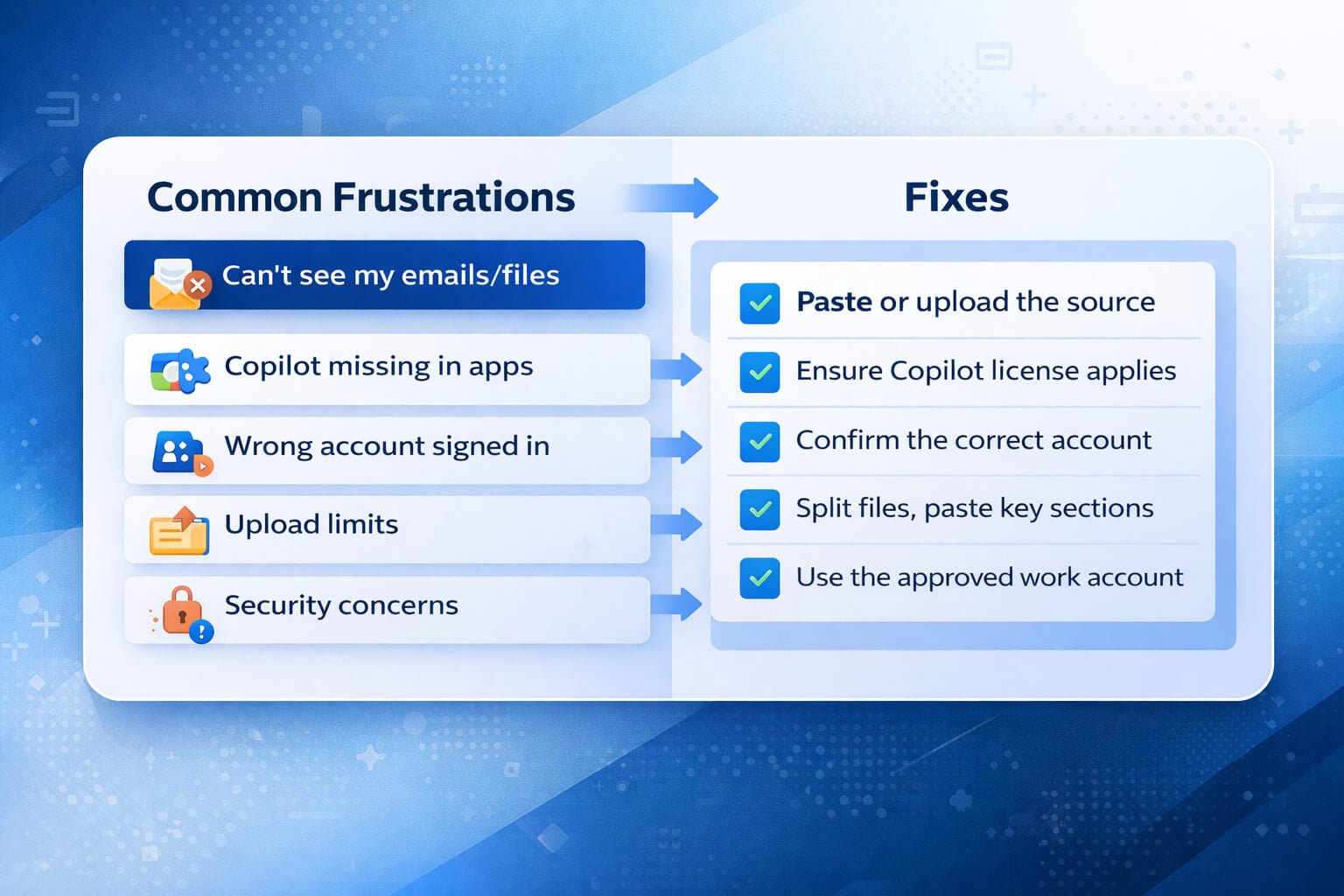
The good news is that Copilot frustration patterns are remarkably consistent. Once you know the “why”, the fixes are straightforward. The common complaints usually fall into five buckets: missing context, missing button, mixed accounts, upload limits, and trust questions.
1) Why can’t it see my emails, chats, or documents?
This is the classic expectations mismatch. Users want Copilot to act like it has read their entire Microsoft 365 world. If they are using Copilot Chat without work grounding, it cannot do that automatically. It can still help, but only with what the user provides. That is why a simple internal message like “Copilot is not mind-reading, please paste or upload the source” can save your support team a surprising amount of time.
For Copilot for Microsoft 365, the common issue is not “Copilot is broken.” The issue is often “our content is scattered, duplicated, and inconsistently named.” If a human struggles to find the right file, Copilot also struggles to reference it reliably. Standardising where templates live, using clear naming, and reducing duplicate versions improves Copilot outcomes fast.
2) Why is Copilot missing from Word, Excel, or Outlook?
Missing Copilot buttons are a morale problem. Users interpret it as a failed rollout, even when the cause is simple. Common reasons include licensing not assigned, licensing assigned but not applied yet, account conflicts (work vs personal), Office activation issues, and update channel differences. Admins and champions should have a standard checklist and avoid ad hoc troubleshooting. Consistency builds trust.
3) “Is my data safe, does it train the AI?”
This question decides adoption. The most accurate approach is careful wording plus practical governance. Microsoft states that prompts and responses, and data accessed through Microsoft Graph for Microsoft 365 Copilot, are not used to train the foundation models. That statement helps, but it does not replace good access controls, sensitivity labels, and user training on what should not be pasted into prompts.
The real risk is usually not Copilot “leaking” information. The risk is oversharing that already exists in SharePoint and Teams. Copilot can make that oversharing easier to discover. Treat Copilot as a catalyst to tidy permissions, not as the original cause of the problem.
4) Why do file uploads hit limits?
Users encounter upload limits or inconsistent availability and assume the tool is unreliable. In practice, different surfaces can have different capabilities, and policies can affect what is allowed. The practical workaround is to teach alternative workflows: paste key sections, summarise in chunks, or use structured templates so users can provide the minimum necessary input.
5) What does ‘grounded in my org data’ actually mean?
Grounded means the AI can anchor its output to relevant organisational content (where supported), rather than relying only on general patterns. It can improve relevance dramatically, but it is still not magic. If your content has weak structure or unclear ownership, Copilot can still produce vague output. The fix is boring, but effective: tidy templates, tidy naming, tidy permissions, and teach prompt structure. The payoff is worth it.
Common problems and quick fixes
Copy this section into your internal knowledge base if you like. It is deliberately skimmable and designed for service desk reality. The goal is not perfection, the goal is fewer tickets and faster resolution.
Troubleshooting checklist (fast)
• Confirm the user is signed in with the correct work account in the relevant app.
• Check for personal vs work account conflicts in Office sign-in (common on shared or long-lived devices).
• Verify the correct licence is assigned to the user, and allow time for entitlements to apply.
• Confirm Office is activated and updated. Some issues present after updates or repairs.
• If Copilot is missing only for some users, check update channel and build version differences.
• For “it can’t see my files,” confirm the file location and permissions. SharePoint access and link sharing matter.
• If results are generic, improve the prompt: goal, audience, source, format, and checks.
• If security concerns are raised, confirm the user is using an approved work account and not a personal account.
Practical support tip: ask the user to take a screenshot of the account they are signed into, and the place they expect Copilot to appear. Half of “Copilot is missing” tickets are identity or surface confusion.
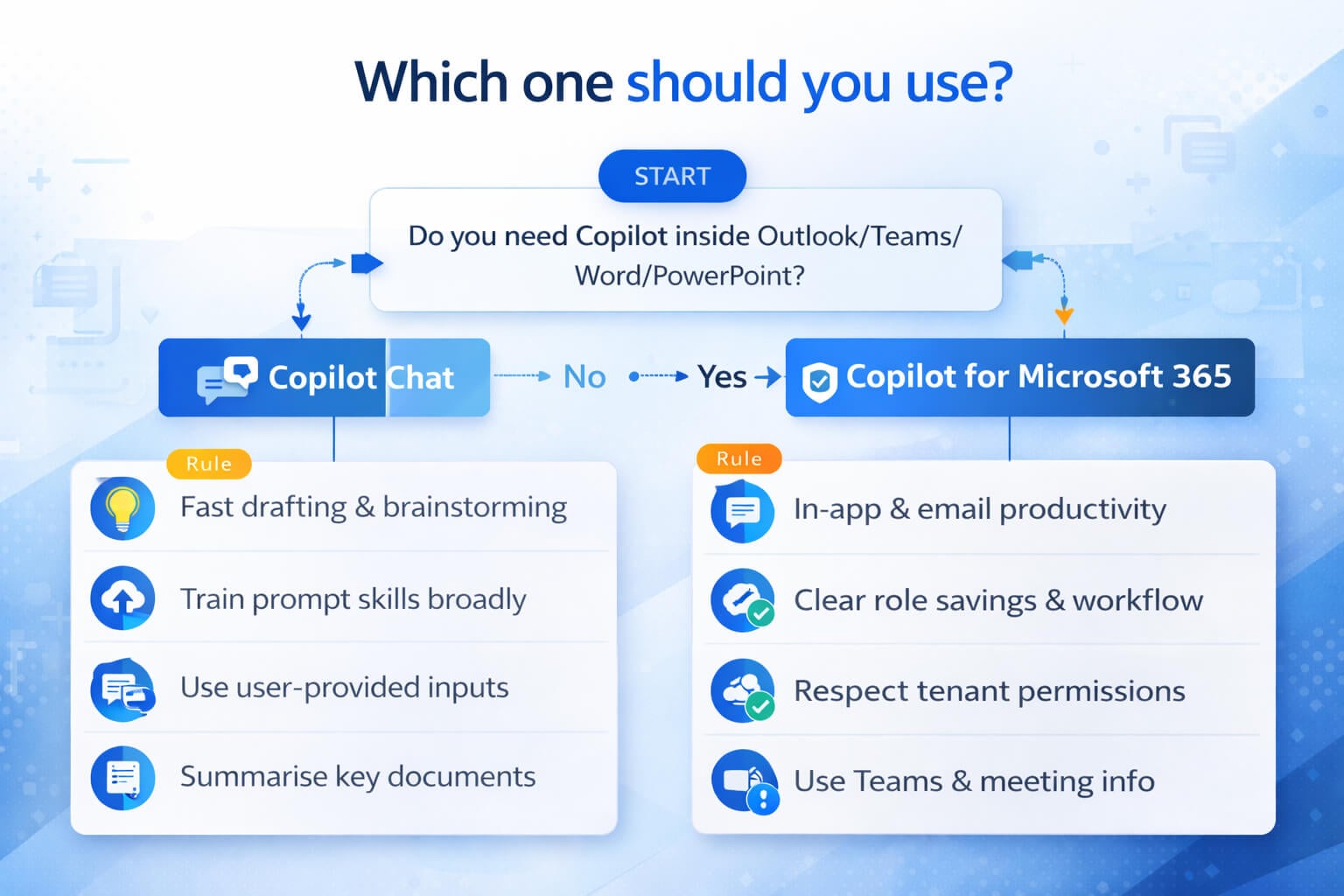
Which one should you use? Decision guide (5 to 7 rules)
The best Copilot strategy is usually not “all or nothing.” It is “right tool for the right role.” Use these rules to decide how to start, how to pilot, and when upgrading makes sense.
Rules of thumb
1) Choose Copilot Chat if you want fast wins for drafting and summarising using user-provided inputs, and you want to build prompt skills across the organisation.
2) Choose Copilot for Microsoft 365 if your users need Copilot inside Outlook, Teams, Word and PowerPoint, and you want work grounded outputs within tenant boundaries and permissions.
3) Start with high ROI roles for Microsoft 365 Copilot: executives, EAs, PMs, analysts, customer-facing managers, sales leadership, and service leaders who live in email and meetings.
4) Upgrade when context matters: if the use case depends on internal emails, meetings, chats and files, Copilot Chat alone will feel limited.
5) Fix content hygiene early: standardise templates, reduce duplicates, and clean permissions on high-value sites before scaling licences.
6) Treat governance as enablement: publish a one-page safe use guide so users know what not to paste into prompts.
7) Pair licensing with training: prompt skill is the multiplier. Without it, even the best licence can look underwhelming.
If you want a straightforward starting point: roll out Copilot Chat broadly with prompt training and safe use guidance, then pilot Microsoft 365 Copilot in a focused group where you can measure time savings. This reduces cost risk and avoids the “we bought licences but nobody uses it” scenario.
FAQs (tap to expand)
How to get value fast (adoption tips)
Copilot value comes from habit change, not feature discovery. The fastest rollouts pick a few workflows per role and train them properly. The slowest rollouts say “Here’s Copilot, good luck,” and then wonder why nobody uses it.
1) Choose three workflows per role
People adopt repeatable wins. For leaders: weekly updates, meeting follow-ups, and stakeholder emails. For project teams: action lists, risk summaries, and status reporting. For HR: policy drafts, onboarding checklists, and sensitive comms rewrites. For finance: narrative summaries of results, variance explanations, and management report drafts. Three is enough to build momentum without overwhelming people.
2) Build a prompt library tied to your templates
Most users do not want to invent prompts. They want something proven. Build a small prompt library that references your standard templates and output formats: proposals, meeting minutes, project updates, customer responses, and knowledge base articles. This improves output quality and reduces randomness, because users start with the right structure.
3) Fix the top 20 per cent of content first
You do not need to tidy every SharePoint site. Start with the content that drives real work: templates, policies, project hubs, onboarding, and key reporting packs. Clarify which document is the “source of truth.” Reduce duplicates. Use clear naming. This is the fastest way to improve Microsoft 365 Copilot output quality.
4) Make governance simple and practical
Publish a one-page safe use guide: what is approved, what is restricted, and who to ask. Keep it human. If it reads like a legal contract, users will ignore it. A practical guide builds confidence and speeds adoption.
5) Measure ROI with time saved, not vibes
A good pilot measures a few tasks per role: how long a weekly update takes, how long meeting follow-up actions take, how long it takes to draft a proposal outline. Then you compare after training and a few weeks of usage. Clear measurement beats speculation every time.
If you want a structured pathway, pair Nexacu Copilot training with Microsoft 365 fundamentals. Copilot outcomes improve when people know how to organise content in SharePoint and collaborate cleanly in Teams, so consider linking SharePoint courses and Teams training as part of your rollout.
Nexacu next steps
Make Copilot useful, safe, and adopted
Nexacu helps AU and NZ organisations turn Copilot into practical daily workflows. We can support licensing decisions, role-based prompt libraries, adoption plans, and Microsoft 365 readiness so Copilot performs better in Word, Outlook, Teams and SharePoint.
Suggested pilot plan
Week 1: prompt training and safe use. Week 2: three workflows per role. Week 3: measure time saved and quality. Week 4: decide where Microsoft 365 Copilot licences create the biggest return.
Make it stick
Combine Copilot enablement with Microsoft 365 fundamentals so your content is findable, your permissions are sensible, and your users can trust what Copilot references.
About this guide
This article is written from a Microsoft productivity and adoption perspective for AU and NZ organisations. Feature availability and licensing experiences can vary by tenant configuration and rollout timing. For governance and security decisions, validate your organisation’s configuration and Microsoft documentation before making policy changes.