How Admin & HR Teams Can Use Microsoft Copilot to Work Smarter
Practical prompts for onboarding, policy writing, approvals, reporting, and meeting follow-ups (without living in your inbox).
You’re three emails deep into explaining the same leave policy. Again. Your inbox is overflowing with approval requests, the onboarding checklist for your new starter isn’t finished, and you’ve just been asked to summarise last quarter’s exit interview data by end of day. Meanwhile, two Teams meetings are waiting for follow-up actions you haven’t had time to document.
Sound familiar? For Admin and HR professionals across Australia, interruptions, repetitive requests, and email overload aren’t occasional frustrations they’re the daily operating system. This is where Microsoft 365 Copilot earns its keep: not by replacing judgement, but by removing the repetitive grind so you can spend time on the human parts of the job (context, empathy, decisions, trust).
Table of contents
What Is Microsoft Copilot (and What Isn’t It)?
Microsoft 365 Copilot is an AI assistant embedded directly into the Microsoft 365 apps you already use: Word, Excel, Outlook, PowerPoint, and Teams. You interact with it using natural language prompts (“Draft…”, “Summarise…”, “Find…”, “Rewrite…”) and it helps create first drafts, summaries, insights, and follow-up actions.
Think of Copilot as a fast, tireless first-draft machine with a surprisingly decent bedside manner then you provide the judgement, nuance and compliance awareness. It’s not magic, it won’t read your mind, and it won’t replace HR decision-making. It will, however, give you back chunks of your week if you use it well.
What Copilot needs to work well
• Clear prompts (task + context + constraints + format).
• Clean structure (especially in Excel: headers, tables, no merged cells).
• Human review (Copilot is powerful, not infallible).
Confidentiality & Data Handling: The Part You Can’t Ignore
In HR, privacy isn’t a footnote it’s the plot. Microsoft 365 Copilot operates within your Microsoft 365 environment and uses your organisation’s data based on the access you already have. That’s the key: Copilot doesn’t grant new permissions, but it can make information much easier to find, which can expose existing permission problems.
A quick governance gut-check
• Are sensitive HR documents correctly permissioned in SharePoint/Teams?
• Are sensitivity labels / classification applied where needed?
• Have you defined “what not to do” (e.g., performance decisions without review)?
Practical rule
Treat Copilot like a very fast assistant: it can draft and summarise, but sensitive HR outputs should be reviewed, contextualised, and stored appropriately. If you wouldn’t forward it to the CEO by mistake, don’t let it autopilot out of your drafts folder.
Top Admin & HR Use Cases: Real Work, Real Prompts
Below are ten high-impact ways Admin and HR teams use Copilot in the real world plus prompts you can copy/paste and tweak for your organisation.
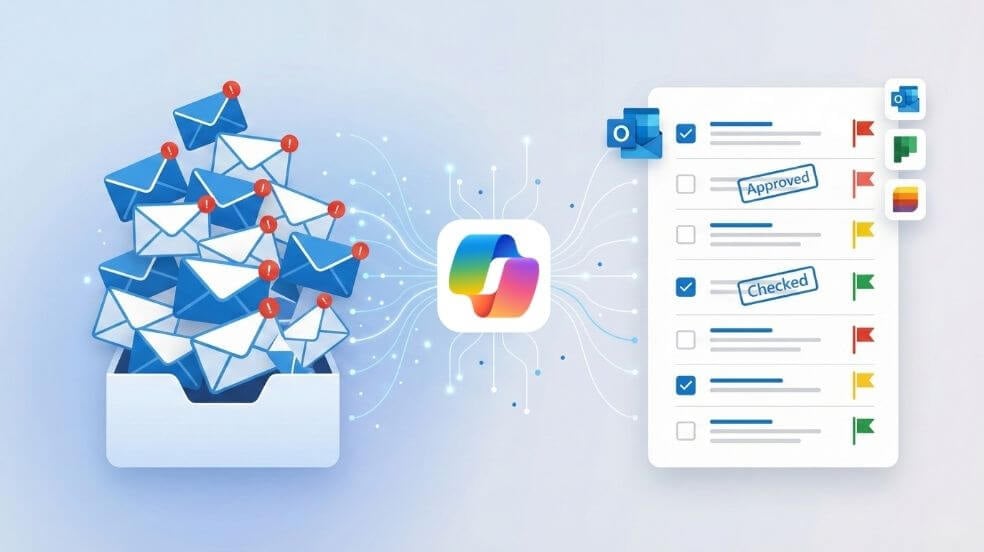
1) Approvals and request triage (Outlook)
Your inbox is basically a queue of micro-decisions. Copilot helps by summarising long threads, drafting responses in a consistent tone, and extracting who-owes-what-by-when so you don’t have to reread the same chain like it’s an epic fantasy series.
Prompts you can copy
“Review this email thread and list all outstanding approvals/actions, who is responsible, and any deadlines mentioned. Output as a numbered list.”
“Draft a reply explaining our process for [approval type], referencing [policy name]. Tone: empathetic, clear. Length: 150–200 words.”
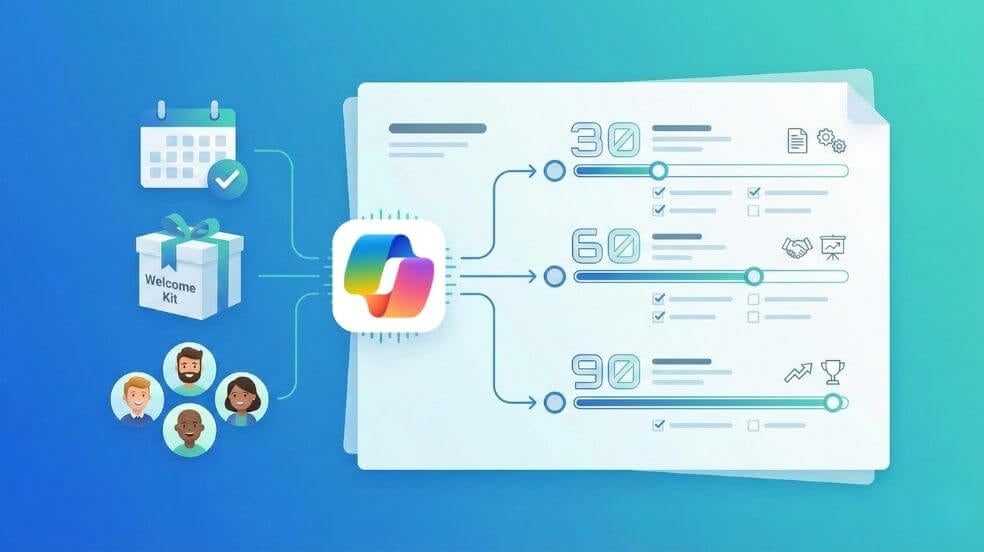
2) Onboarding plans and checklists (Word)
Onboarding is where “small misses” become “big problems” two months later. Copilot can generate a structured 30/60/90-day plan with role-specific milestones and a first-week schedule you can tailor.
Prompts you can copy
“Draft a 90-day onboarding plan and checklist for a new [job title]. Include: timeline, key contacts, systems access, training milestones, and check-in points.”
“Create a first-week schedule for [role] balancing admin tasks, training, and team introductions. Format as a table.”
3) Drafting role descriptions and interview questions (Word)
Writing position descriptions from scratch is slow and invites inconsistency. Copilot gives you a clean structure fast then you adjust for your organisation’s tone, requirements, and any award/industrial considerations.
Prompts you can copy
“Create a job description for [job title] including responsibilities, required skills, and experience level. Use inclusive, plain language.”
“Draft five behavioural interview questions for [role] assessing stakeholder management and problem-solving. Output as a numbered list.”
4) HR policy summarising and rewriting for clarity (Word)
Policies are often accurate but dense. Copilot can generate staff-friendly summaries, manager guides, and FAQs reducing repeat questions and improving compliance through clarity.
Prompts you can copy
“Summarise [policy name] into 10 key points for all staff. Keep it plain English. Output as dot points.”
“Generate an FAQ for [policy name] for non-HR staff. Include eligibility, process, timelines, and who to contact.”
5) Responding to common HR queries (Outlook)
The same questions arrive in different outfits: leave, flexible work, WFH, time-in-lieu, personal leave, parental leave, approvals. Copilot helps you respond consistently and quickly while keeping the tone human.
Prompts you can copy
“Draft a response explaining our [policy topic] in simple terms. Include eligibility and how to apply. Tone: supportive.”
“Rewrite this draft to be more empathetic while still clearly stating the policy requirement. Target length: 140–180 words.”
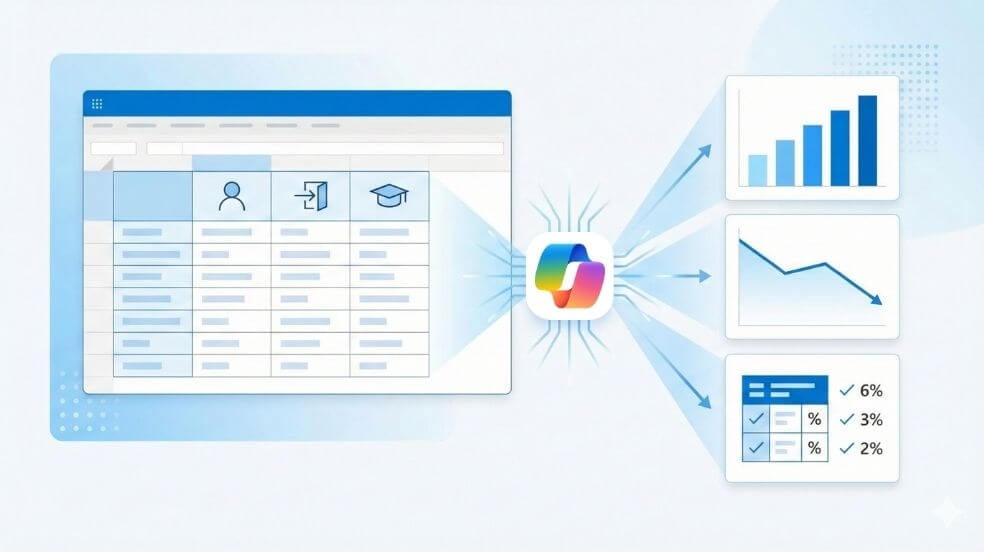
6) Reporting and insights in Excel (Excel)
If you’ve got HR data (headcount, turnover, training completion, engagement scores), Copilot can help summarise trends, group themes, and build pivots/charts without you doing a weekend-long pivot-table pilgrimage.
Prompts you can copy
“Identify turnover trends over the past 12 months and highlight departments above average. Create a chart.”
“Summarise the feedback in this sheet and group it into common themes. Output: table (Theme | Summary | Example quotes).”
Tip: Copilot works best when your data is structured as a Table (Ctrl+T), with clear headers and consistent formats.
7) Meeting notes, action items, and follow-ups (Teams)
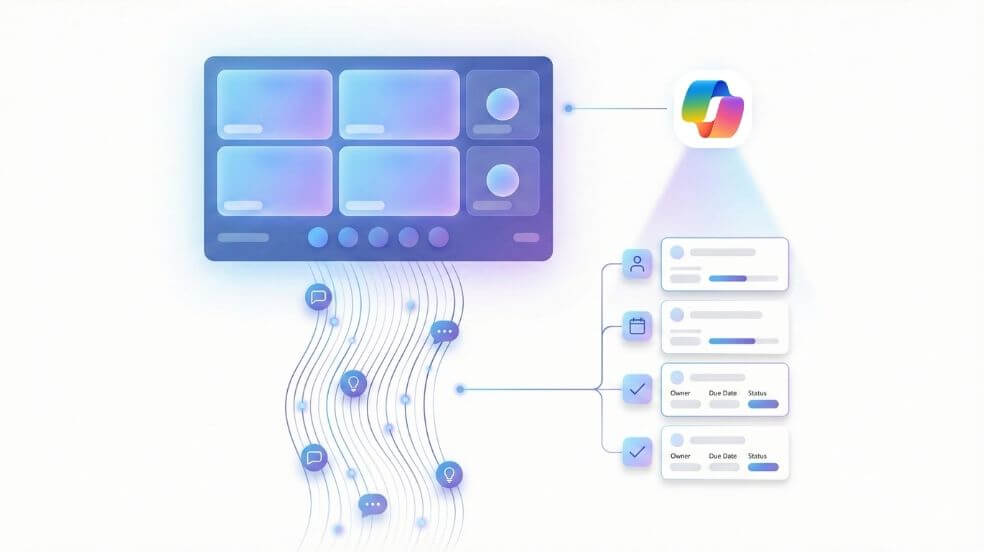
After a long meeting, the real risk isn’t “not taking notes” it’s losing decisions and actions to the void. Copilot can summarise, extract action items, and draft the follow-up email in minutes.
Prompts you can copy
“List all action items from this meeting, including who’s responsible and due dates. Output as a table.”
“Draft a follow-up email to attendees summarising decisions, actions, and next steps. Tone: clear, friendly.”
8) Internal comms: announcements and change updates (Word/Outlook)
Internal comms can take multiple drafts because you’re trying to be clear, accurate, and not accidentally start a small office uprising. Copilot speeds up the first draft, then you refine for tone and nuance.
Prompts you can copy
“Draft an email to all staff announcing [change]. Include: what’s changing, why, when, what staff need to do, and a short FAQ.”
“Generate five subject line options for an email about [topic]. Mix formal and conversational.”
9) Performance review support (ethical framing required)
Copilot can help you structure reviews and phrase feedback professionally, but it must not become the source of truth for performance decisions. Use it to improve clarity and tone then apply human judgement and context.
Prompts you can copy
“Rephrase this feedback to be constructive and specific, focusing on behaviours rather than personality. Tone: respectful, direct.”
“Create a performance review template with sections for achievements, development areas, and goals. Add guidance prompts under each heading.”
Important: Review and personalise all performance content. Copilot can help with wording, but it doesn’t own the consequences.
10) Training plans and learning pathways (Word/Excel)
Copilot can generate role-based development plans, skills gap summaries, and manager conversation guides helpful for L&D and for managers who want to support growth but don’t know where to start.
Prompts you can copy
“Create a 6-month development plan for a [role] aiming to move into [next role]. Include skills, activities, and milestones.”
“Draft a manager conversation guide for professional development. Include 8–10 open questions and a simple action plan template.”
Prompt Patterns Admin & HR Can Reuse (Without Thinking Too Hard)
The most reliable prompt formula is: Role + Task + Context + Constraints + Output format. When you give Copilot the “shape” of what you need, it stops improvising and starts producing something usable.
Copy/paste prompt templates
Drafting: “You are an HR advisor writing for non-HR staff. Draft a summary of [policy name] in plain language, avoiding jargon. Output: max 200 words as dot points.”
Summarising: “Summarise this document focusing on eligibility, process, and timelines. Output: a table with 3 columns.”
Tone rewrite: “Rewrite this email to be empathetic and supportive, while clearly explaining the policy requirement. Target length: 150 words.”
Action extraction: “List all outstanding actions, owners, and deadlines from this thread. Output: numbered list.”
Pro move: save your best prompts in a shared “Prompt Library” doc so your team gets consistency (and you stop reinventing wheels).
Common Mistakes (And How to Avoid Them)
Mistake #1: Vague prompts with no context
“Write an email about leave” creates generic output. Add audience, policy reference, tone and format constraints.
Mistake #2: Trusting outputs blindly
Copilot can sound confident and still miss nuance. Review and tailor especially for HR-sensitive content.
Mistake #3: Not specifying format
Ask for “dot points”, “table”, “200 words max”, “include a subject line”, etc. Structure = better outputs.
Mistake #4: Messy permissions + poor classification
Copilot will happily surface content you have access to so make sure access is intentional. Tidy SharePoint/Teams permissions and use sensitivity labels where appropriate.
Quick Checklist: Getting Started with Copilot Today
Week 1 plan (simple, realistic, effective)
Day 1: Pick one repetitive task (e.g., approvals triage). Write a prompt with context + output format. Save your best prompt.
Day 2: Create an onboarding checklist draft in Word. Refine with “shorter”, “more formal”, “as a table”.
Day 3: Summarise a policy into a staff-friendly 1-pager + FAQ.
Day 4: Use Excel Copilot to summarise HR data trends (turnover, training) and generate a chart.
Day 5: Use Teams Copilot to extract actions from a meeting and draft the follow-up email.
Frequently Asked Questions
Is Copilot safe for HR data?
In enterprise environments, Copilot is designed to operate within your tenant and follow existing permissions. The key risk is governance: messy access controls can lead to sensitive content being surfaced to people who already (technically) had access. Clean permissions and apply classification/sensitivity labels.
What Microsoft apps does Copilot work in?
Microsoft 365 Copilot works across Word, Excel, PowerPoint, Outlook and Teams (and related Microsoft 365 experiences depending on licensing and rollout).
Do we need perfect data for Copilot to help?
No but structure helps. For Excel, use clear headers, consistent formats, avoid merged cells, and use Tables (Ctrl+T) where possible. For docs and email, better prompts = better outputs.
Nexacu training
Use Copilot confidently in Admin & HR workflows (without “oops” moments)
Nexacu delivers instructor-led Microsoft Copilot training across Australia practical, hands-on sessions covering Copilot in Word, Excel, Outlook, Teams and PowerPoint, with real Admin & HR use cases.