How to Use XLOOKUP in Excel: The Complete 2026 Guide (With Worked Examples)
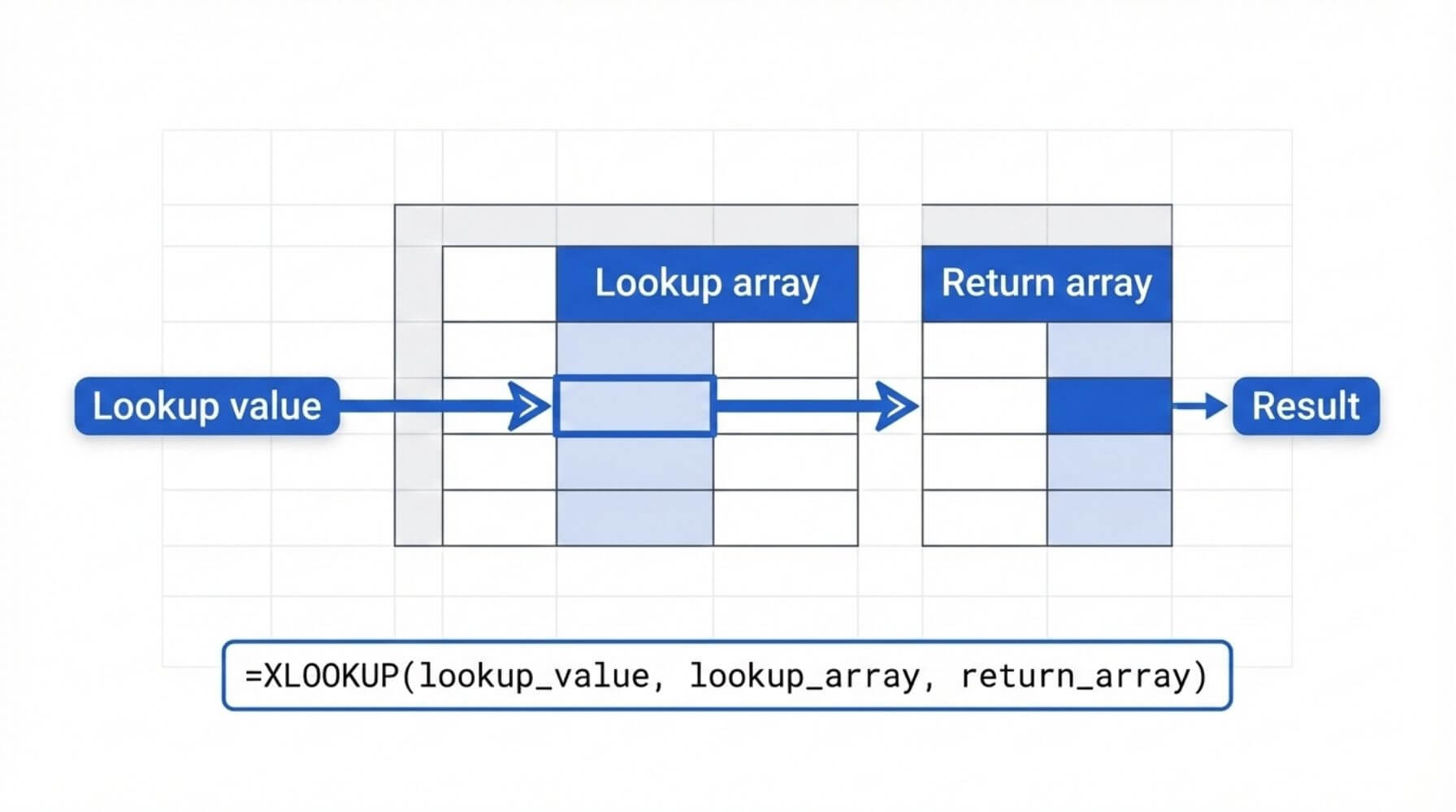
XLOOKUP replaces VLOOKUP by searching any column and returning results without worrying about column positions. Here’s the core syntax: =XLOOKUP(lookup_value, lookup_array, return_array). Add optional arguments to handle missing values, approximate matches, wildcards, and “latest record” lookups.
If you rely on Excel for reporting, operations, finance, HR, inventory, or service delivery, you have probably felt the pain of brittle lookups. Someone inserts a column, a report starts returning the wrong results, and suddenly your “quick spreadsheet” becomes a risk register. XLOOKUP is Microsoft’s modern lookup function built to reduce that fragility and make formulas easier to read, easier to maintain, and safer in shared files.
This guide is written for AU/NZ business users, team leaders, IT decision makers, and Microsoft 365 admins who want practical outcomes. You will learn XLOOKUP with worked examples you can copy and adapt, plus governance tips for rolling it out across a team.
TL;DR: Use XLOOKUP for most modern lookup needs. It supports left lookups, exact match by default, built-in “if not found” handling, and can return multiple columns at once. For tiered bands (pricing, grades, thresholds), use an approximate match mode. For “latest record wins” scenarios, search from the bottom.
If your organisation standardises templates or shared reporting, XLOOKUP improves reliability and reduces maintenance overhead.
1) What is XLOOKUP and why use it?
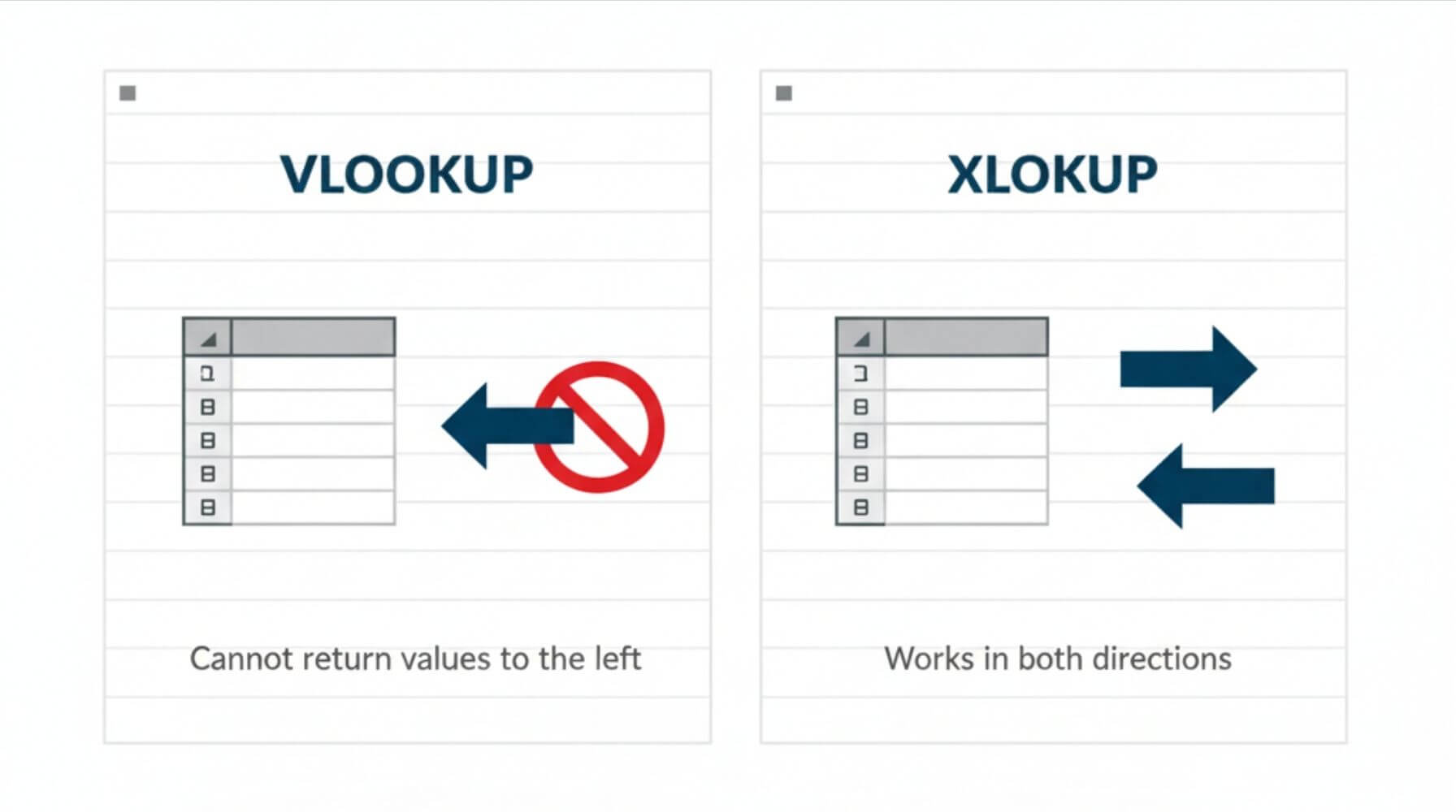
XLOOKUP is a modern Excel function that finds a value in one range and returns a related value from another range. It was designed to solve common limitations in VLOOKUP and to reduce the complexity of INDEX + MATCH combinations.
- Works for left lookups and right lookups without rearranging columns.
- Exact match is the default, which reduces surprise results.
- Built-in “if not found” handling, which keeps reports cleaner.
- Can return multiple columns in one go in modern Excel.
- More readable formulas means fewer support tickets and less spreadsheet archaeology.
- Lower risk of silent errors when columns are inserted or moved.
- Plays well with modern Excel features like dynamic arrays.
- Easier to standardise in templates and training.
One practical note: XLOOKUP is available in modern Excel versions, including Microsoft 365. If your organisation has a mix of versions, confirm compatibility before rolling it out in shared templates. A common approach is to standardise templates used in Microsoft 365 while providing fallbacks for legacy users.
2) XLOOKUP syntax explained (simple and full)
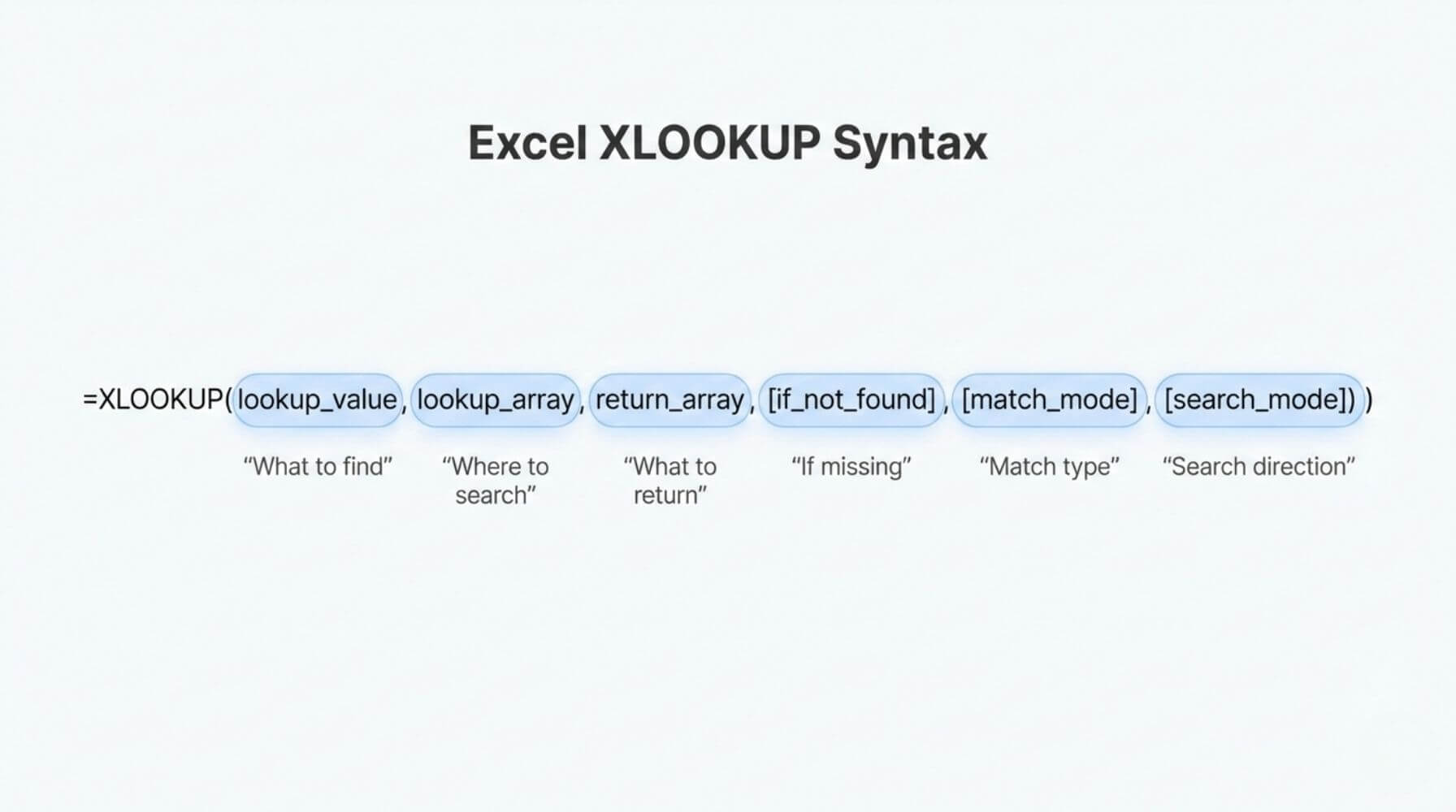
Most of the time, you only need the first three arguments. The extra arguments are there for safety and edge cases, and they are worth learning because they prevent avoidable errors.
Practical guidance: treat XLOOKUP like a reliable tool, not a magic wand. Decide what “a match” means in your context (exact, approximate, wildcard), and always think about what should happen when no match exists. In business reporting, predictable behaviour beats cleverness.
3) Worked examples you can copy and adapt
The examples below use realistic patterns seen in AU/NZ workplaces: staff lists, pricing, asset registers, project trackers, and service logs. Replace the ranges with your own columns, or convert your data to an Excel Table (recommended) so ranges expand automatically.
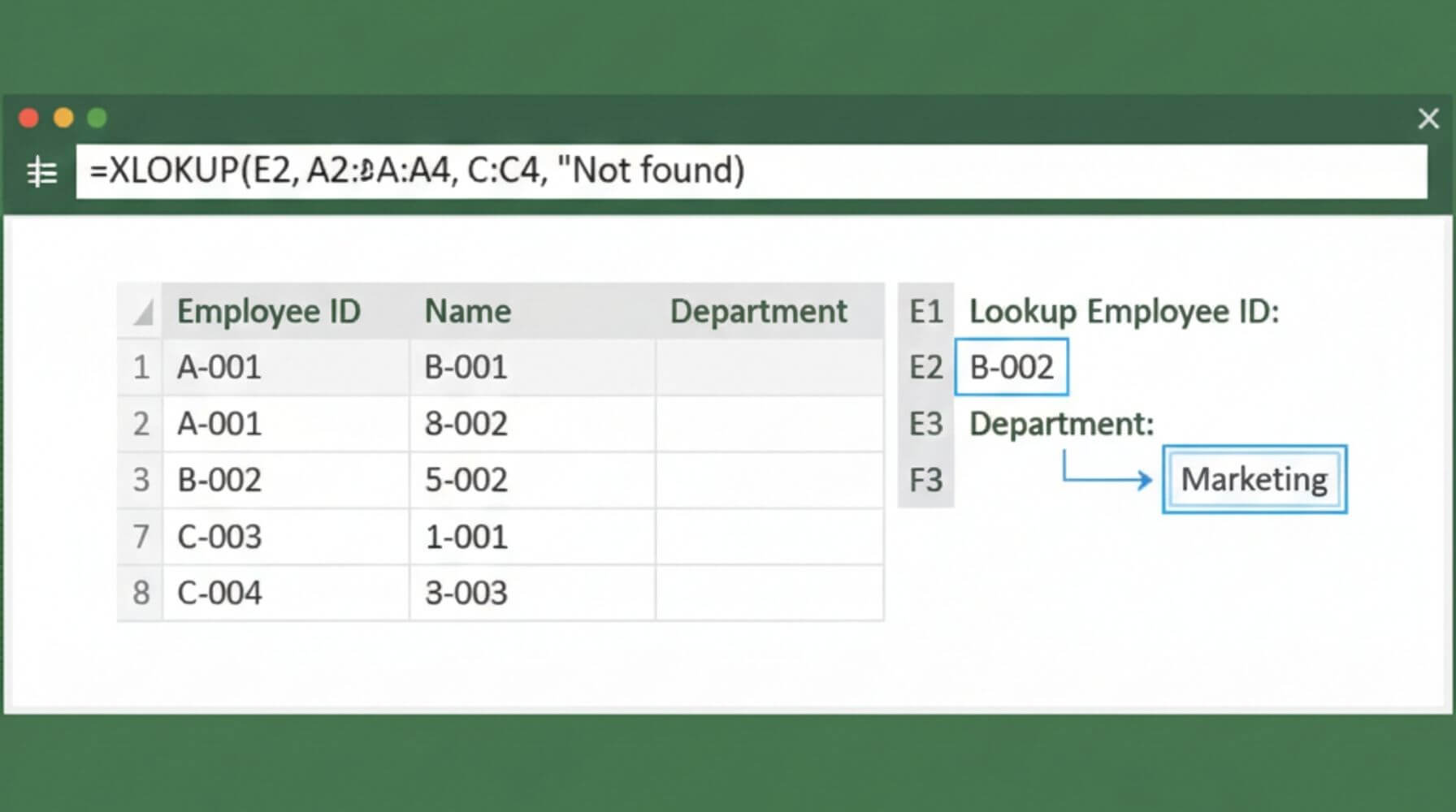
Find a person’s department using their employee ID. Lookup is in A, return is in B.
Tip: Make E2 a data validation dropdown to reduce typos in shared sheets.
Look up a product code from a product name. Lookup is in C, return is in B.
This is one of the biggest practical wins over VLOOKUP.
Keep dashboards readable by replacing #N/A with something business-friendly.
In operational reports, “Not found” is usually better than silence.
Assign a discount based on spend thresholds (sorted ascending).
Match mode -1 means exact match or next smaller item.
Useful when users type partial names or keywords, and your source data is descriptive.
Match mode 2 enables wildcards. Make sure you understand the risk of multiple similar matches.
Return email and team in one formula. Return range spans multiple columns.
Results “spill” into adjacent cells, which is excellent for forms and quick summaries.
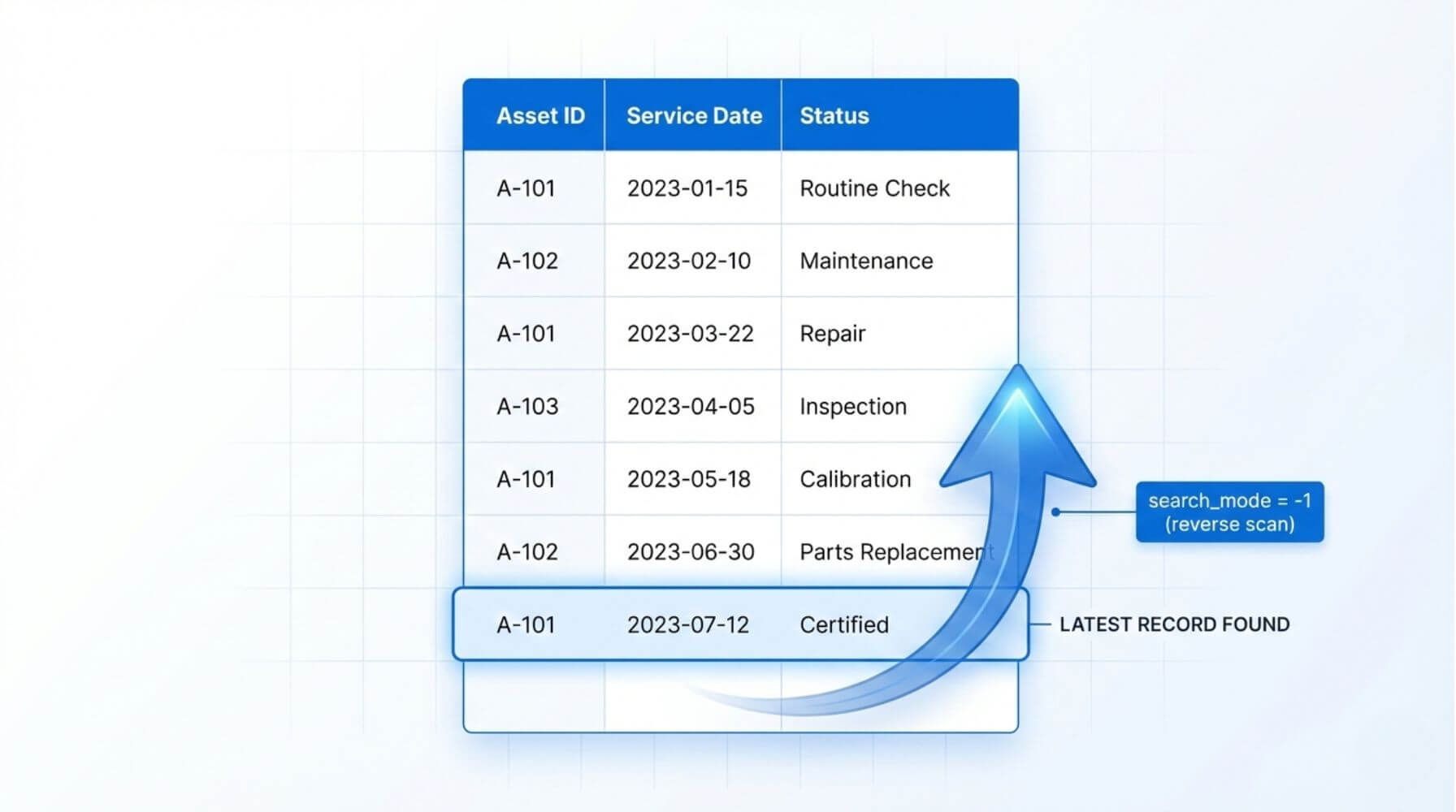
Find the most recent entry where values change over time (for example, last service date or latest rate).
Search mode -1 searches last-to-first. Great when your data is appended over time.
Example: If the lookup returns blank, show “Action required”.
For performance, you can also store the XLOOKUP result in a helper cell, then reference it.
Want to level up beyond “just the formula”? XLOOKUP becomes far more powerful when paired with structured tables, data validation, and clean data habits. If your broader reporting lives in Microsoft 365, it is also worth aligning Excel skills with Teams and SharePoint practices so files are stored, shared, and versioned safely. Relevant training options include Microsoft 365 essentials and collaboration workflows: Microsoft 365 training courses, Microsoft Teams training, and SharePoint training.
4) Key differences (comparison)
This section is designed to help leaders and admins standardise spreadsheet practices. It also helps business users choose the right tool when they inherit older files.
Practical recommendation: For most teams on Microsoft 365, standardise new templates on XLOOKUP and keep a short compatibility guide for older workbooks. If your organisation shares spreadsheets with external parties who may be on older Excel versions, consider exporting values or providing a legacy alternative.
5) Quick fixes for common XLOOKUP problems
Most XLOOKUP issues fall into a few predictable categories. Fixing them is usually about data hygiene and clarity, not more complicated formulas.
- Add [if_not_found] so reports stay readable.
- Check for extra spaces or non-printing characters in the source data.
- Confirm you are looking up the same data type (text vs number).
- Ensure your thresholds are sorted properly.
- Use the correct match_mode for your scenario.
- Document assumptions in a note next to the table.
- Decide whether you want the first or last match.
- Use search_mode to search bottom-up for “latest wins”.
- If duplicates are not allowed, add a data validation rule.
- Use wildcards only when users genuinely enter partial values.
- Add guardrails like dropdowns or controlled lists.
- Consider cleaning data to standard formats instead.
If your spreadsheets support business decisions, treat “quick fixes” as a prompt to improve the underlying data process. Many teams reduce errors by storing reference data in SharePoint lists or controlled master files, then linking them into Excel. For organisations standardising collaboration and document governance, SharePoint and Teams skills often go hand-in-hand: SharePoint training courses and Teams training courses.
6) Best practices for reliable lookups in shared workbooks
XLOOKUP is only as reliable as the data you feed it. The best results come from pairing the function with a few sensible habits that scale across teams.
- Use Excel Tables for source data so ranges expand automatically.
- Name key ranges or use table column references for readability.
- Prefer exact match unless you truly need approximate or wildcard behaviour.
- Always set [if_not_found] in reports and dashboards.
- Control inputs with dropdowns or validation to reduce typos.
- Document assumptions next to reference tables (sorted, unique keys, latest wins).
- Minimise duplicates in lookup keys or decide a consistent rule.
- Version shared files in SharePoint or Teams to avoid “final_v7_reallyfinal.xlsx”.
Keep “lookup tables” (staff lists, cost centres, product codes, client IDs) in one governed location. Link reports to that source, rather than copying the same list into multiple spreadsheets. This reduces mismatch, improves auditability, and makes changes easier to manage.
For sheets used by many people, add protected ranges, input cells, and clear instructions. XLOOKUP helps, but governance prevents avoidable errors in the first place.
If your organisation is standardising Microsoft 365, it often makes sense to train Excel skills alongside Microsoft 365 collaboration practices. This reduces “spreadsheet sprawl” and keeps data in the right place. Browse: Microsoft 365 training courses.
7) Security and privacy: using Copilot responsibly with Excel and lookups
Many teams now use AI assistants to explain formulas, generate examples, or troubleshoot spreadsheets. That can be helpful, but leaders and Microsoft 365 admins should be clear on data handling. The key point is that not all “Copilot” experiences are the same, and the privacy posture depends on the product and how it is licensed and configured.
In everyday language: Copilot Chat is a chat experience where you ask questions and get answers. Microsoft 365 Copilot is integrated into Microsoft 365 apps (like Excel, Word, Outlook, Teams) and can work with your organisation’s content, depending on your permissions.
- Good for: learning concepts, drafting generic formulas, explaining syntax.
- Risk: users may paste sensitive data into prompts.
- Safe approach: ask using anonymised examples and dummy data.
- Good for: working within your files, summarising, suggesting steps in context.
- Permissions matter: it should only access data the user can already access.
- Admin focus: governance, access control, and safe-use policies.
What to tell enterprise organisations (AU/NZ business and government)
For enterprise environments, the conversation should be grounded in governance. AI features do not magically create new access, but they can surface information faster. That means existing permission issues become more visible, and that is actually useful if handled well.
Practical guidance for enterprise:
- Review SharePoint and Teams permissions before expanding Copilot use. Overly broad access becomes a bigger risk when discovery is faster.
- Set clear safe-use rules for what can and cannot be pasted into chat tools.
- Use sensitivity labels and data loss prevention where appropriate, especially for customer data, HR records, and financial information.
- Train users on “prompt hygiene” and how to create anonymised examples for learning.
- Start with pilot groups and measure outcomes: time saved, quality of outputs, and error rates.
What to tell personal users (home or non-work accounts)
For personal use, the main message is simple: avoid sharing sensitive information in any AI chat if you are not sure how it is handled. Use fictional or anonymised data when asking for help with formulas. If you are working with personal financial records, medical details, or identifiable information, keep the prompt generic.
Copilot value increases when your Microsoft 365 environment is well governed. That includes clean group membership, least-privilege access, and predictable content locations. If your organisation is still dealing with uncontrolled file sharing, fix that first.
- Do not paste customer or employee data into chat prompts.
- Use sample datasets when learning XLOOKUP.
- Double-check formula logic before relying on outputs in a report.
- If a result drives a decision, validate it with a second method.
If you are building internal capability around safe and effective Copilot use in Microsoft 365, structured training can help align business teams and admins on what “good” looks like. Explore Nexacu’s options here: Microsoft Copilot courses.
8) FAQs (expand to read)
These are common questions that come up in training sessions and internal support channels.
Is XLOOKUP always better than VLOOKUP?
For most modern Excel users, yes. It is more flexible, more readable, and safer by default. The main reason to keep VLOOKUP is compatibility with older Excel versions in shared files.
Why does my XLOOKUP return the first match when I need the latest?
XLOOKUP searches top-to-bottom by default. If your data contains duplicates and you want the most recent entry, use search mode -1 to search from the bottom.
How do I avoid #N/A in dashboards?
Use the [if_not_found] argument. This keeps outputs clear for stakeholders who do not speak “Excel error code”.
Can XLOOKUP return multiple columns?
Yes, in modern Excel versions that support dynamic arrays. Set the return range to multiple columns and Excel will spill the results into adjacent cells.
What is the safest way to standardise lookups across a team?
Use Excel Tables for source data, prefer exact match, always include an if-not-found output, and store reference data in a governed location. Pair the technical approach with simple process rules, like where master lists live and who can update them.
9) Next steps: make XLOOKUP stick in the real world
Learning XLOOKUP is easy. Making it stick across an organisation is a change management exercise in miniature. The biggest wins usually come from standardising templates, cleaning reference data, and aligning collaboration practices so everyone uses the same “source of truth”.
- Update templates: replace VLOOKUP in new templates with XLOOKUP, with [if_not_found] included by default.
- Define data owners: nominate owners for reference lists (staff, clients, product codes) and store them in a governed location.
- Train the 20 percent: focus on the people who build reports and models for everyone else.
- Add guardrails: validation lists, protected ranges, and a short “how to update safely” note inside the workbook.
- Review in 30 days: collect feedback on error rates, maintainability, and time saved.
If you want a structured path that builds confidence fast, start with Microsoft 365 foundations and collaboration habits, then build into Excel capability: Microsoft 365 training, Teams training, and SharePoint training.
Build confident, reliable reporting with hands-on training
Nexacu’s Excel training covers XLOOKUP in real scenarios, including dashboards, data cleansing, and the “gotchas” that cause errors in shared files. For teams working in Microsoft 365, we also help you improve how spreadsheets are stored, shared, and governed.
- Microsoft 365 training courses
Governance, collaboration, and productivity foundations
- Microsoft Teams training courses
Better file collaboration and fewer versioning issues
- SharePoint training courses
Structured storage, permissions, and single source of truth
- Microsoft Copilot courses
Practical safe-use guidance for business teams and admins
Note: Excel features vary by version and licensing. If your organisation uses mixed Excel versions, confirm compatibility before standardising templates.